60 creative presentation ideas and design tips


Share 60 creative presentation ideas and design tips
Explore more from
Design basics
Build a brand that speaks clearly
Unify logos, colors, and messaging in Figma.


Struggling to make your presentation pop? You’re not alone. Forty-seven percent of presenters say designing slides is a challenge. Presentation tools like PowerPoint, Google Slides, and Keynote are ideal for delivering content, but uninspired layouts can make even the best information fall flat.
From bold design decisions to incorporating audience participation, you can turn these fun presentation ideas into your own.
Read on to learn more about:
- Using colors, graphics, and storylines to captivate your audience
- Laying out your presentation slides for easy comprehension
- Incorporating quotes, statistics, and experts for emphasis
Idea 1: Go bold with fonts and text


Presentation slides can quickly become monotonous if they use the same design repeatedly. Spice up your slides and highlight important information by going bold with colors and fonts. Want to make an impressive statistic stand out? Use a larger typeface and bold colors like red or neon green. Of course, a little goes a long way, so limit bold colors and type to meaningful areas to keep a polished look.
Idea 2: Create a unique color palette

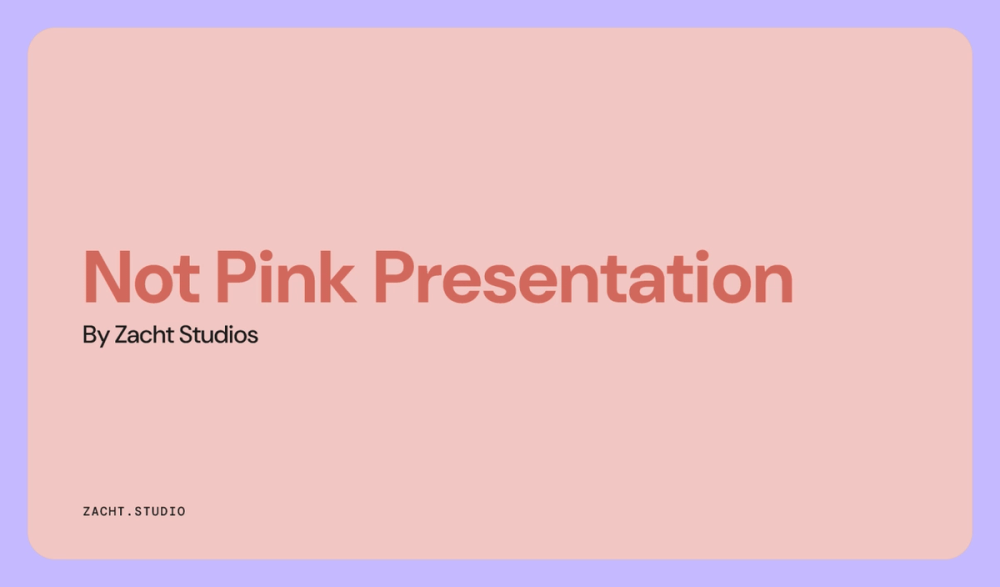
A fresh color palette can instantly boost your presentation’s appeal. Use color theory to find colors that work well together, such as red and navy blue or yellow and lavender, to create a cohesive, visually engaging design.
Idea 3: Grab attention with animated illustrations
Incorporate subtle animations to guide your audience’s attention and emphasize key points. Whether it’s a smooth transition between slides or an animated graphic that highlights important data, these elements can make your presentation more engaging. Tools like Figma make it easy to add these touches. Just be sure to keep it tasteful and purposeful.
Idea 4: Highlight key data with color
Use color to highlight important areas and enhance readability. For example, midnight blue is a great way to create contrast between elements in your chart or graph. Call out specific categories in different colors to help viewers differentiate between metrics, even when viewed from the back of the room. When designing, consider accessible color palettes that are visible to individuals with color blindness.
Idea 5: Explore typography for storytelling

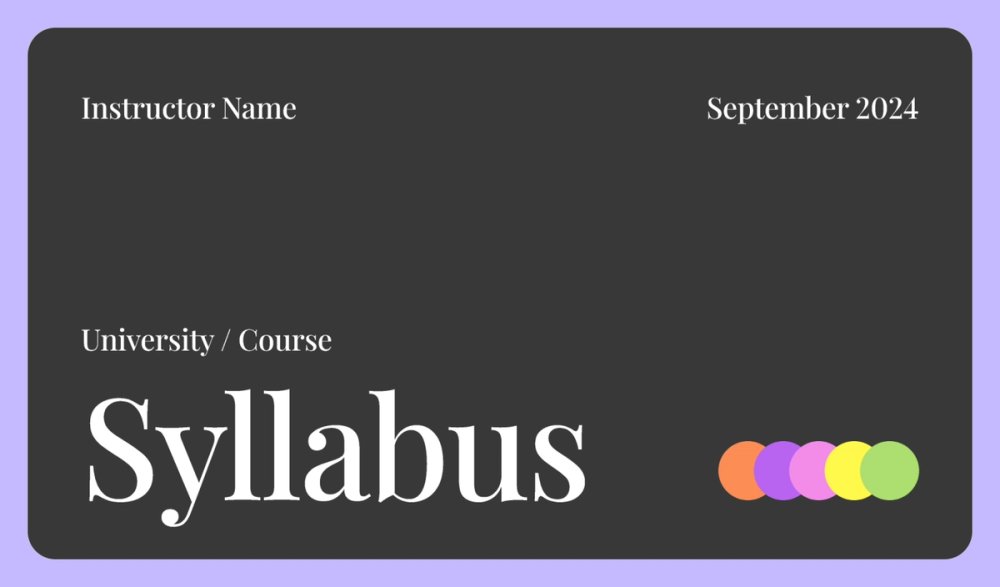
Typography can make a big difference in setting the tone for your presentation. The style of your text evokes different emotions or meanings. For example, a handwritten-style font can convey a sense of personalization, while a refined serif font communicates a more modern vibe. Choose a typeface that’s easy to read and fits the message you want to convey.
Idea 6: Embrace vibrant colors

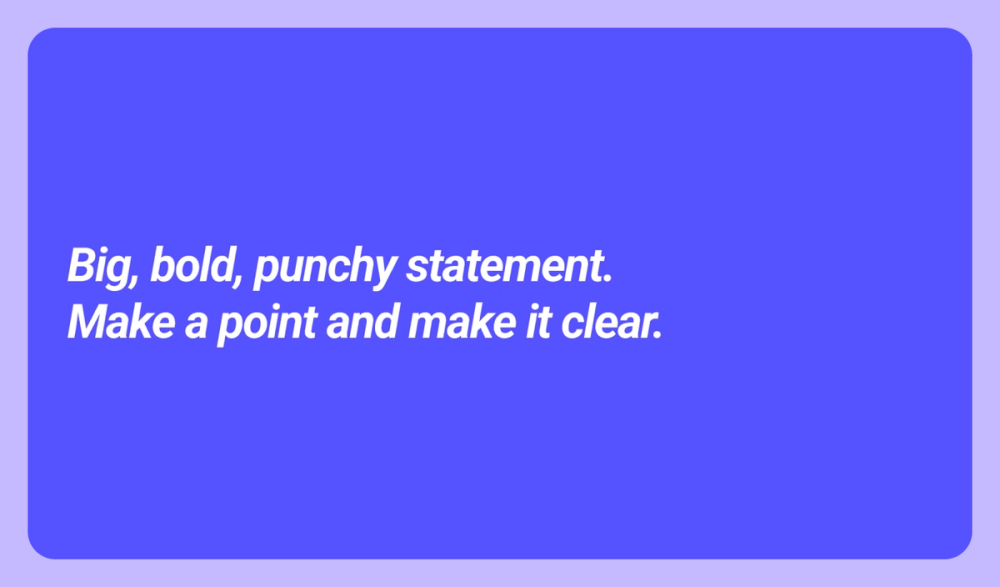
Vibrant colors can make your presentation more dynamic and engaging. Whether you use them consistently or just to highlight key moments, bright colors can energize your presentation and reinforce your message. For example, you might turn to hot pink to grab attention and convey a fun, playful energy.
Idea 7: Use lines to break up data
When you can’t reduce the amount of information on a slide, use lines or dividers to separate content and improve readability. This technique works well for text-heavy slides and complex graphs, creating clear boundaries around ideas or steps for better visual flow.
Idea 8: Create unique photography for your slideshow


Photography can be a powerful tool in your presentation, helping to convey your message in a visually compelling way. Avoid generic stock images if you can, and consider using original photography. Custom photography can create a strong visual narrative, whether it’s one-of-a-kind photos created by your company or unique images that follow a cohesive theme.
For instance, you could use a series of photos that chronicle a journey, aligning with the progression of your presentation. This approach keeps your audience engaged with a consistent visual story.
Idea 9: Add creative borders

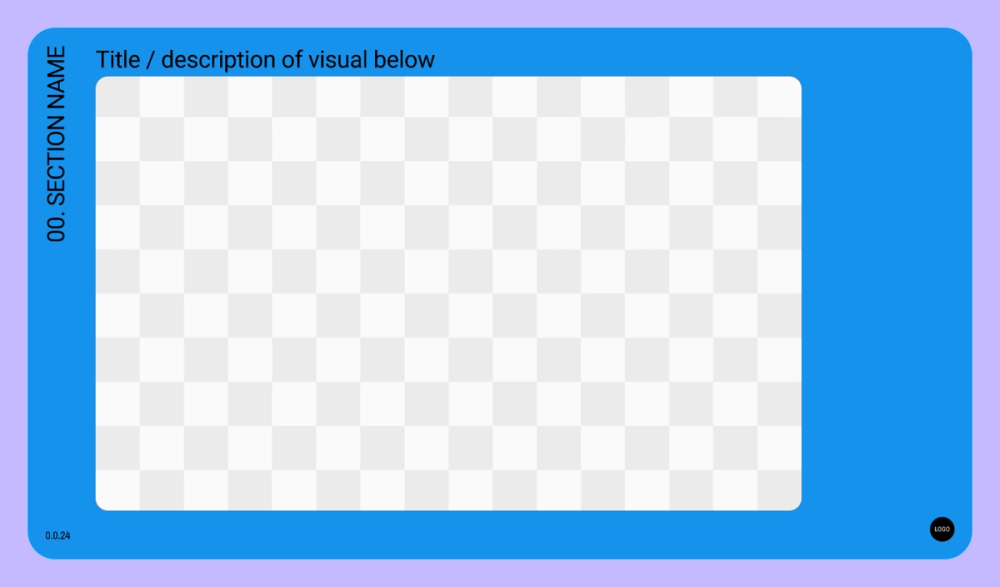
Borders can be a simple yet effective way to make your presentation more visually engaging. By framing your slides, images, or critical points with unique borders, you can guide your audience’s attention to important content. Experiment with different styles—a clean, minimalist line or a more intricate pattern—to complement your presentation’s theme and enhance the overall aesthetic.
Idea 10: Create a two-tone presentation
Stick to a two-tone color scheme to simplify your presentation design. This approach creates visual harmony and makes your slides look clean and cohesive. Choose two colors that complement each other and resonate with your message—a soft, professional palette or a bold, high-contrast combination.
Keep color meaning and psychology in mind to ensure the tones you select align with the mood of your presentation. This minimalist approach can help you deliver a clear, focused message without overwhelming your audience.
Idea 11: Highlight key points with pops of color

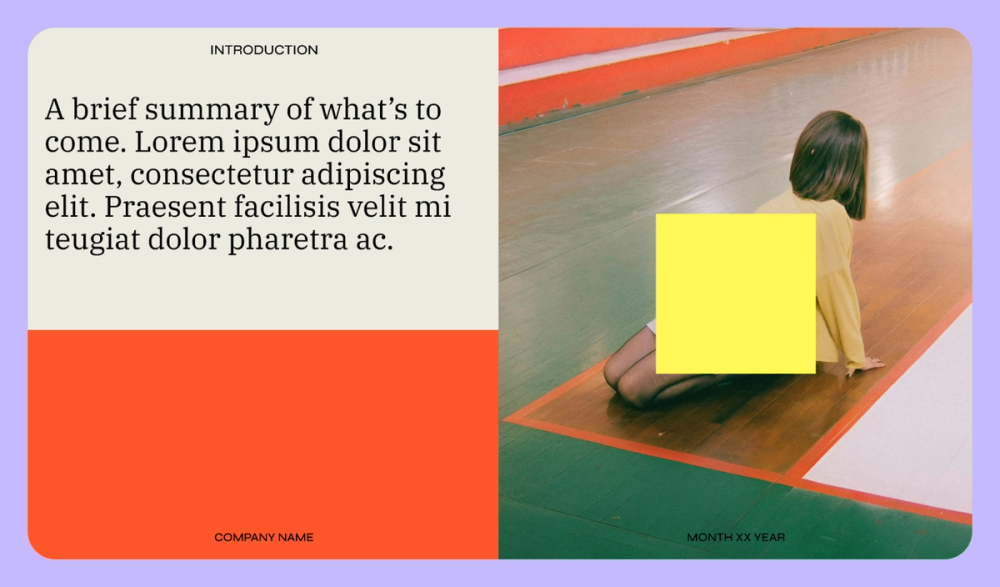
Incorporating pops of color is a great way to draw your audience’s attention to essential parts of your presentation. Using a subtle, neutral background and strategically adding bright colors to highlight critical statistics or ideas, you create a visual cue that signals, “Hey, this is particularly important.”
Idea 12: Keep fonts and sizing consistent

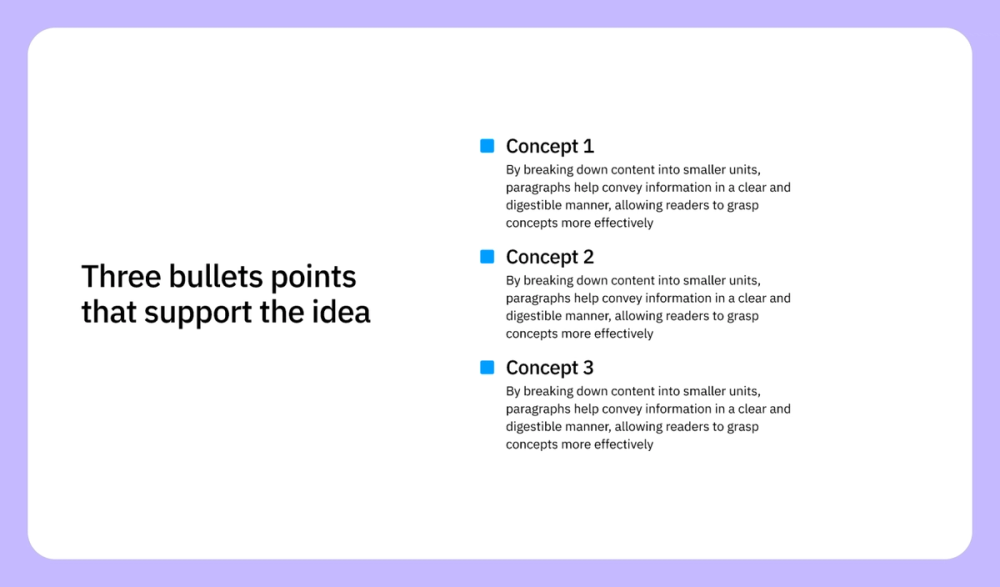
Consistency in fonts and sizing helps create a polished and professional look. While it may be tempting to experiment with different fonts and sizes, sticking to a consistent style ensures your audience can easily follow along. Reserve changes in font or size for moments when you need to emphasize a key point. When choosing a default font and size, prioritize readability by opting for clear, accessible options like Helvetica in 24-point size.
Idea 13: Split your slides visually from side to side

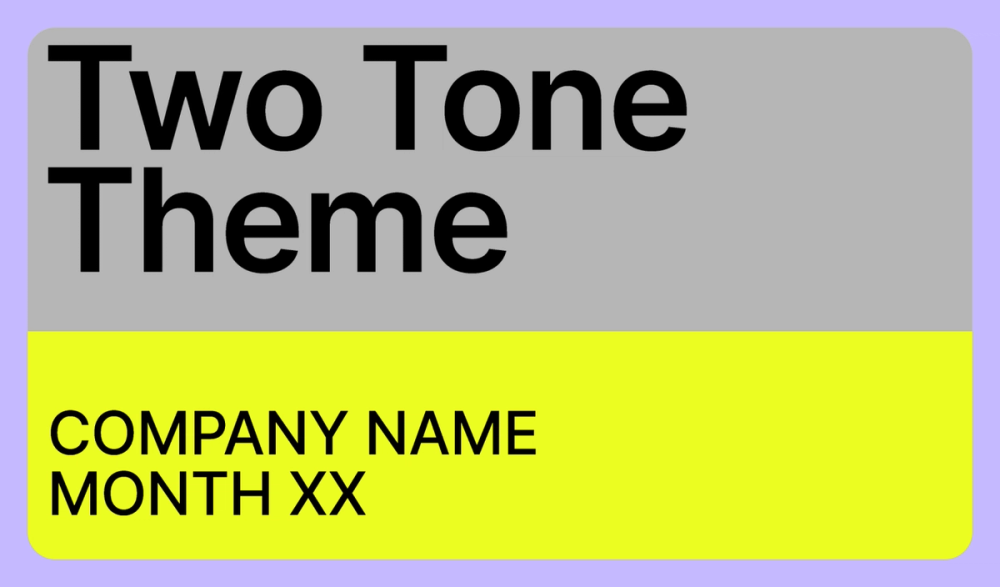
Splitting your slides is an easy way to divide information and create visual contrast. Draw a divider across the middle of your slide and give the top and bottom two different colors. To help highlight important information, swap the position of the two colors on specific slides as a visual callout.
Idea 14: Use simple background patterns
Choose minimalist patterns or solid colors that enhance your content without stealing the spotlight. Explore a variety of customizable pattern backgrounds to find one that complements your presentation and keeps the focus where it belongs—on your key points.
Idea 15: Use color psychology to connect with your audience


The colors in your presentation can influence how your audience feels. Tap into color psychology to evoke specific emotions that reinforce your message. For example, use yellow to spark feelings of creativity and positivity. To instill a sense of trust and reliability, choose a shade of blue.
Idea 16: Break up your presentation with Q&A sessions


Keep your audience actively involved by sprinkling Q&A sessions throughout your presentation. This approach encourages participation and helps clarify any points before moving on. For longer talks, you may want to add slides that prompt questions or invite discussion at natural breaks in your content.
Idea 17: Gamify your presentation

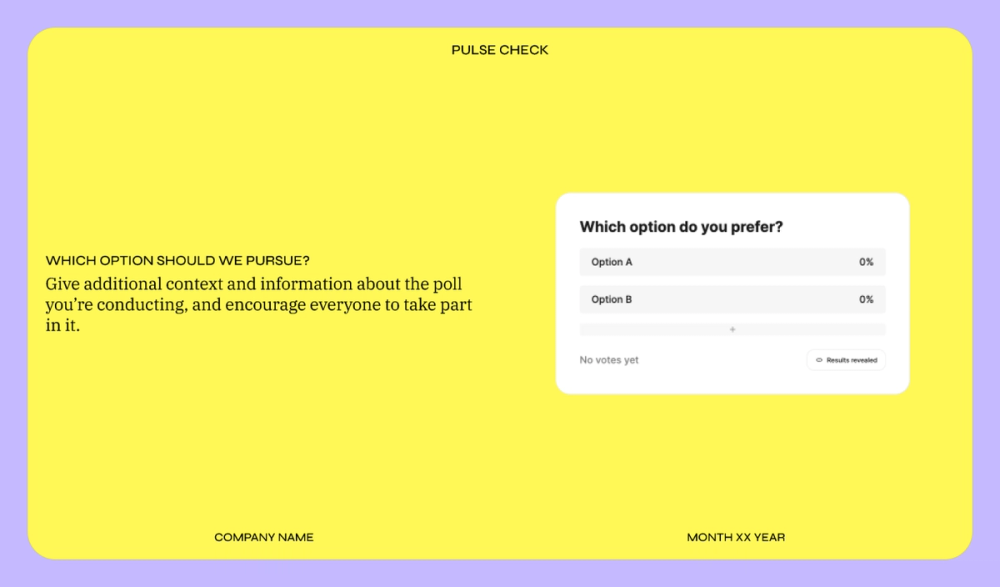
Inject some fun into your presentation by turning it into a game. Engage your audience by asking questions, tracking responses, and even offering prizes for top performers. With tools like Figma Slides, you can easily integrate live polls, voting, and other interactive elements that encourage participation and make your presentation more memorable.
Idea 18: Highlight your call to action
Ensure your presentation has a strong and clear call to action that tells your audience what to do next. Whether you’re aiming to inform or persuade, the final slide should emphasize the next step you want your viewers to take—like visiting a website or encouraging follow-up questions.
Idea 19: Open with a thought-provoking question
Kick off your presentation with a question to grab your audience’s attention and encourage engagement right from the start. For example, if you’re presenting a solution to accessibility obstacles, ask your audience to consider how many people with disabilities rely on their product or service daily. This not only inspires curiosity but also frames the problem you’re addressing.
Idea 20: Use relatable examples to connect with your audience

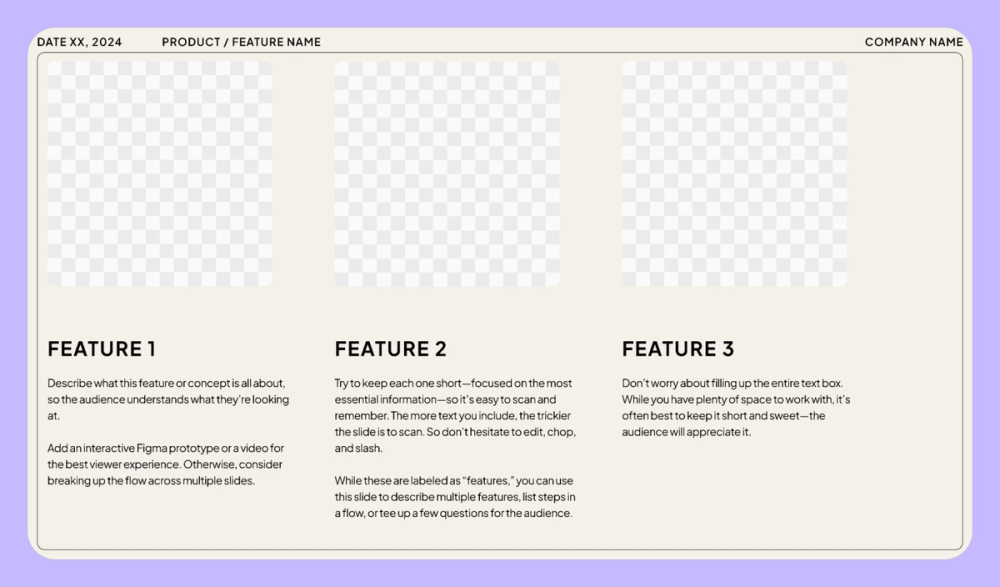
Use familiar concepts, like sports or weather, to help your audience understand abstract or complex ideas better. For example, you could compare a design process to the strategy behind a team sport or explain how shifts in weather can influence daily decisions. Relatable examples make your message more accessible and memorable.
Idea 21: Incorporate real-world examples from social media
Consider pulling in quotes or screenshots from platforms like X (formerly Twitter) or Threads to illustrate points about user behavior or sentiment. These examples can effectively and powerfully showcase user frustrations, preferences, or trends, making your presentation more relevant and relatable to your audience.
Idea 22: Visualize progress with a timeline

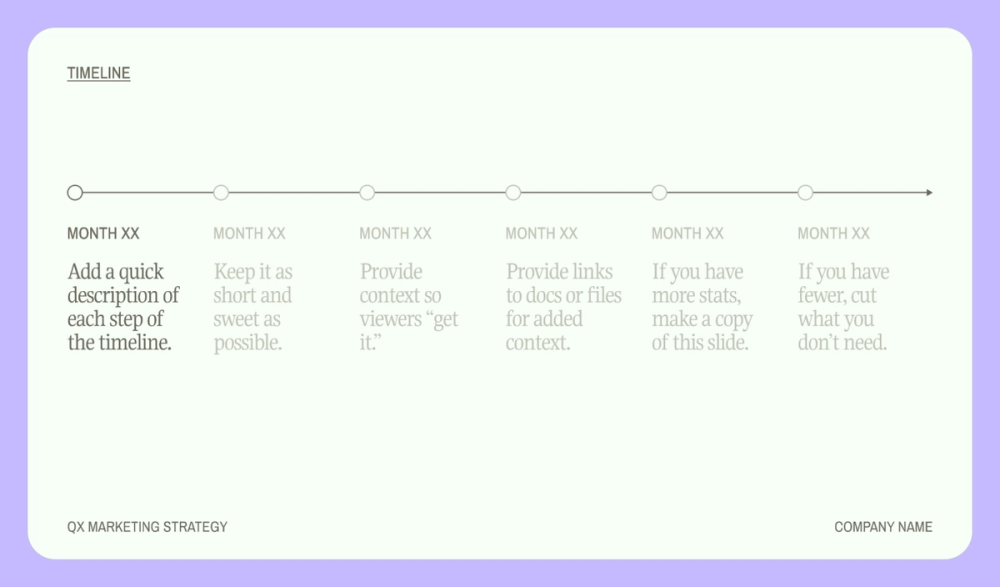
When you need to present a sequence of events or project milestones, a timeline is your go-to tool. It maps out progress over time, helping your audience grasp the flow of a project without needing to piece it together themselves. Tools like FigJam can help you build your timeline using templates based on Gantt charts, which are a valuable way of showing how different activities occur over time.
Idea 23: Break out into group activities
Break up your presentation with interactive group activities to engage and energize audience. During longer presentations, hands-on exercises can help engage viewers and encourage collaboration. For example, you could ask your audience to participate in an online scavenger hunt on their smartphones to find design assets relevant to your presentation, like positive icons or accessible website layouts.
Idea 24: Showcase a live demo or prototype

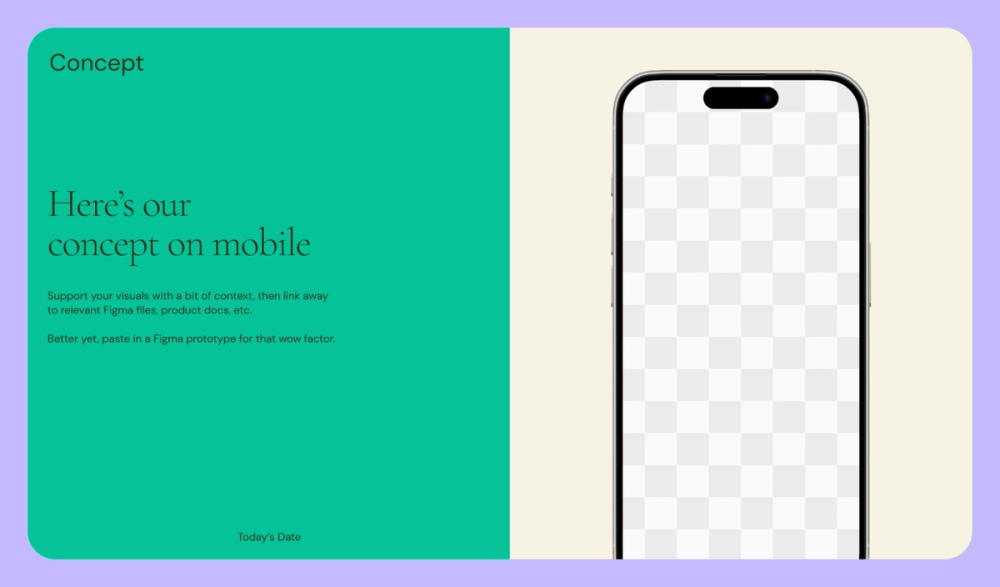
A live demonstration lets you walk through product features and operations while taking real-time questions. Alternatively, showcase a prototype of your design to give your audience a feel for the work in progress. Tools like Figma’s prototyping feature make it easy to embed the prototype into your presentation slides.
Idea 25: Make custom illustrations for your slides
Use the power of creativity to transform your thoughts into visual ideas. If you need help with custom illustration ideas, think about how the information you present could be easier to understand. Custom illustrations could include more traditional graphics, graphs, or even 2000s-style bubble letters to call attention. For inspiration, check out the Figma Community’s creative ideas.
Idea 26: Add animated GIFs and visuals for impact
Enhance your presentation with animated GIFs and motion graphics to draw attention and keep your audience engaged. Platforms like GIPHY offer a wide range of GIFs that can relate to your topic, often with fun pop culture references that resonate with viewers.
Idea 27: Start with a table of contents

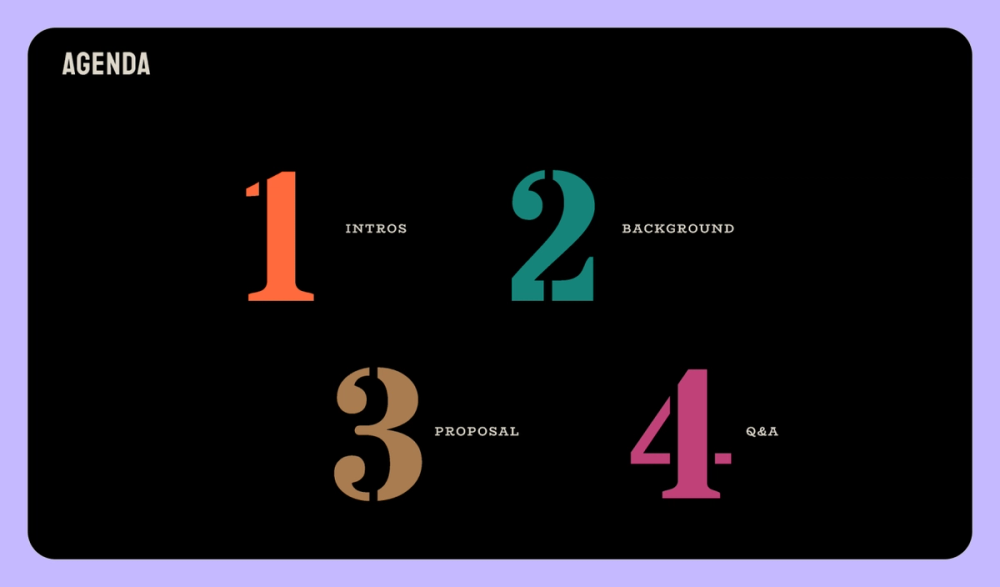
Including a table of contents at the beginning of your presentation sets the stage for what’s to come and helps your audience follow along. If you share the deck afterward, it also makes it much easier for viewers to navigate it on their own, allowing them to quickly find specific sections or key points of interest.
Idea 28: End with a concise summary
Ask yourself: What do I want my audience to remember? After presenting a lot of information, wrap up with a clear summary slide that reinforces your key takeaways. Focus on the most important points, and leave your audience with a strong, lasting impression of your main message.
Idea 29: Keep your presentation focused
It’s easy to drift off course when presenting, especially during Q&A sessions, when your answer may slightly diverge from your main point or topic of conversation. To keep your presentation focused, structure your slides so they flow naturally from one idea to the next, guiding your audience through your key points. When addressing questions, set time limits and steer your responses back to the main topic. Figma Slides allows presenters to insert notes to keep them on track.
Idea 30: Follow classic storytelling structure
Stories are powerful tools for engagement, and a well-structured narrative can make your presentation memorable. Use the classic five-part storytelling framework— introduction, rising action, climax, return, and conclusion—to guide your audience through your key points. Begin by introducing your topic (intro), build up to your main idea (rising), present it with impact (climax), show how viewers can accomplish the call to action (return), and wrap up with a strong conclusion. This narrative flow can transform even the most technical topics into captivating stories.
Idea 31: Tailor your presentation to your audience

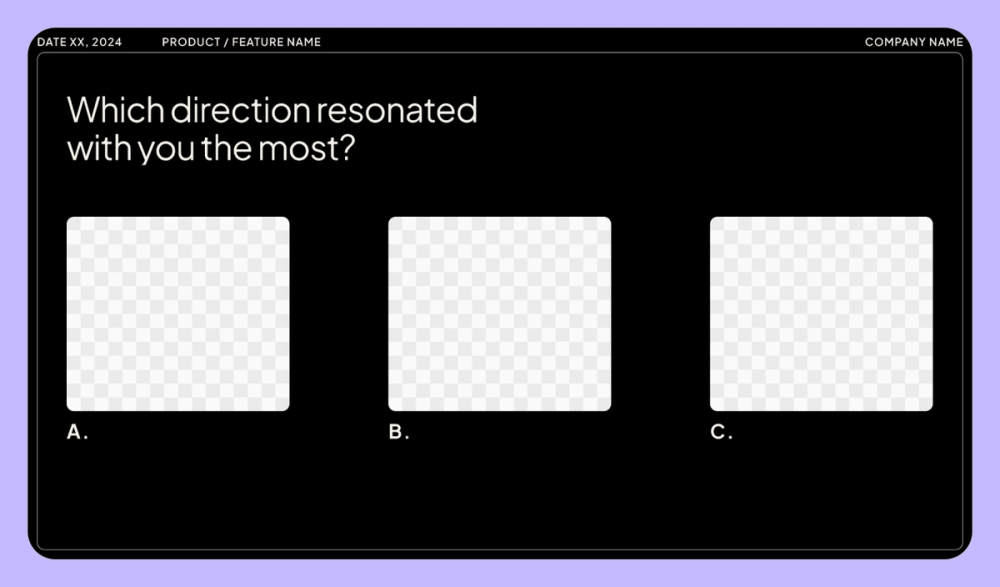
Understanding who you’re speaking to is essential for delivering an impactful presentation. Tailor your content, tone, and examples to match your audience’s knowledge level and interests. For example, if your presentation is about design theory, you might dive deeper into advanced concepts with experienced designers while focusing on foundational ideas with students. If you’re unsure about your messaging, use Figma Slides’ AI tool to help you get the tone just right.
Idea 32: Integrate other media into your slides
Are you good at drawing, painting, graphic arts, photography, or music? Work your artistic talents into your slideshow, giving it a unique spin. This can help keep your audience more engaged and give them something to remember.
Idea 33: Share a personal story or experience
Connecting with your audience can make your presentation more impactful. Share a story from your own experience—whether a success or a failure—where you learned something valuable. For example, maybe you tried a product design process that didn’t go well but you learned how to manage projects with future clients better. Personal stories like these resonate with your audience, making your message more relatable and inspiring.
Idea 34: Use a digital whiteboard for real-time collaboration

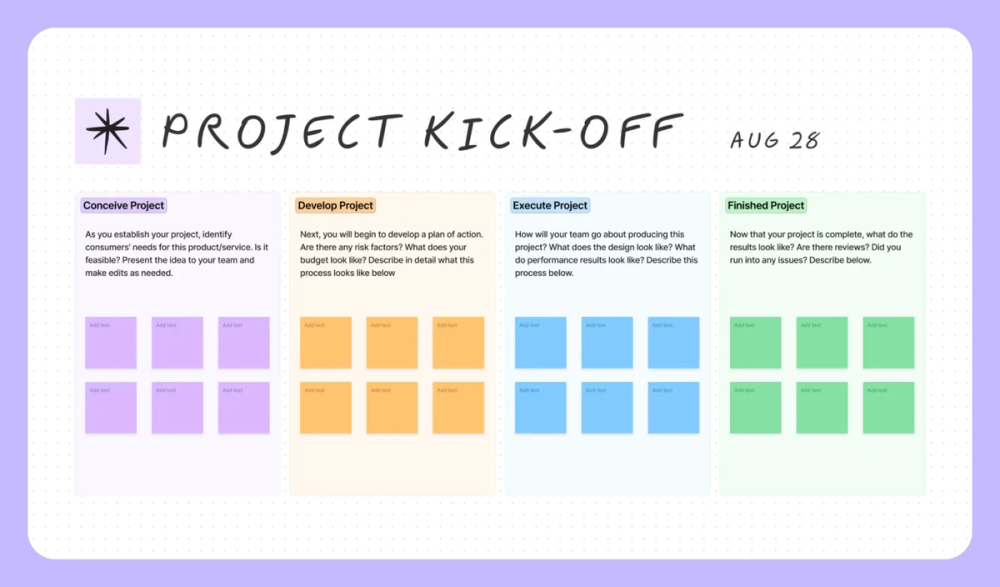
Break outside your slideshow and use a digital whiteboard to engage with your audience by writing down brainstorming ideas. A tool like FigJam makes remote whiteboarding seamless and accessible to all audience members. Digital whiteboards have the added benefit of including photos and other digital content to amplify your creative ideas. You can even turn FigJam boards into presentation outlines when you're done.
Idea 35: Level up your screenshots

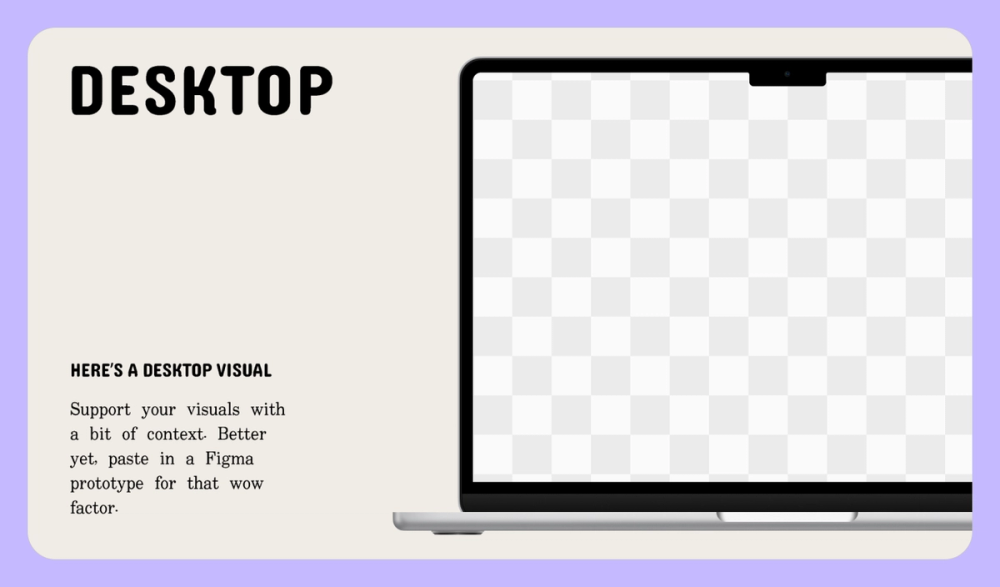
Share screenshots within your presentation to showcase examples. You can easily take screenshots of digital materials and share them in your slide deck by pressing Shift + Command + 3 on a Mac or using the Snipping Tool application on a Windows PC. You could even record a screencast (a video recording of your screen) to show more complex actions.
Idea 36: Create a layout that draws interest

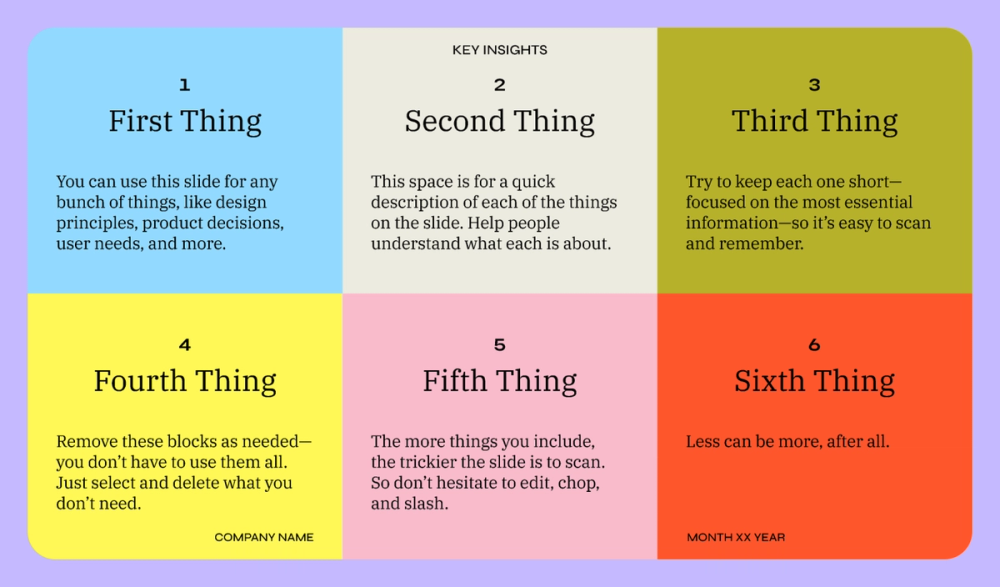
Selecting an exciting yet easy-to-understand design layout can be challenging, but you can lean on free presentation templates for inspiration or build one from scratch with a bit of knowledge about visual hierarchy. Check out templates that inspire you and make your own using learned ideas and other takeaways.
Idea 37: Role-play with your audience
How can you get your audience to relate to your presentation? Try role-playing to inspire a new perspective. For example, if your presentation demonstrates a challenge, have an audience member act like the user so they can experience the problem firsthand.
Idea 38: Include expert tips that support your point
Even if you’re already an expert in a particular field, showcasing tips from other industry leaders is an excellent way to back yourself up. If possible, choose experts your audience may already know for more credibility.
Idea 39: Consider augmented reality for a new dimension
Technology is constantly shaping new and exciting ways to share ideas. Consider using augmented reality (AR) in your presentation to showcase 3D visuals within your environment. Hardware such as Apple’s iPad tablets offer AR features, while more immersive solutions, like Apple Vision Pro and Meta Quest, allow audience members to step into your presentation virtually—either all at once with multiple headsets or with one volunteer audience member.
Idea 40: Weave a compelling narrative

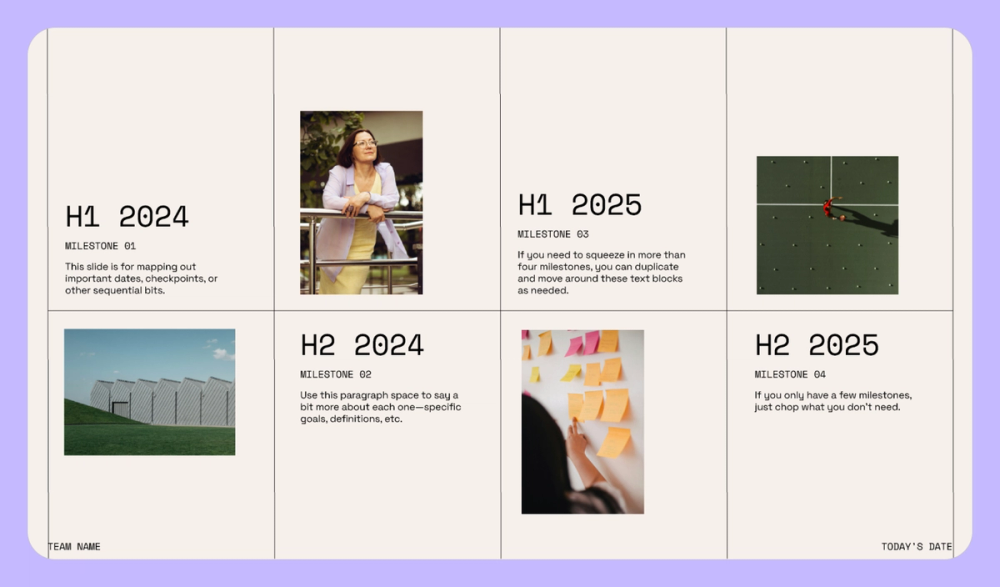
A compelling narrative needs to be at the heart of every presentation. Whether you’re attempting to inform or convince your audience, your narrative is the backbone of your talk. Assemble a more engaging story for your presentation by understanding your audience’s values, following a story structure, and using storytelling techniques to keep viewers engaged.
Idea 41: Make your presentation easy to follow

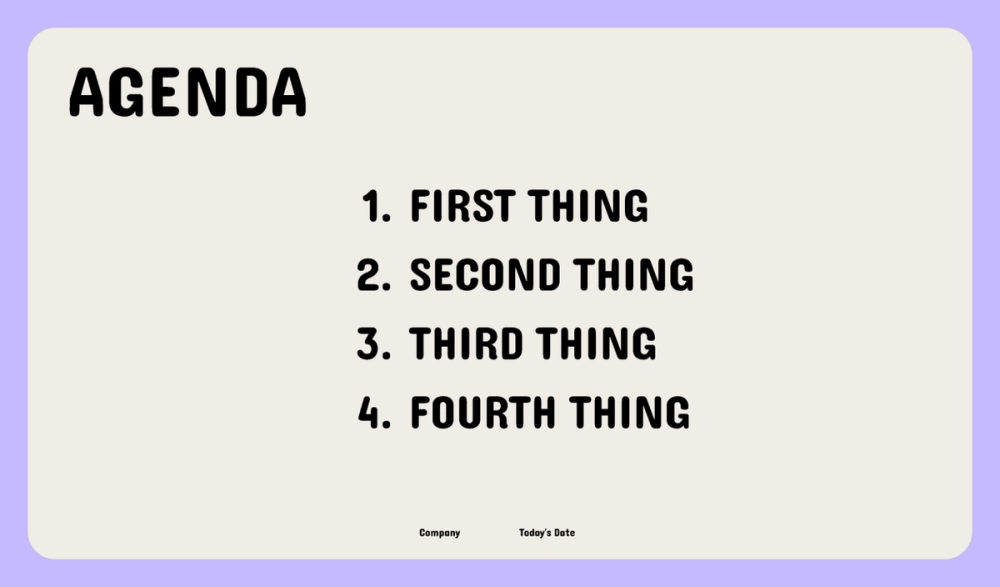
Complex presentations can leave your audience confused. Avoid overstuffing slides and keep the overall design consistent to ensure your presentation is easy to follow. Guide your presentation by establishing a clear outline with a well-defined structure: introduction, body, and conclusion.
Idea 42: Create a photo story
Showcase the entire design process with step-by-step images, or use visuals to show how a scenario or situation changes over time. You can also use a story theme to help tie your presentation together. For example, equate your design process to a common task, like making a sandwich, to create understandable visual analogies.
Idea 43: Keep it simple

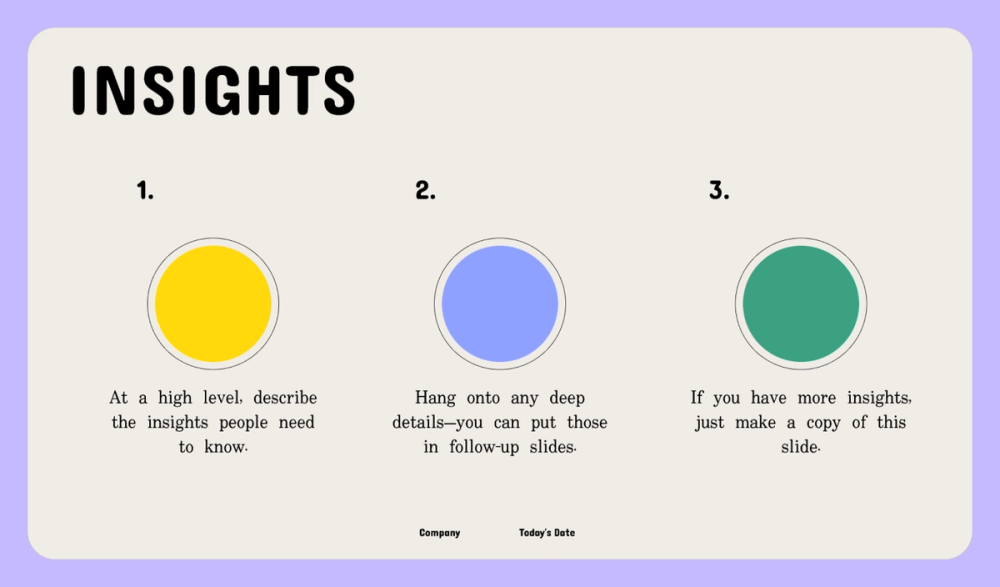
Keep your presentation straightforward. Simplify your message and avoid straying into topics that aren’t essential to understanding or conveying your ideas. When explaining new concepts, it’s a great practice to keep each slide limited to a single idea and highlight the critical elements of your point.
Idea 44: Increase engagement with props
Bring your presentation into the real world with props. A prop can be any physical object you can showcase to your audience. Props are informative, but even more powerfully, they can be an excellent way to keep everyone engaged. For example, if you’re discussing a design principle such as proportion, consider passing around an object that mirrors these ideals, giving your audience a physical reference.
Idea 45: Ask your audience to help with demonstrations
Add some unexpected excitement to your presentation by asking someone from the audience to volunteer for a demonstration. Just like a magician inviting an assistant onstage, this interactive approach boosts engagement with the individual participating and sparks curiosity among the rest of the audience.
Idea 46: Incorporate multiple senses
Presenters tend to design slide decks based on an audience’s sense of sight, but leaning into multiple senses can create a more engaging experience. Sound is a common sense to integrate into your slideshow, like audio clips, sound effects, and music. Consider playing with your audience’s senses of smell, taste, or touch if it makes sense. For example, hand out samples for viewers to feel and experience when discussing design materials.
Idea 47: Explore different themes


Choosing a theme is an excellent way to establish a sense of cohesion throughout your slides. Themes can be as simple—like a specific color palette—or complex, like a conceptual idea. For example, if you’re discussing the benefits of particular colors in web design, you might want to theme your entire presentation around a web browser. Some ways to accomplish theming include slide borders, imagery, and complementing typefaces.
Idea 48: Set the stage with maps
Presentations that discuss geographic locations can benefit from a map. For example, showcase regions where your business operates or shipping logistics. This practice ensures your entire audience is on the same page and provides a sense of distance and scale. Maps can be beautiful elements to include within presentations in many styles, including animated views, and are available online with a quick Web search.
Idea 49: Start with a powerful quote

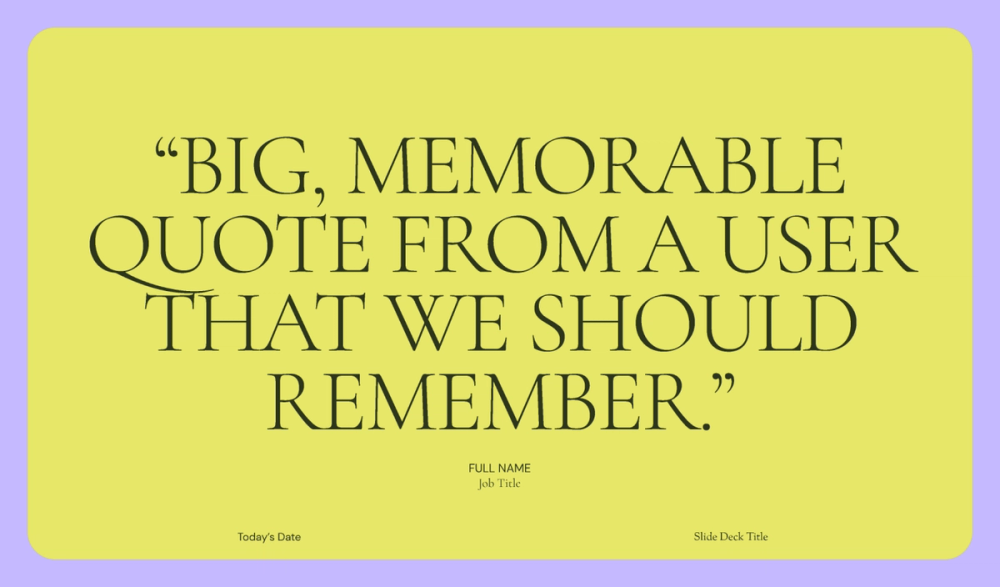
“Design is not just what it looks and feels like. Design is how it works.” —Steve Jobs
Begin your presentation using a powerful quote related to your subject matter. Presenting a quote at the start can create conversation, kickstart engagement, establish a sense of importance, and prepare viewers for the upcoming discussion. When choosing a quote, be sure to understand its meaning and original context to avoid potential negative associations. Selecting a recognizable figure to quote is a bonus for establishing a connection with your audience.
Idea 50: Use diagrams for clarity

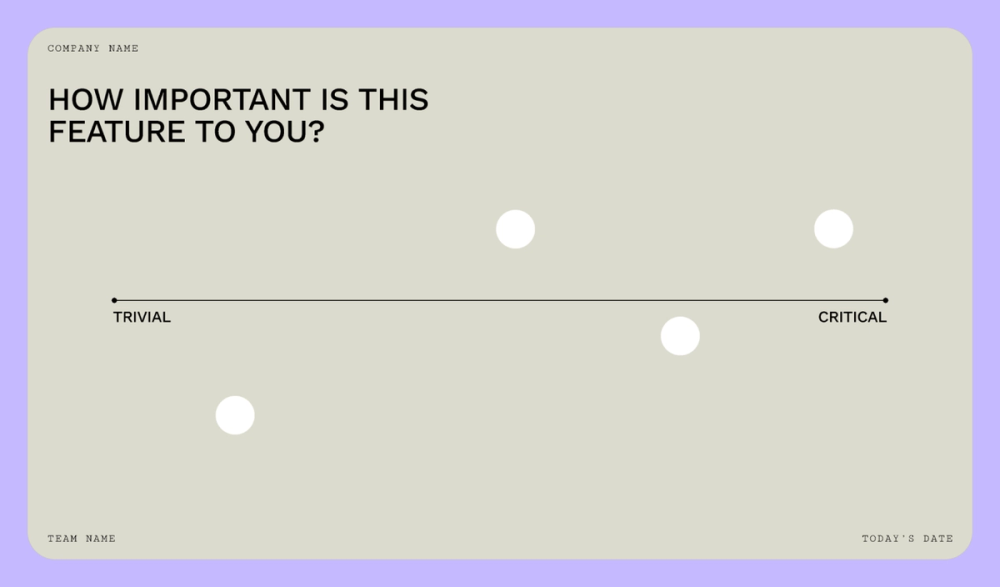
When explaining a detailed process, use a diagram or flowchart to communicate it clearly to your audience. Diagrams help break down large concepts into more visually digestible pieces. Flowcharts show how decision points can affect a process. Tools like Figma’s free flowchart maker help you quickly showcase your ideas.
Idea 51: Don’t fear the white space

If there’s a large blank spot on your presentation, known as white space, it doesn’t mean you should fill it up with text or images. The urge to use every square inch of your slide can quickly lead to an overload of information. When you want to call attention to a specific element, white space can be a powerful tool that signals where your audience should place their undivided attention.
Idea 52: Bring in surprise guests for an extra touch
Bringing in a special guest is one way to add flair and interest to your presentation. You don’t need to bring in a Hollywood star; consider an expert in the field, a client or customer with feedback, or an external team member. Having an additional person join your talk helps stir up interest, which is critical for engagement. If you can’t bring in someone physically, consider conferencing them via video call. Using Figma Slides, you and your guests can co-present seamlessly, even if they’re remote.
Idea 53: Use infographics to present complex data


While you can use flowcharts to display complex ideas and concepts, consider an infographic. Infographics are visual graphics that present information in a visually appealing way. While they can take more time to create, infographics are a visually striking way to convey information. They also make great handouts at the end of your presentation.
Idea 54: Inject humor into your presentation
We’ve all sat through drab presentations that were difficult to pay attention to for the entire time. Add humor to your presentation to keep your audience engaged. If you’re not sure where to start, start with something simple and make sure you relate it to your presentation. Use resources like Google Gemini or ChatGPT to help you brainstorm jokes and ideas.
Idea 55: Begin with an interesting statistic or fact

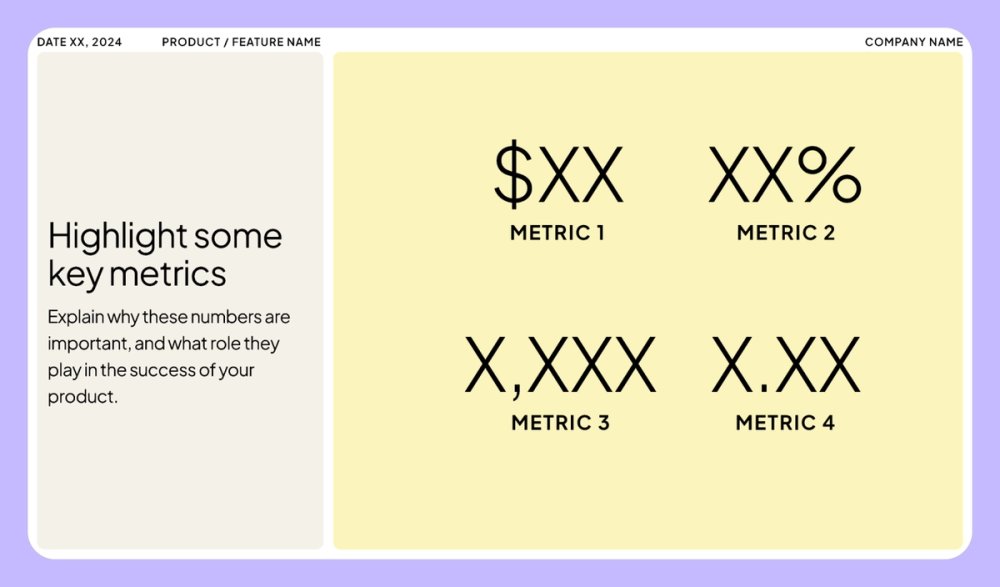
Start your presentation with a statistic or fact related to your topic. For example, if you’re attempting to solve an issue related to users abandoning your website due to its complexity, sharing a metric like bounce rate can immediately put the conversation into perspective.
Idea 56: Connect through body language
Connecting with your audience during a presentation has much to do with your overall body language. Following these tips can help you communicate more efficiently and keep your audience engaged:
- Maintain eye contact, but don’t just focus on a single individual.
- Use hand gestures to emphasize your talking points.
- Don’t slouch; stand tall to showcase your confidence.
- Emote with your face; smiling helps your audience feel relaxed.
- Walk around to stay engaging, but don’t pace back and forth.
Idea 57: Style your presentation after a comic book
If your presentation is more laid-back and doesn’t require strict styling, choose a fun theme, such as a comic book. Slide templates for comic books are readily available online, and their structure is excellent for communicating a story or detailed narrative. Kick it up a notch by including animated graphics and sound effects to accompany your comic book theme.
Idea 58: Incorporate quizzes into your presentation

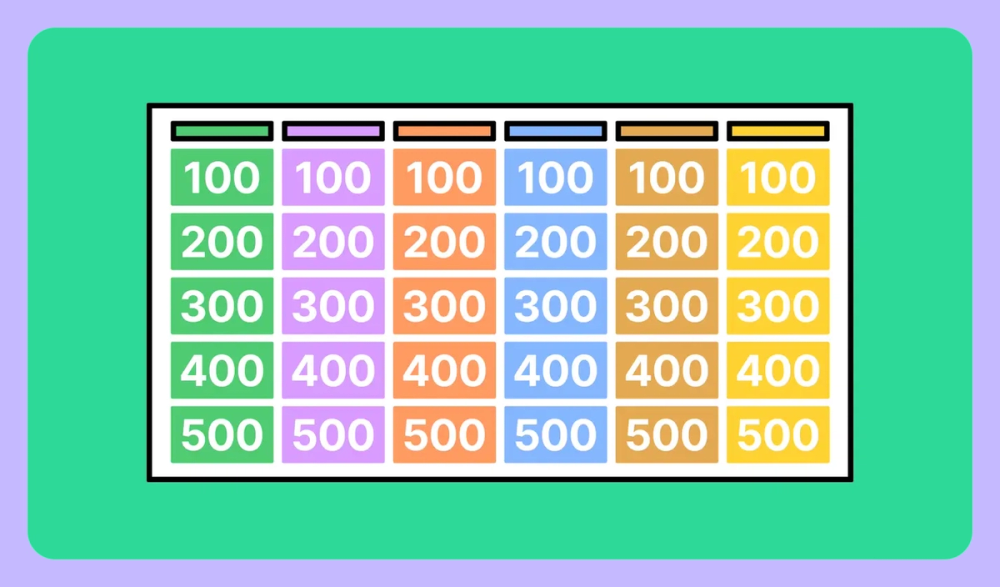
Spring a quiz on your audience for instant engagement. Keep them short, upbeat, and fun. To add more excitement, reward top quiz performers with small prizes, like mini candy bars. To create a Jeopardy-style quiz, use FigJam’s free Jeopardy template.
Idea 59: Switch up your pacing
Switching up your pacing and altering your cadence can help call attention to specific points in your pitch. Monotone presentations can be unstimulating, causing your audience to disengage. In addition to cadence, don’t be afraid to vary the volume of your voice to drive home points or force your audience to lean in a bit more and stay tuned in.
Idea 60: Create mind maps to make connections

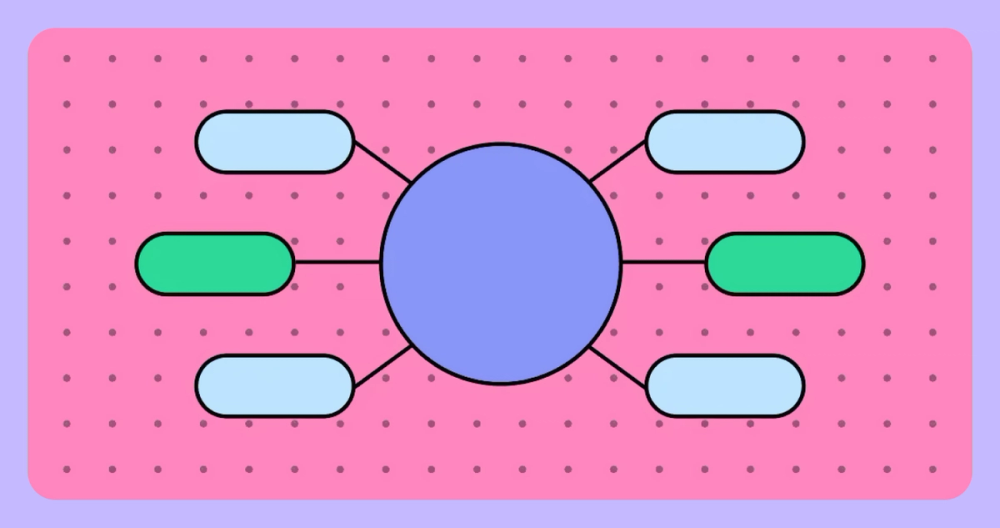
Mind maps, or spider maps, are diagrams that visually demonstrate your thought process. Integrating mind maps into your presentation is an excellent way to showcase your brainstorming, planning, or problem-solving steps. Tools like FigJam make it easy to dive in with a free mind-mapping template.
FAQ
Figma has been helping creatives bring their design ideas to life since 2011. Here are answers to frequently asked questions about presentation ideas and creating engaging slideshows that captivate your audience.
How can I prepare for my presentation?
Prepare for your presentation by researching and outlining. Before taking other steps, determine your audience: who they are, their interests, and their expectations. The key to preparation is clearly defining what you want to achieve with your presentation and developing a solid structure. Here are some tips for the days leading up to your presentation:
- Practice your presentation aloud, in front of a mirror or friend.
- Consider recording yourself talking and viewing it back for study.
- Prepare to answer audience questions.
- Know that it’s okay to be a bit nervous about your presentation.
- On the day of your presentation, arrive early to set up.
How can I present a presentation creatively?
Presenting your slides creatively is about adding extra flair to entertain your audience and keep them engaged. The team at Snap Inc. uses Figma Slides, saying that it empowers anyone to create “beautiful, effective presentations.” Apply these ideas within Slides and other presentations to make them stand out:
- Go bold with your fonts and text to call out important elements.
- Turn your presentation into a quiz game like Jeopardy.
- Start with a compelling quote or statistic to support your ideas.
- Utilize animated graphics or GIFs for visual interest.
- Weave a photo story throughout your presentation.
- Use props to help interact with your audience’s senses.
How do I make my presentation stand out?
Spicing up your presentation can be difficult at first, but finding creative ways to interact with your audience is critical. Here are a few ideas to try:
- Share your personal story or experience.
- Use a digital whiteboard for real-time collaboration.
- Highlight essential pieces of information with color.
- Embed geographic maps to help spotlight locations.
- Create infographics to share information with visual appeal.
- Bring in a guest speaker, such as a subject matter expert.
How do I start my presentation?
Starting a presentation is one of the most challenging aspects of any talk. Consider using an impactful quote or statistic to set the scene and engage your audience right away. If your presentation solves a problem or user pain point, consider using statistics to highlight how bad the issue is and how your solution can solve the problem.
What is the 5/5/5 rule for better presentations?
The 5/5/5 presentation rule is a basic guideline for creating a compelling and engaging slideshow. Following this rule can help you construct a presentation that’s easy to follow, but don’t be afraid to break these rules and try something different:
- 5 slides. Keep your presentation to a maximum of five slides.
- 5 minutes. Don’t spend more than five minutes per slide.
- 5 words. Don’t place more than five words on any line.
Design creative presentations with Figma
Presentation ideas can help you create a more visually appealing and engaging slideshow that connects with your target audience. Ready to get started? See how Figma Slides and FigJam can work together to help you create your ideal presentation:
- Use a modern presentation slide template or a professional presentation template to kickstart your design process.
- Launch your big dream with a pitch deck presentation template optimized to share your story and the next great idea.
- See how FigJam can help you develop creative assets for your next presentation with over 300 ready-made templates.
- Discover the Figma Slides features that make it the best option for building creative presentations.
Ready to create a standout presentation?
Keep reading


What is visual hierarchy?
If everything looks the same, then you see nothing. Visual hierarchy can change that.


What is a mind map?
How can you remember the important stuff and forget the rest? Learn how to mind map, and you’ll learn how to think more clearly.


Guide to typography
Get an introduction to typeface selection, color contrast, alignment, readability, text hierarchy, and more.