Fitts’ law: What is it + how does it apply to UI design?


Share Fitts’ law: What is it + how does it apply to UI design?
Explore more from
Design basics
Create, collaborate, and ship in Figma
All your design work, in one place.

Have you ever wondered why the "+" button in your favorite app sits exactly where it does? Or why that crucial "save" button is just the size it is? These aren't random design choices—they're guided by Fitts' Law, a principle that's been shaping our digital interfaces since before we had touchscreens.
Read on to learn:
- What Fitts’ law is
- How Fitts’ law works
- How to apply Fitts’ law to UI design
- What prime and magic pixels are
- Tips to use Fitts’ law like a pro
What is Fitts’ law?

Fitts’ law states that how quickly a person moves to a target depends on the target’s size and distance. So, if a target is small and far away, it takes longer for someone to reach it. But if it’s big and close, they’ll reach it quickly.
Fitts’ law is named after the psychologist Paul Fitts, who developed it as a mathematical model for human movement in 1954. The model measures how difficult it is to select a target based on the target’s distance from the user and its size—this applies whether you're using a human finger, a mouse cursor, or any other selection tool.
While Fitts’ law wasn’t created with UI design in mind, it has major implications for how we interact with computers and shapes how we design user-friendly websites, programs, apps, and other media.
How does Fitts’ law work?
While you won’t need math to understand Fitts’ law, it was originally expressed as a mathematical formula: MT = A + B * log₂ (2D/W). Let’s break down each of these components:
- MT, or movement time, is the time it takes to move to a target.
- A and B are constants that change based on the input device (like a mouse cursor or a finger) and reaction time.
- D is the distance to the target.
- W is the width of the target.
- Log₂ is a logarithmic function.
Let’s say you have a button that’s 60 pixels wide at a distance of 100 pixels from a cursor. You’ve determined your constants as 0.4 and 0.2. Your example formula will look like MT= 0.4 + 0.2 * log₂ (2*100/60). Solving for MT, you get 0.75, approximately how many seconds it will take to reach the button with a cursor.
Fitts’ law applications for UI design

In UI design, Fitts’ law measures how long it takes for a user to click or tap something. The idea is that the less time it takes for a user to reach a button, the more likely they are to select it. So, what does this look like in practice?
Button size and placement

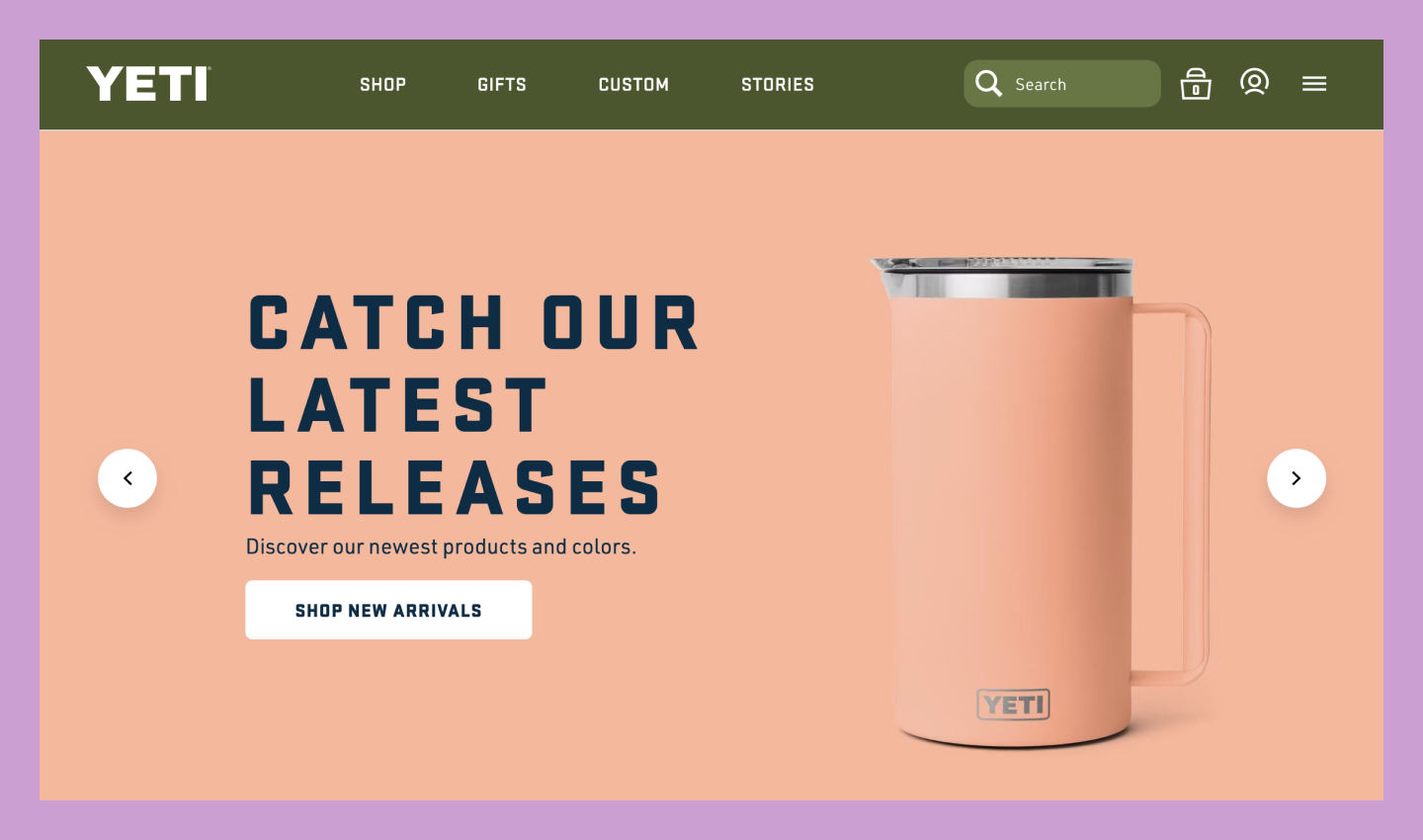
Fitts’ law shows that large targets for primary buttons or CTAs are easier to select. If you want users to click a button on a website or app, it should be easily accessible—not tucked away in a corner.
While there’s no hard-and-fast rule for the size of buttons, they need to be large enough for users to click or tap them with minimal effort accurately. But you shouldn’t make them so big that they take up the whole screen or crowd out other buttons. You’ll also want to place frequently used buttons within easy reach of the user’s thumb or cursor.
Navigation design
You can apply Fitts’ law to navigation design to make getting around a website or app faster and more efficient. Navigation elements like buttons and links should be visible and large enough that no one will miss them. The more frequently a navigation button is used, the closer you should place it to the user’s starting point.
Menu design

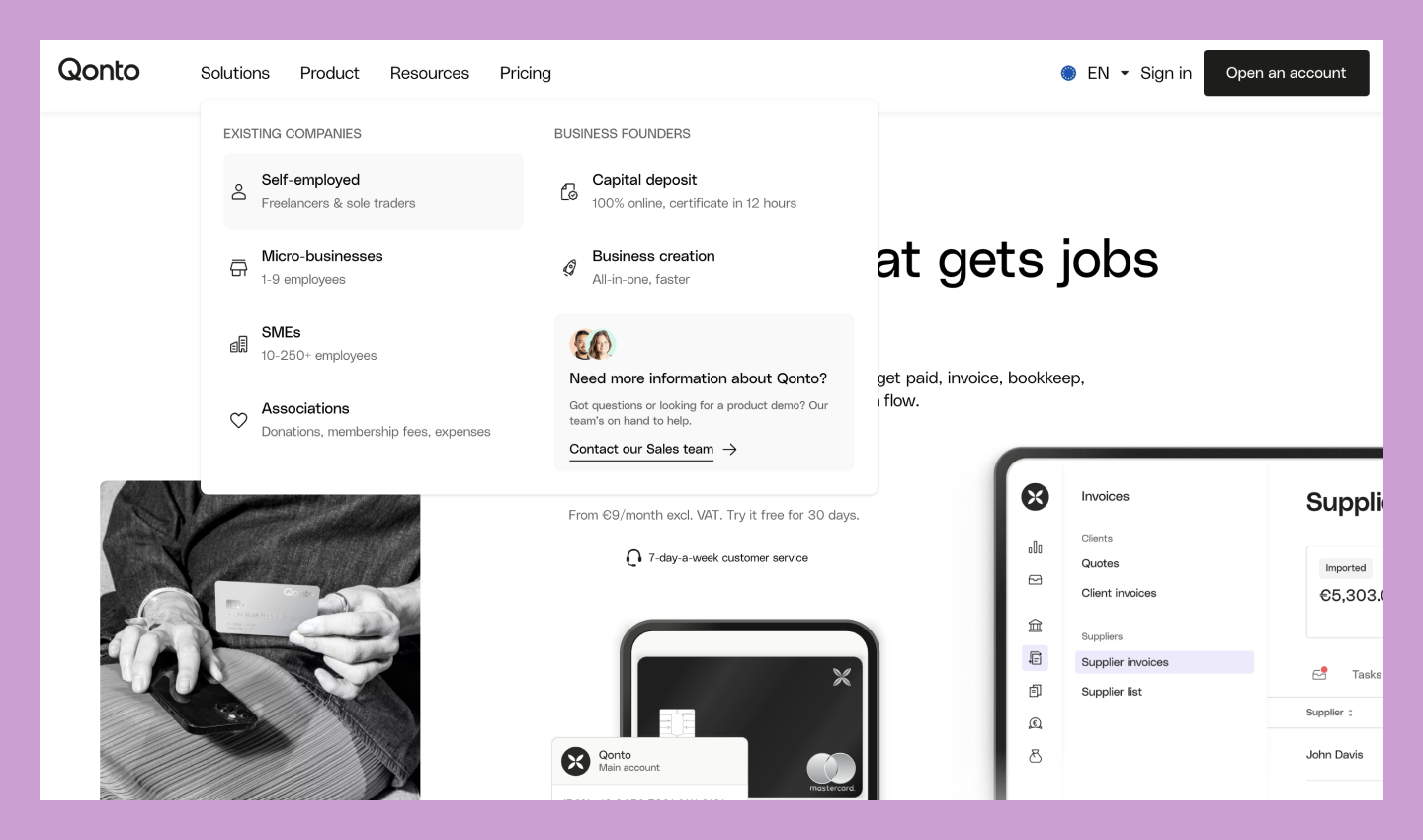
Menus should be well-organized, concise, and legible to ensure ease of use. According to Fitts’ law, primary menu items should be larger and more accessible than less important ones. Clear indicators—like color changes on selection—help users track their location.
Different menu types—like pop-up, drop-down, and hamburger menus—each affect movement time differently. Since users often need to click or hover to view options, reducing the overall design complexity of the menu can significantly improve navigation speed and accuracy.
Forms
Make forms fast and intuitive by applying Fitts’ law to all clickable areas—from submit buttons, input fields, and checkboxes. While forms require specific structures, you can still optimize for user interaction by making targets appropriately sized and easily reachable.
For example, a submit button at the end of a form should stand out visually and offer a larger click target than surrounding elements, making it effortless to spot and select when users complete their task.
Touchscreen interactions

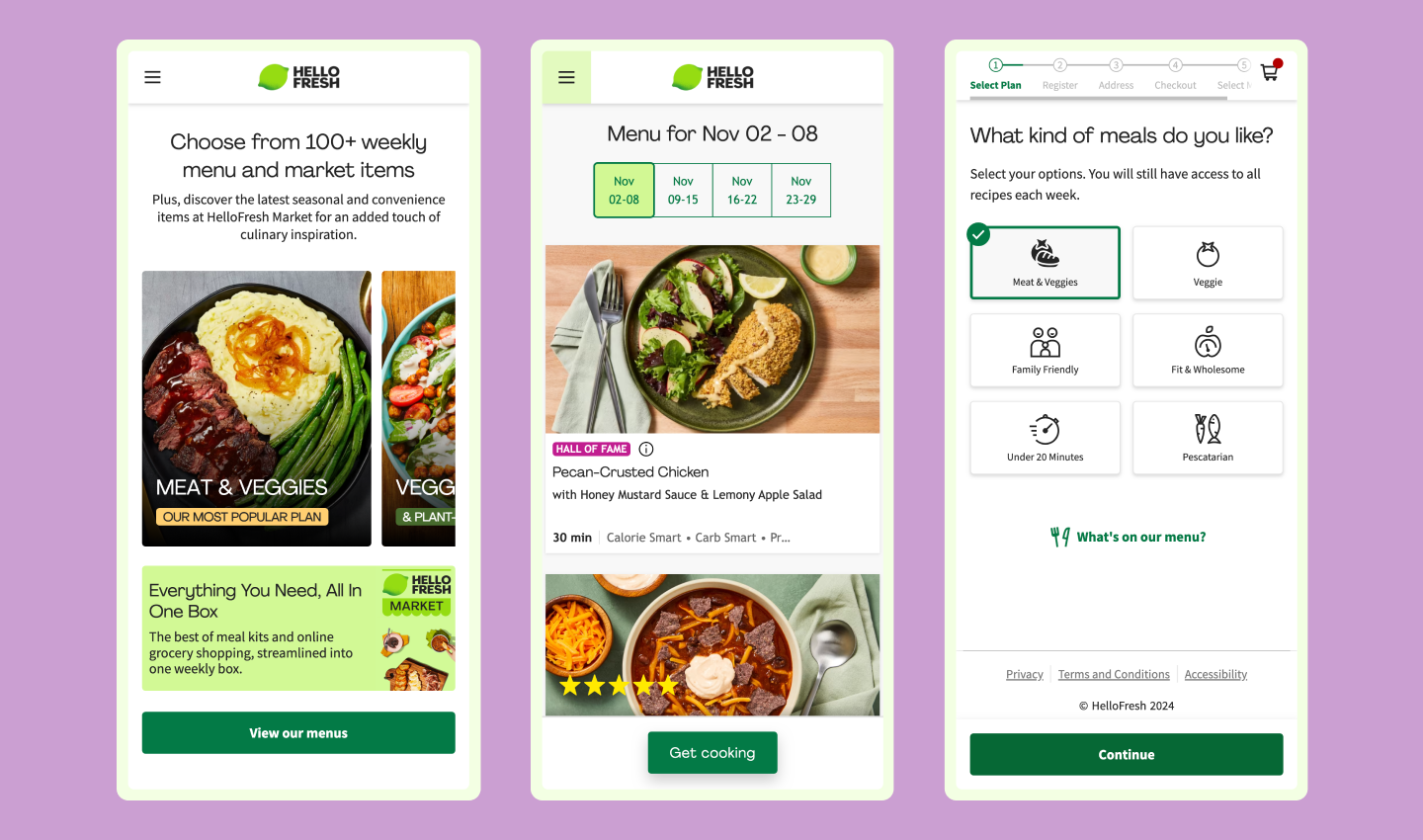
Fitts’ law doesn’t just apply to mouse cursors. It applies to your thumbs, too. When designing UI for mobile websites and apps, you want users to easily reach buttons without adjusting the grip on their phone.
This is called the “thumb zone,“ and it measures the area a person can comfortably reach with their thumb while holding a smartphone. Keep CTAs and other primary buttons within easy tapping distance, like at the center of the screen instead of the top left corner.
What are prime and magic pixels?
While Fitts’ law can help designers create optimally sized buttons, knowing where to place them is just as important. If your goal is to reduce the time it takes a user to reach a target, you’ll want to consider prime and magic pixels as you design.
- Prime pixel: The prime pixel is the screen area where the user’s cursor lands. It’s also the point from which they’ll take their next action. While you can’t predict a user’s prime pixel with perfect accuracy, it’s likely to be somewhere near the middle of the screen or the location of the last button clicked. Place primary buttons like CTAs as close to the prime pixel as possible.
- Magic pixel: Magic pixels are located at the screen's four corners. These areas are furthest from the prime pixel (where the user’s cursor is). Per Fitts’ law, magic pixels are harder for users to reach, so you should place less critical design elements in the corners.
Pro tips for applying Fitts’ law to designs
While Fitts' Law might seem as simple as "make important buttons bigger," successful implementation requires thoughtful consideration. Here's how to apply it effectively to your own design thinking:
- Focus on proximity and spacing. Group related elements to minimize mouse movement, but maintain enough distance to prevent misclicks. For example, place "Save" and "Cancel" buttons close enough for easy comparison, but far enough apart to avoid errors.
- Use padding strategically. Instead of just making buttons larger, use padding to create more generous click targets while keeping text crisp and legible. This approach maintains visual hierarchy while improving usability.
- Conduct user testing. User testing reveals patterns you might miss. Watch how real people interact with your interface—where they hesitate, where they move confidently, and where they make mistakes. These observations often highlight opportunities to apply Fitts' Law more effectively.
- Measure what matters. Don't just track basic metrics like click-through rates. To validate your design decisions, look at task completion times, error rates, and user paths to understand how your target sizing and placement affect real-world usage.
- Refine designs often. Treat your live design as a continual experiment. Use your metrics and user feedback to make targeted improvements, always considering how changes to size and position might affect the overall user experience.
Start designing with Figma
Understanding Fitts' Law, especially if you combine it with other key UI design principles, transforms how you think about every button, menu, and interactive element in your interface. Ready to put this knowledge into practice? Figma gives you the tools to experiment and iterate with confidence:
- Try Figma’s free, collaboration-ready UI design tool to create sleek interfaces directly in your browser.
- Use Figma’s prototyping tools to test your designs for usability and accessibility across every screen type.
- Explore design templates, UI kits, and other resources shared by the Figma Community.
Keep reading


What is UX design?
Learn key principles, skills, and how to use Figma for UX design.
Learn more


5 essential UI design principles
UI design principles can make your product or site more engaging, useful, accessible, and trustworthy.
Learn more

What is human-computer interaction?
Learn how to apply HCI to your design process with Figma.
Learn more