26 popular flowchart symbols explained


Share 26 popular flowchart symbols explained
Explore more from
Team productivity

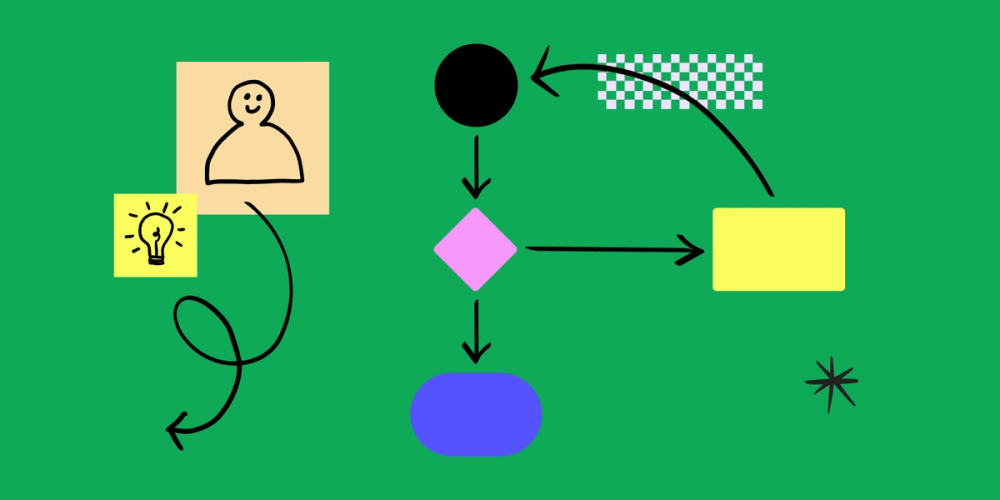
When you're designing an app or website, or mapping out a system, flowcharts are a great way to organize steps and user flows. But arrows and boxes alone don’t always cut it. To clearly show each action, decision, or data point, you need the right flowchart symbols.
This guide breaks down the most common flowchart symbols—what they mean, when to use them, and how to bring them into your own diagrams. Then you’ll learn how to put these symbols to work with templates and best practices.
Read on to learn:
- 26 different flowchart symbols
- Flowchart best practices
- How to use flowchart symbols with a free template
Basic flowchart symbols
These are the go-to shapes for most flowcharts. Master these, and you can build or read almost any process diagram.
Symbol 1: Terminator symbol

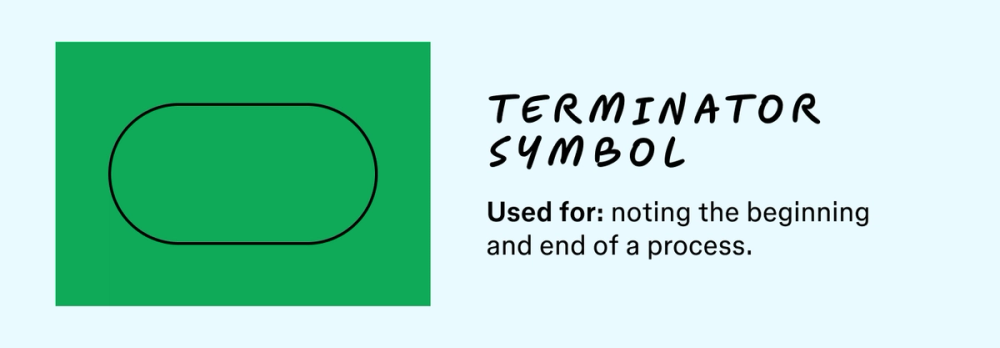
Meaning: the start or end of a process
When to use: to clearly define the very first and very last steps of any process or user journey
This oval symbol marks where a process begins or ends. Label it with “start” or “end” to guide users. Use multiple if your flowchart has more than one possibe outcome. Labeling these ovals with numbers or letters helps you track each endpoint in a complex user journey.
Symbol 2: Action symbol

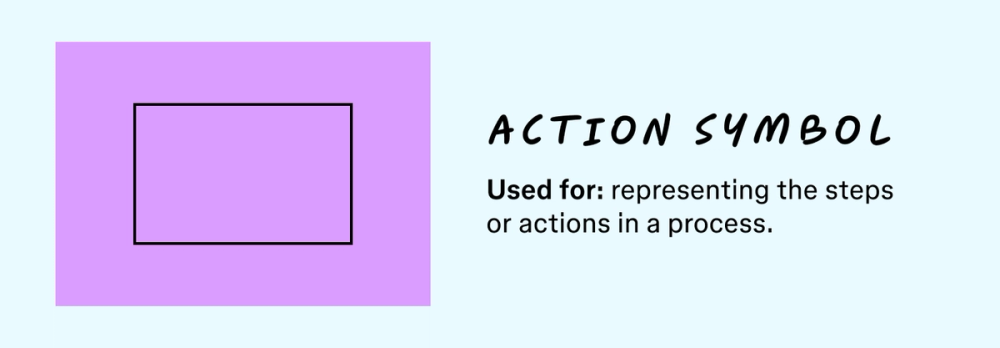
Meaning: the actions or steps needed to carry out a process
When to use: for any single task, operation, or activity within your process, whether manual or automated
The action symbol (a rectangle) represents what’s being done—the core building block of most flowcharts. Whether it’s a user submitting a form or a system running a script, these steps connect basic tasks or actions needed to reach an outcome.
Symbol 3: Decision symbol

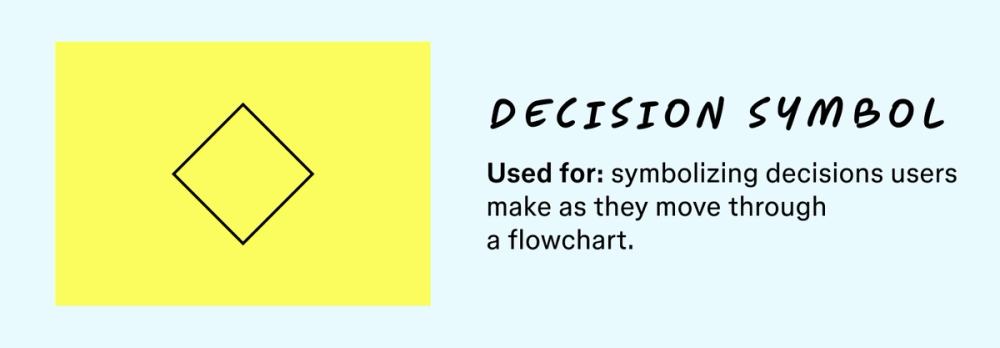
Meaning: decisions that break flowcharts into multiple routes
When to use: at any point where a choice or question (e.g., “Yes/No,” “True/False”) directs the flow down different paths
Diamonds mark decisions users (or systems) make at crossroads in a flowchart. Use true/false or yes/no labels on the outbound arrows to show where each path leads.
Symbol 4: Directional flow symbol

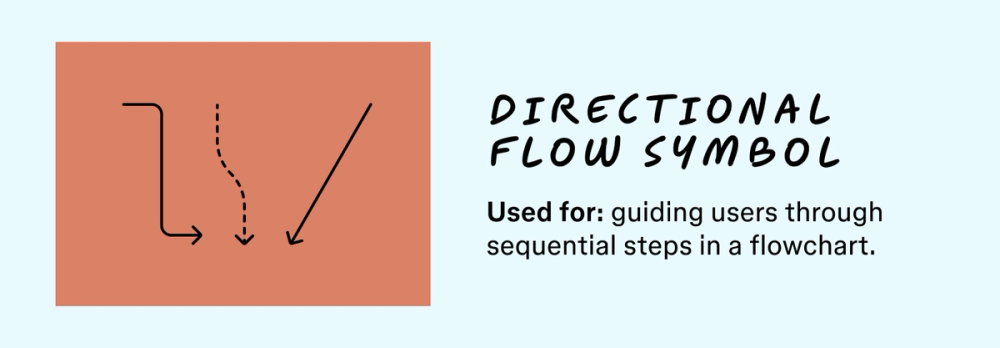
Meaning: the paths a flowchart’s user takes between steps
When to use: to show the sequence of actions in your process
Arrows guide users along paths on a flowchart. Arrows connect symbols and indicate direction. Dotted or dashed arrows can signal alternate paths or dependencies.
Symbol 5: Input and output symbol

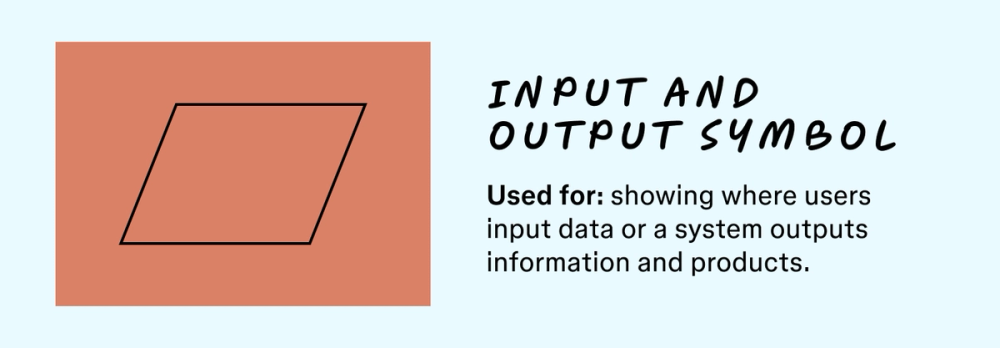
Meaning: data or finished products entering and leaving a process
When to use: when a user enters info or the system produces an output
Input and output symbols reveal when goods or data enter and leave a system. Sometimes called the data symbol, this icon shows how resources are used or generated. Think of a user submitting a payment form (input), or the system generating a receipt (output).
Advanced flowchart symbols
These symbols go beyond the basics, helping you map more complex or specialized processes.
Symbol 6: Preparation symbol

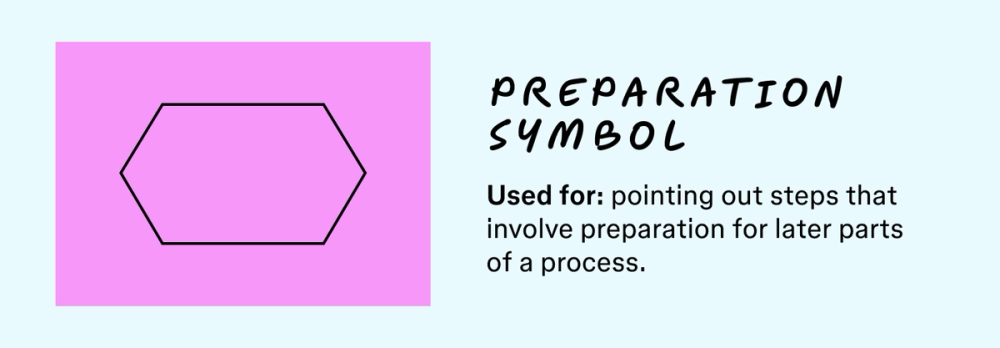
Meaning: a setup step before the main action
When to use: when a task sets the stage for the next step, but isn’t the primary work itself
Use this symbol to indicate prep work, like loading data or gathering materials, before the main process begins. It’s a useful way to flag dependencies early in a flow.
Symbol 7: Predefined process symbol

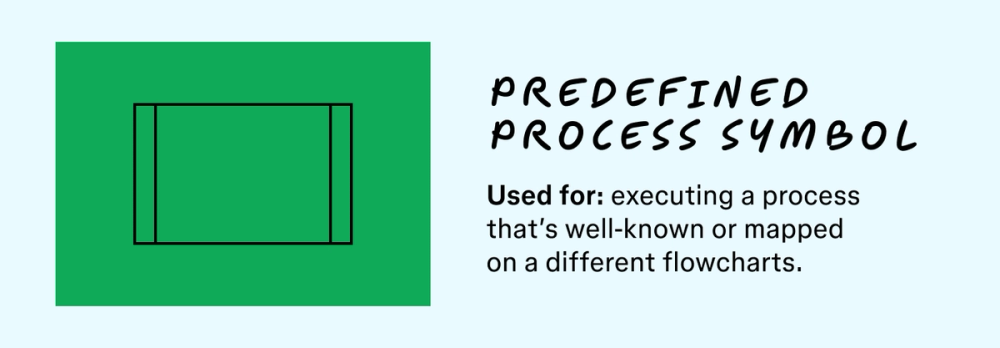
Meaning: a known process mapped out elsewhere
When to use: when your flow triggers a separate well-known workflow or subroutine
This symbol acts as a placeholder for a process you defined elsewhere. Typically, these processes are too complex to fit onto your flowchart. In other cases, the process is well known, and the symbol works as a shorthand, helping you simplify the main chart and avoid repetition.
Symbol 8: Manual input symbol

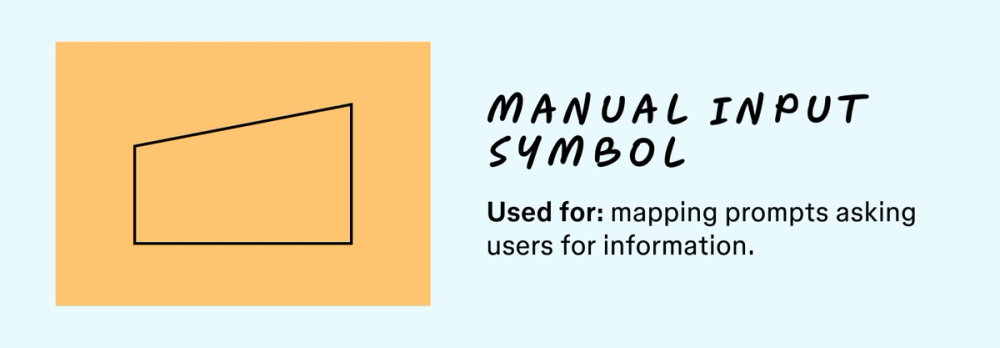
Meaning: a step that requires a user to enter information
When to use: to highlight points where human users are prompted to physically enter data into a system
Manual input symbols point out steps where human input is required, like entering a password for their account or selecting an option from a menu.
Symbol 9: Manual operation symbol

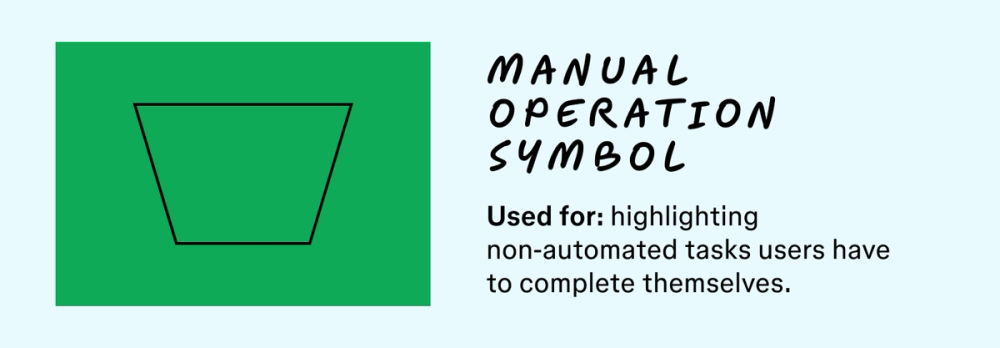
Meaning: a task donee manually without automation
When to use: for tasks a human user performs physically without any system automation
Manual operation symbols highlight tasks users must complete themselves. Since you can’t automate every process in a flowchart, this symbol helps teams consider how to build a user-friendly version of this process.
Some teams call this the manual loop symbol when a process doesn’t have a loop limit. Instead of making an AI end the loop, users will stop it themselves.
Symbol 10: Delay symbol

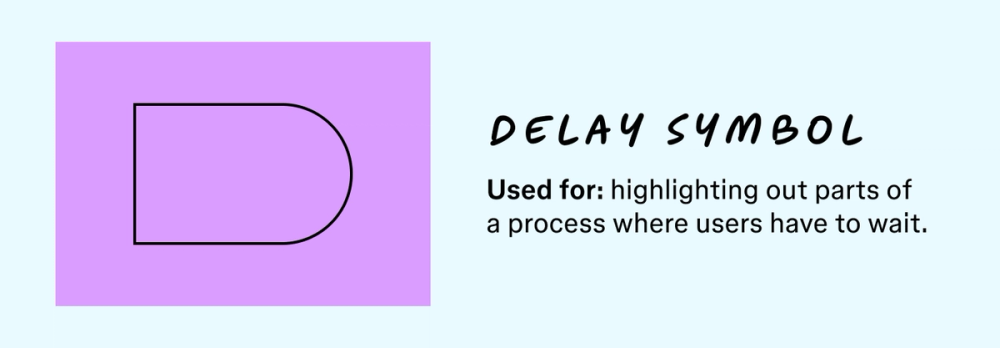
Meaning: a delay or pause in the process
When to use: to indicate a built-in delay, either timed or conditional
Delay symbols highlight segments of your process when users have to wait and how long the delay will last. While they sound inconvenient, delays play an important role in your processes. For example, e a delay might represent extra risk-prevention steps.
Symbol 11: Loop limit symbol

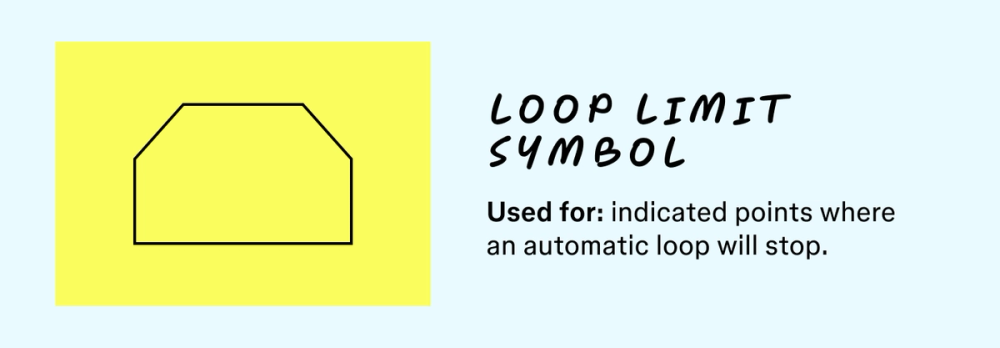
Meaning: indicates the point at which looping steps should stop
When to use: in programming or automated processes to define when a repeated set of steps should end
Some programming tools use loops, or processes that repeat themselves. These loops can repeat automatically until they reach a desired outcome. This programming symbol states when a loop should stop, either after giving the correct result or going through a predetermined number of loops.
Symbol 12: Alternate process symbol

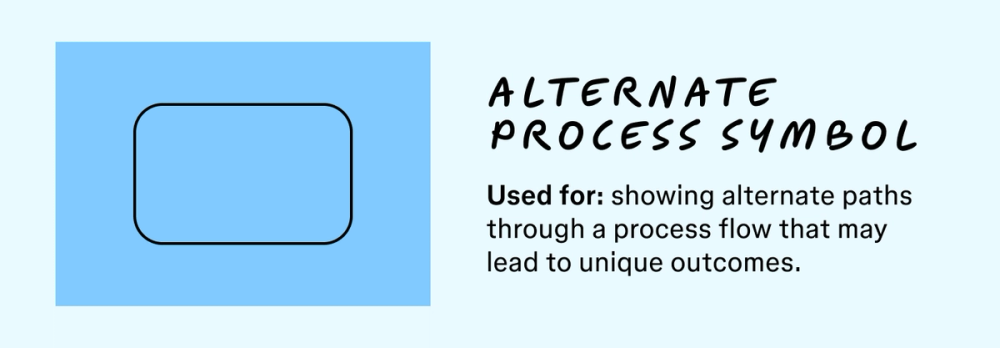
Meaning: an alternate progression to the normal step flow
When to use: when there’s an optional or alternative path to anoutcome
Alternate process symbols show how a system can deviate from its standard process flow. These alternate paths often lead to the same outcome as basic process symbols, but can also lead to unique outcomes. Dotted or dashed arrows represent the path between alternate steps in process mapping.
Data and document flowchart symbols
These symbols represent how data and documents are created, stored, and used. They’re especially useful for software design or information architecture.
Symbol 13: Document symbol

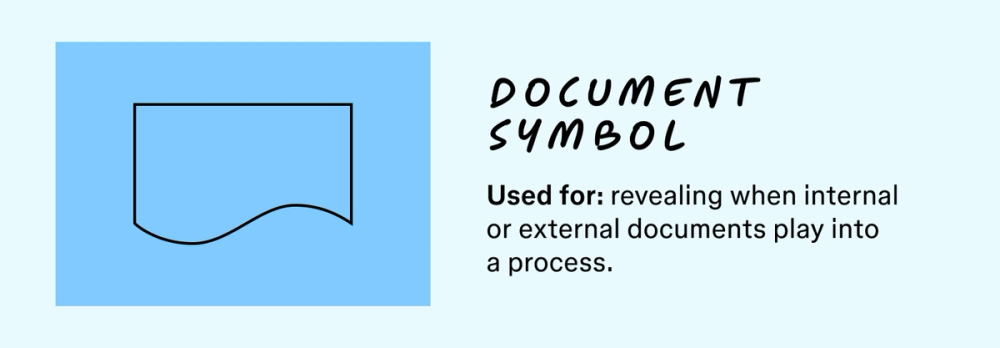
Meaning: a digital or physical document, report
When to use: to indicate the input, output, or existence of a physical or digital document within the process
Document symbols highlight when users input a document or when a program generates one. For example, you’d use this symbol when telling a user to create an invoice or accept a memo. You can also stack multiple document symbols to represent multiple forms.
Curious about templates in FigJam?
Explore ready-made templates to jumpstart your next flowchart or diagram.
Symbol 14: Data storage and stored data symbol

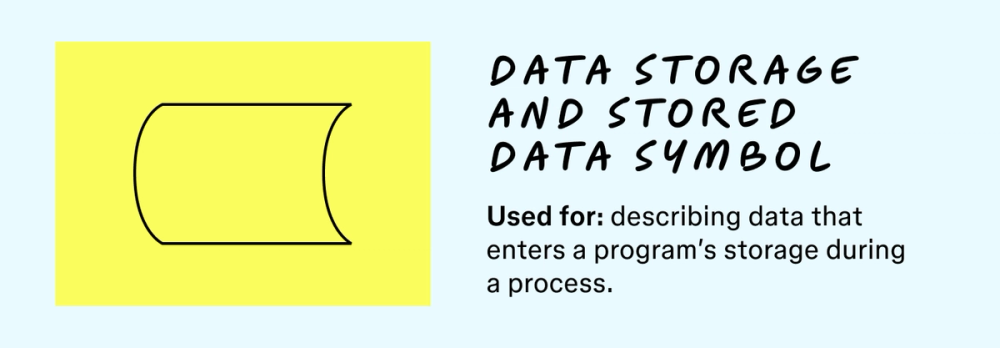
Meaning: a step where data gets stored within a program
When to use: to show any point where data is saved or retrieved from general storage within a system
Stored data symbols reveal when data enters a program’s storage. Use this symbol when describing specific data used for one step or broader data relevant to an entire process.
Symbol 15: Internal storage symbol

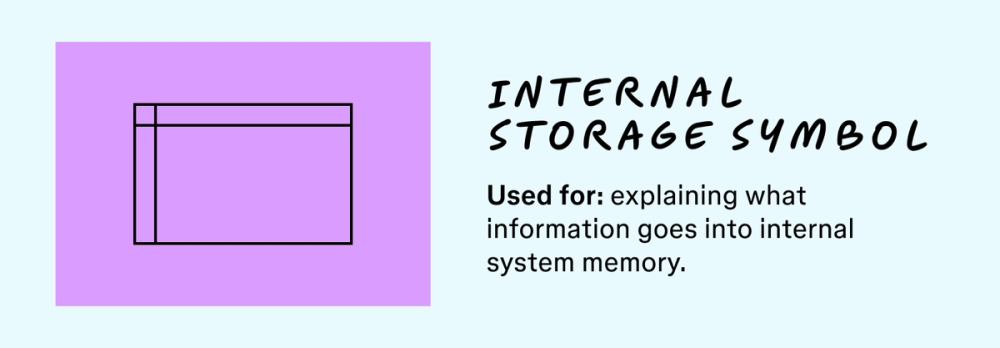
Meaning: information stored in a system’s internal memory
When to use: in software design flowcharts to represent temporary data stored within a system’s active memory
Internal storage symbols represent temporary data saved during a program’s execution, such as cache, session data, or user input. In software design flowcharts, this symbol shows information generated by the program or entered by users that is stored for short-term use during runtime.
Symbol 16: Hard disk symbol

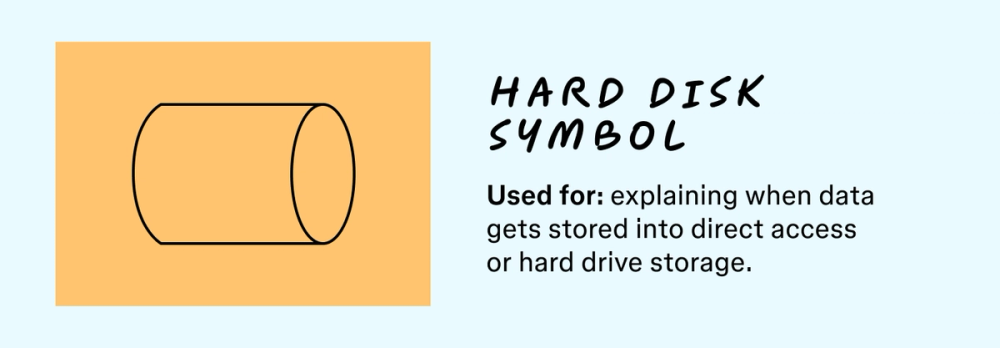
Meaning: location where data gets stored on a hard drive
When to use: when data is saved to or accessed from direct access storage, like a local hard drive
Teams use this symbol when using direct access storage or hard drive storage during a process. When a program doesn’t use online databases, local storage keeps data safe and accessible.
Symbol 17: Database symbol

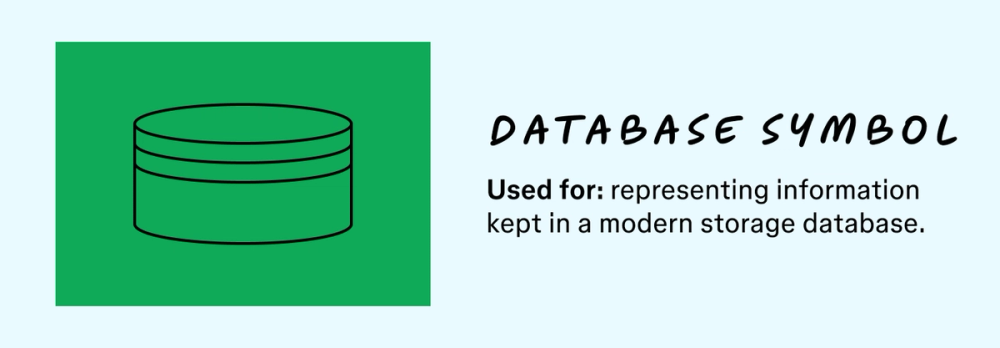
Meaning: data listed in a standard structure that allows for sorting and searching
When to use: to represent interaction with a structured database where information can be easily queried and managed
Database symbols represent information stored in structured, modern systems, like SQL servers or cloud databases. Unlike sequential storage (e.g., magnetic tape), databases support fast, flexible access to data in any order. They also enable filtering, querying, and customizing views based on user needs.
Symbol 18: Collate symbol

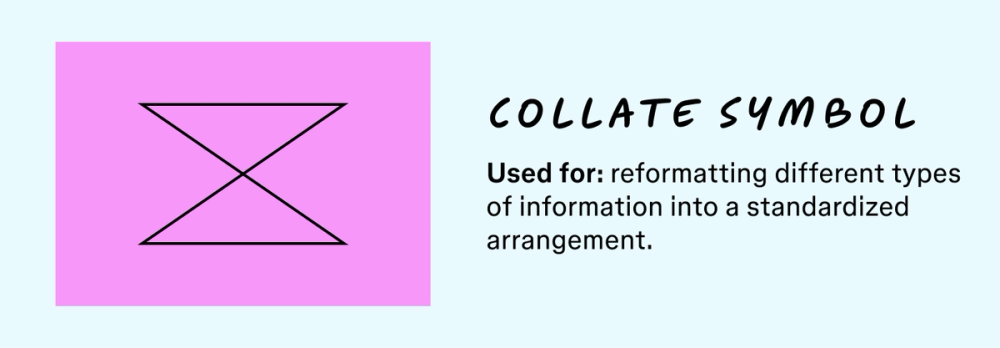
Meaning: orders information in a standard format
When to use: when a process step involves reorganizing and standardizing information from various sources into a unified structure
Collate symbols pop up when processes standardize information. Systems often draw on data points in different formats. Collate symbols reformat this information and standardize it into a new arrangement.
Symbol 19: Sort symbol

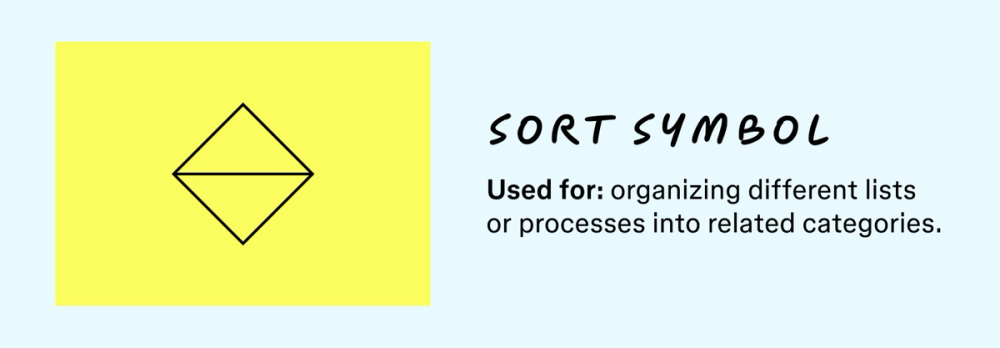
Meaning: organizes a list of items into a set or sequence based on predetermined criteria
When to use: when data is rearranged or categorized within the process without necessarily changing its format
Sort symbols collect and organize data from across a flowchart, similar to collate symbols. However, unlike collate symbols, which primarily gather and standardize data, sort symbols emphasize categorization and sequencing.
They can group items by specific criteria, combine related processes, or arrange actions in order of priority or logic. Sort symbols don’t necessarily standardize the data they collect.
Navigator and connector flowchart symbols
These symbols help guide users through complex or multi-page flowcharts and keep diagrams readable and organized.
Symbol 20: On-page connector symbol

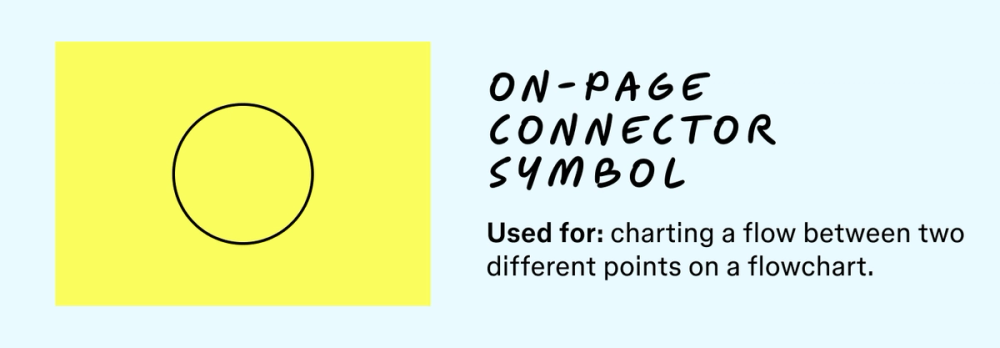
Meaning: connects points within the same chart
When to use: to avoid long, confusing arrows by liking two parts of a chart on the same page
On-page connectors link different elements on a page and can replace long arrows on a complex flowchart. Label both connector points with matching letters or numbers to help readers clearly follow the flow.
Symbol 21: Off-page connector symbol

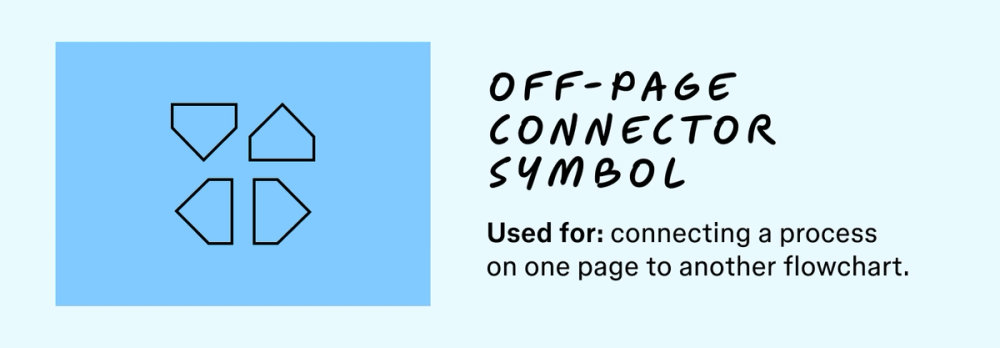
Meaning: connects points across different charts or pages
When to use: for very large or multi-page flowcharts to link process flows across different pages
Off-page connectors link elements across pages. A page number often sits beside the connector to show where the symbol connects.
Symbol 22: Or symbol

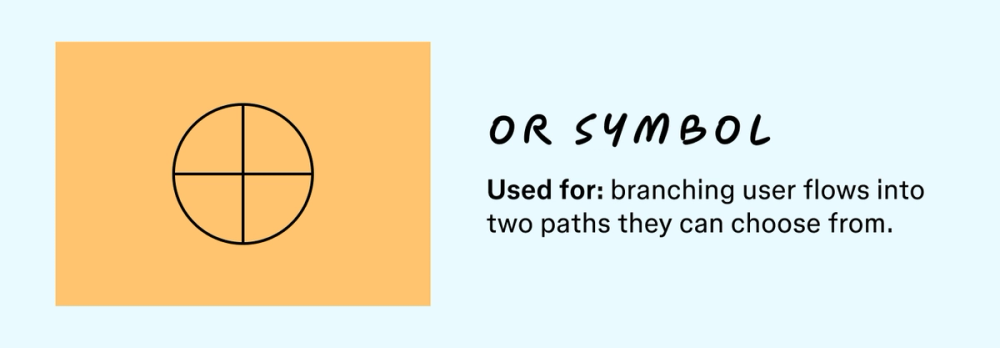
Meaning: a decision point with mutually exclusive outcomes
When to use: to mark where a user or system must choose one path from based on user input or goals
Some types of flowcharts can branch off into two paths depending on user inputs or goals. An or symbol highlights these branching points in a user’s flow.
Symbol 23: Merge symbol

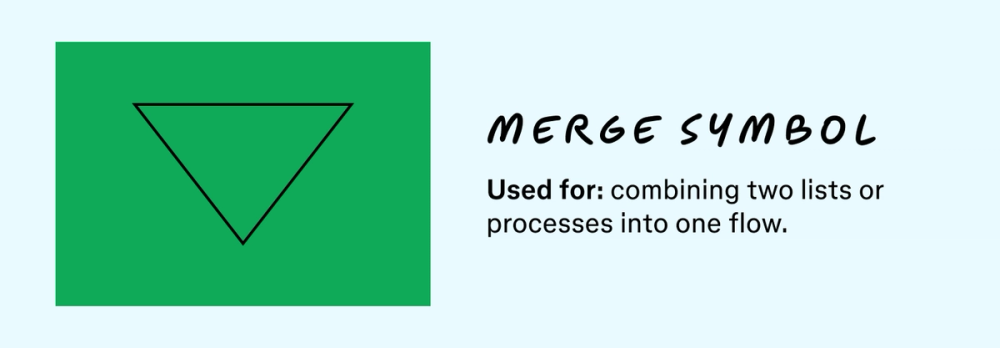
Meaning: combines two process paths into one
When to use: when different branches of a process or separate lists converge back into a single step or outcome
On flowcharts, lists and processes can branch off and reconnect. Merge symbols let the reader know when this occurs. In other cases, merge symbols combine previously unrelated processes or lists.
Symbol 24: Summoning junction symbol

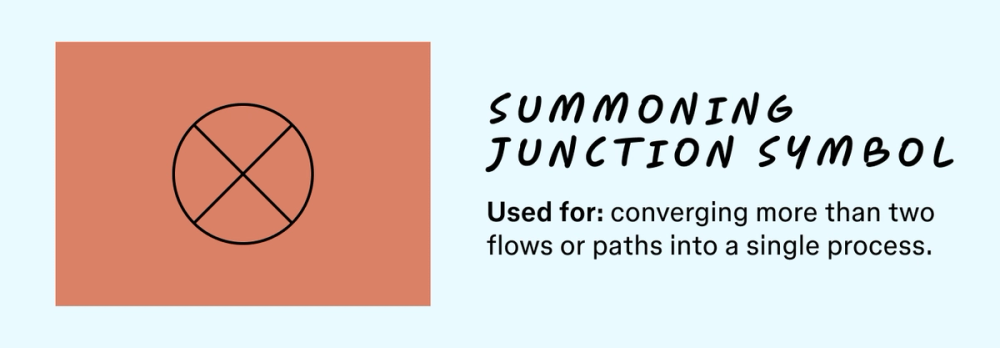
Meaning: merges three or more branches
When to use: when three or more distinct flows or lists merge into a single subsequent process step
Think of this like a “mega merge” for flowcharts. Use it when you have several processes feeding into a single next step.
Symbol 25: Annotation/comment symbol

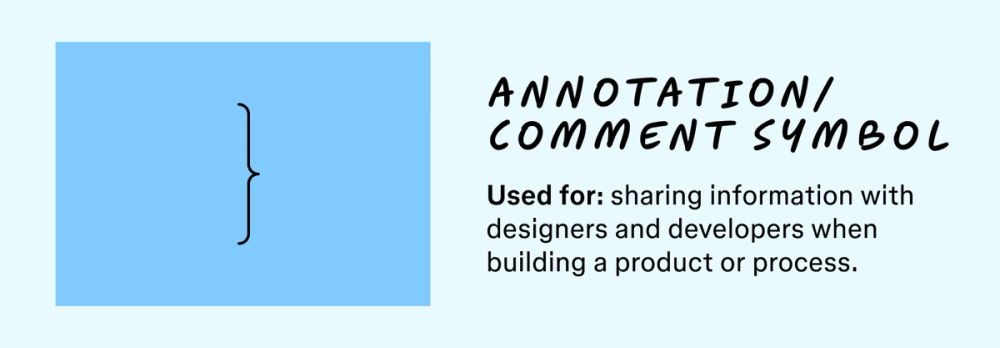
Meaning: adds context or notes
When to use: to clarify a step without cluttering the main diagram
Flowchart writers use annotations or comments to explain their processes in more detail. This symbol can provide instructions or contextual information. Remember that these annotations often help designers and developers rather than the end user.
Symbol 26: Display symbol

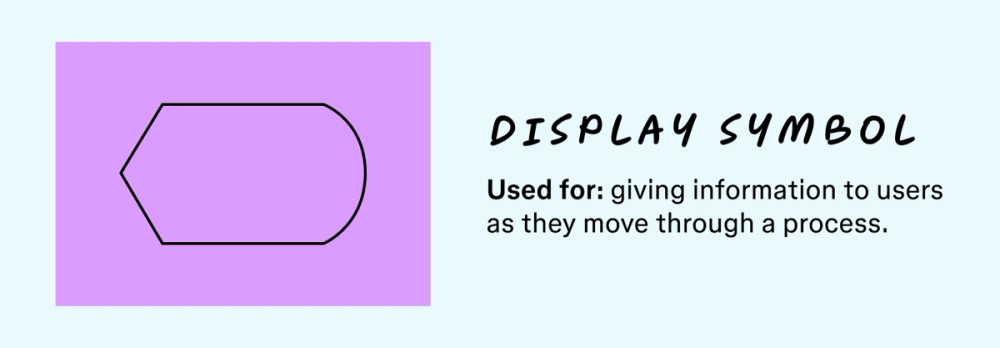
Meaning: indicates a step that displays information
When to use: to show when information is automatically presented to the user, like a message, report, or screen output
Some processes automatically display information as users move along. Display symbols indicate when this happens and what information will be displayed. Unlike annotations, display symbols focus on customers’ needs over internal teams’ needs.
Flowchart best practices
To make your flowcharts clear, actionable, and easy to follow, keep these best practices in mind:
- Be consistency. Stick to standard symbols throughout your diagram. Avoid inventing new ones to ensure everyone interprets the chart the same way.
- Follow a logical flow. Most flowchars read left to right or top to bottom. Make sure your diagram follows a clear, unambiguous path.
- Keep labels concise. Use short, descriptive text within symbols. For more details, use an annotation symbol.
- Avoid clutter. Break down complex processes into smaller charts or use predefined process symbols to keep flowchart diagrams readable.
- Review with others and iterate. Fresh eyes can catch ambiguities or missing details. Collaborate with your team to refine and finalize.
Flowchart symbols template
Need a visual reference? Download our flowchart symbols template to see all 26 symbols in one, clean, scannable chart. Use it as a cheat sheet or start building your own diagram right from the template.

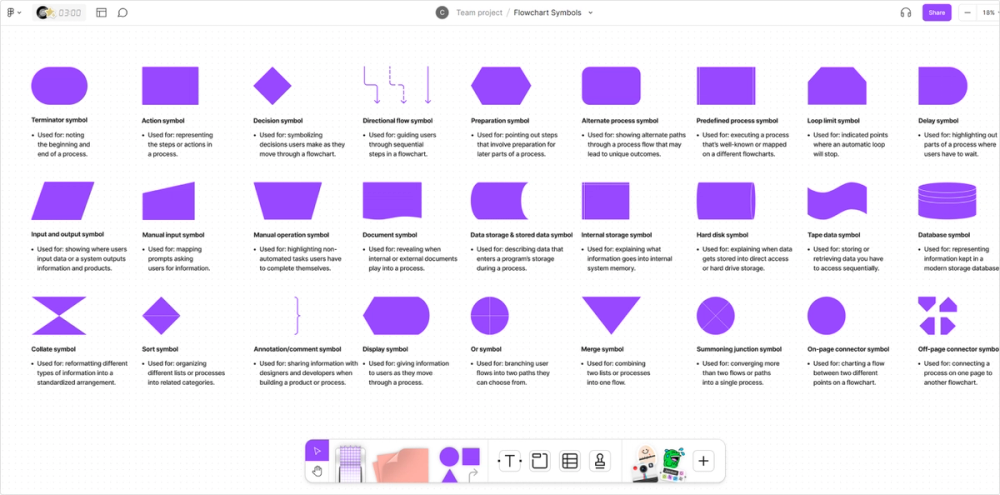
Chart and symbolize your processes with FigJam
Understanding flowchart symbols empowers you to design, analyze, and clearly communicate processes. FigJam’s intuitive online whiteboard makes it simple to apply this knowledge, helping your team collaborate on diagrams from early brainstorming to process refinement.
Here’s how FigJam’s features and templates can elevate your flowcharting:
- Drag and drop the exact flowchart symbols you need from FigJam’s built-in shape library, ensuring accuracy and consistency.
- Start with a pre-built flowchart template to instantly structure your process, saving time and ensuring no critical steps are missed.
- Work alongside your team with FigJam, adding comments, making edits, and iterating on designs together, no matter where they are.
Ready to create your flowchart?
Visualize ideas using flowchart symbols in FigJam.