Exploring FigJam’s tools + features


Share Exploring FigJam’s tools + features
Exploring FigJam’s tools + features
Explore more from
Team productivity
Teach, share, and collaborate in FigJam
Activities, lessons, and file sharing—all in one interactive classroom space.
Exploring FigJam’s tools + features


How to make a new FigJam board
FigJam is a free, dynamic digital whiteboard that transforms your classroom into a collaborative space for learning. Before creating your first FigJam board, you'll need to verify your Edu status by signing up with your school email.
Once your Edu account is verified, follow these steps to create a new FigJam board:
- Log in: Go to Figma.com and sign in with your school email.
- Quick Start: For a fast option, type FigJam.new into your browser to instantly create a new board in your drafts.
- Organize: Visit your profile at figma.com and create a new project to keep all your FigJam boards neatly organized.
- Create: In your project, click “FigJam board” to start a new one.
Check out this Help Center article to dive deeper into creating drafts, organizing them within teams, and making the most of FigJam templates. It’s a great resource to help you stay organized and efficient.
How to navigate a FigJam board
FigJam offers an open canvas where your creativity, along with your students', can unfold without constraints. To unlock its full potential, start by familiarizing yourself with the navigation tools, which function similarly to Google Maps—allowing you to zoom in, zoom out, and pan across the space quickly.
- Pan around: Swipe with two fingers on your trackpad to move left, right, up, or down. Alternatively, you can use the hand tool located in the bottom-right corner of the toolbar to navigate the canvas.
- Zoom in and out: Pinch to zoom in, and pull apart to zoom out on your trackpad. You can also use the “+” and “-” buttons at the bottom-right of your FigJam board for precise zoom control.
Watch the video below to get started and see how your ideas can take shape.
2 ways to use sections
- Use sections as pages: Whether it’s for individual assignments or small group projects, sections can create dedicated spaces for students to work within FigJam. By structuring the canvas into sections, you give it the feel of pages, making it easier to navigate between different tasks and activities.
- Use sections to organize your board: Sections can act as clear, organized spaces for activities, group work, or discussion prompts. This setup helps keep your board neat and guides students through each part of the lesson with a clear visual structure.

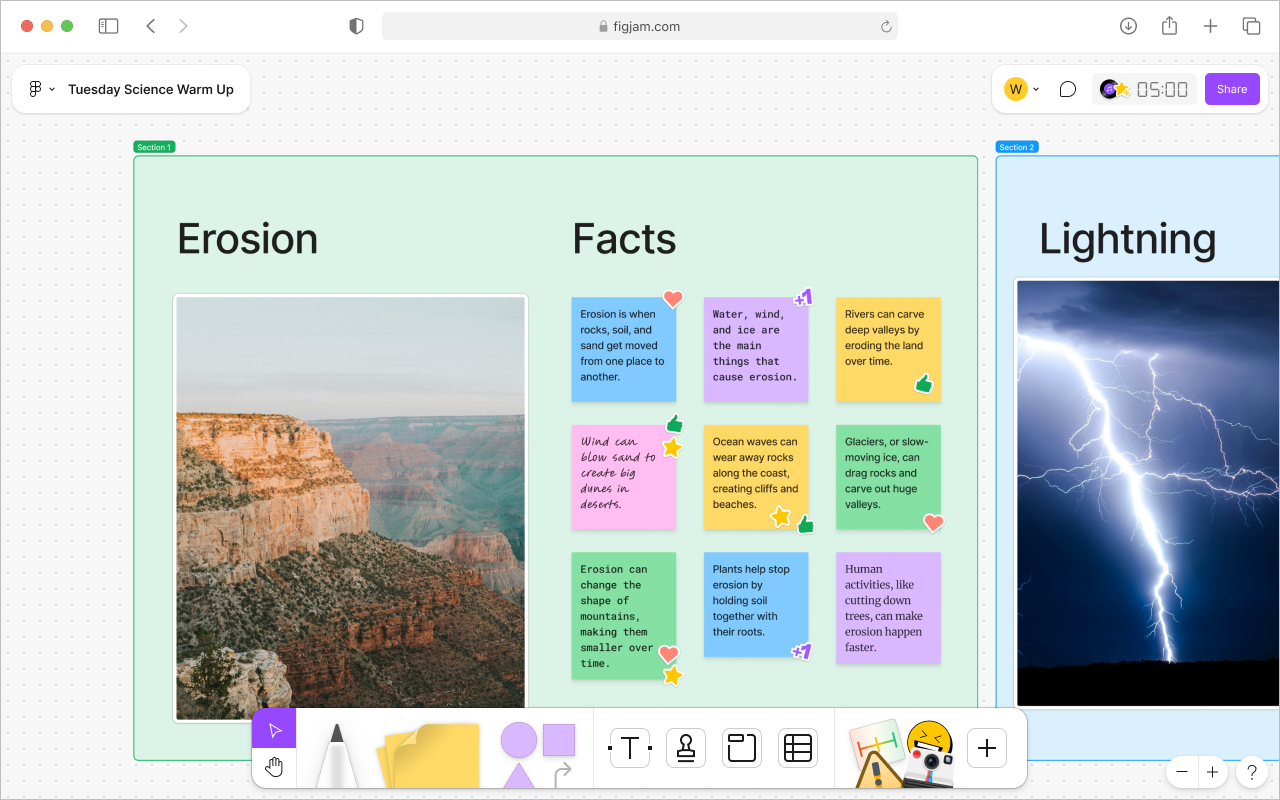
Check out this Help Center article to learn more about how to create and organize sections in FigJam. It’s a helpful guide for managing your boards and keeping your activities lessons structured.
Sticky notes and stamps
Sticky notes: FigJam is ideal for boosting class participation. By using sticky notes, students can easily share their thoughts during lessons, empowering even the quieter ones to express themselves comfortably. Ensure all voices are heard and included!
Stamps: Teachers can enhance engagement by using FigJam’s stamps to quickly acknowledge and celebrate contributions. This feedback encourages ongoing participation and makes students feel valued, fostering a supportive classroom environment.

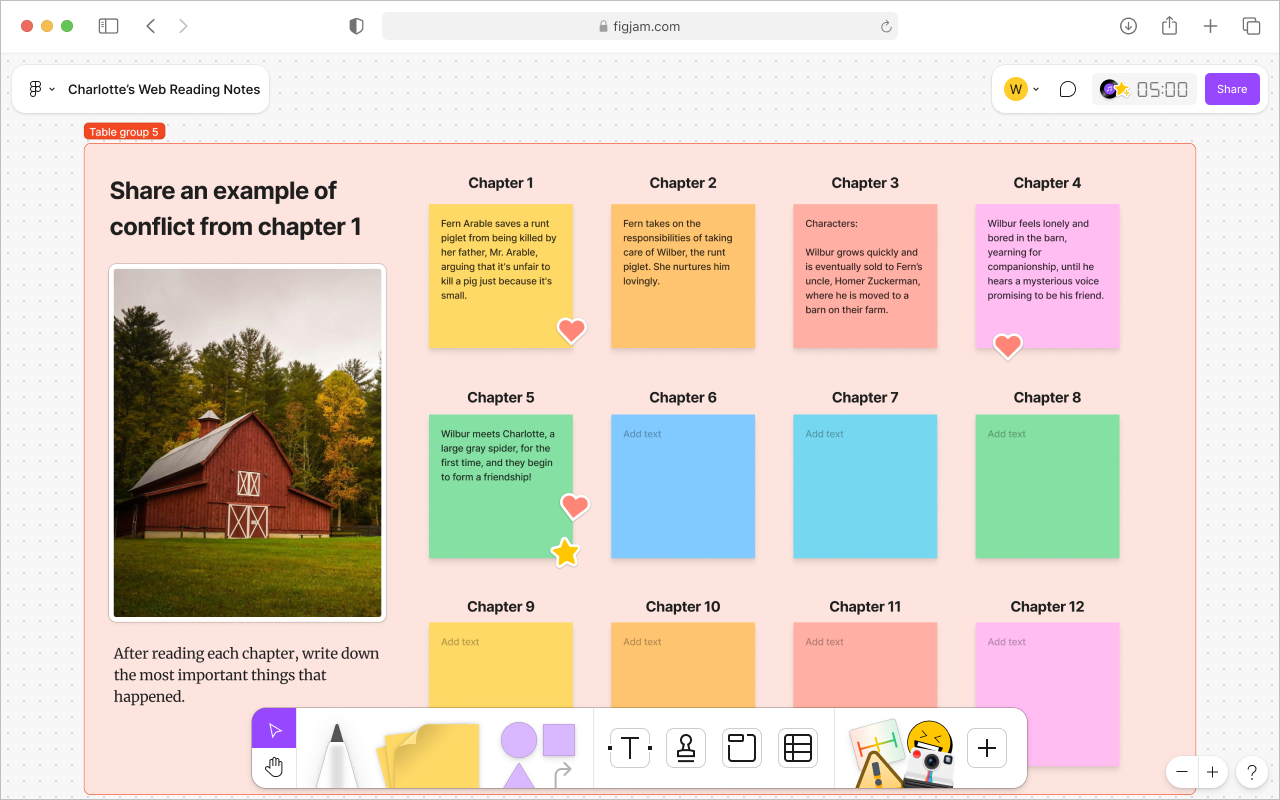
3 ways to use sticky notes
- Use FigJam to create KWL charts where students can visually map out what they Know, Want to know, and Learned, enhancing their engagement and understanding of new topics.
- For student introductions, have students share about themselves in predetermined sections of the FigJam canvas and allow for others to respond with stamps.
- Openly discuss topics by creating activities that have clear directions and preset sticky notes that encourage contribution and discussion.
Ink Tools
Use FigJam’s marker and highlighter tools to bring your lessons to life! The marker tool is great for sketching on the board or labeling key concepts in real time, while the highlighter makes it easy to emphasize important information during class discussions or when analyzing text.
3 ways to use the ink tools
With FigJam, you can freely draw or annotate any part of the canvas. The highlighter tool even sticks to elements like images, helping key ideas stand out. Here are three creative ways to make the most of the ink tools:
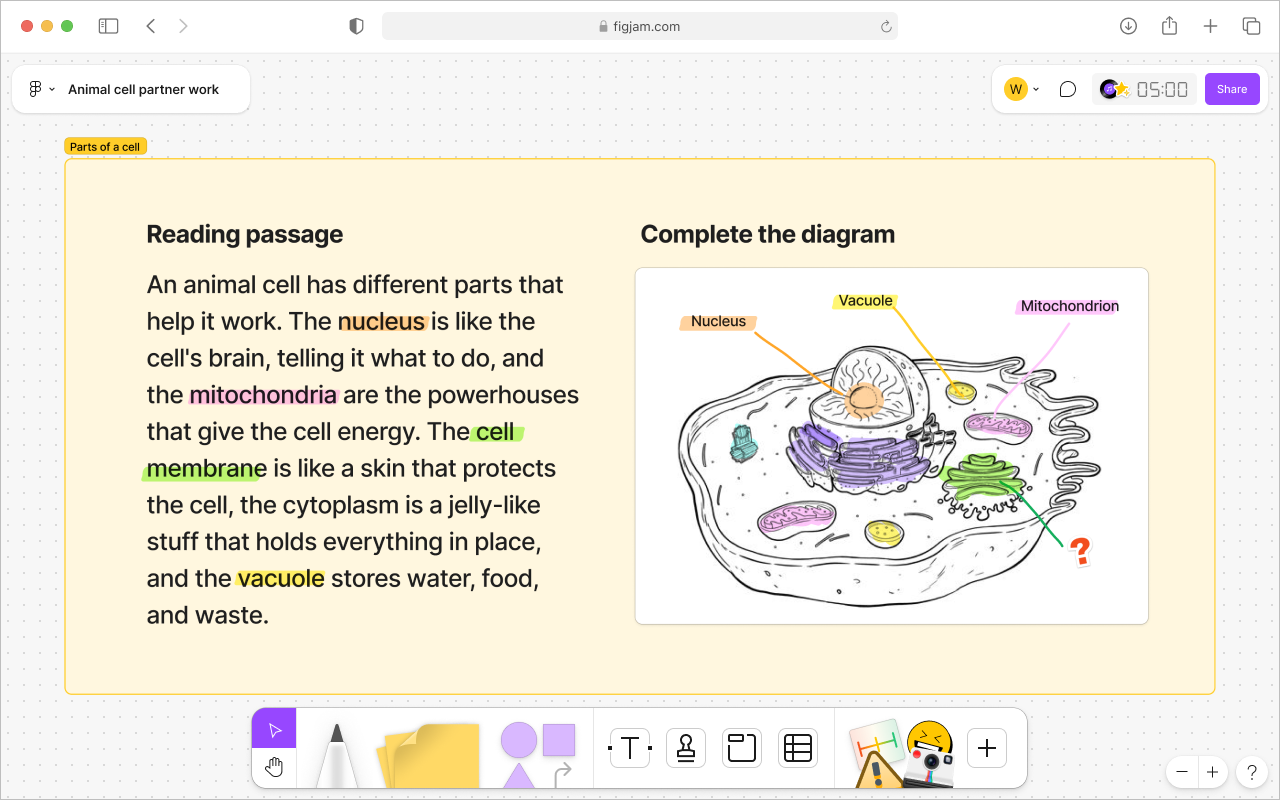
1. Annotate a diagram: Invite students to use the pen tool and highlighter to interact with blank diagrams you’ve added to your FigJam board. These can be images you paste in, ready for students to annotate, connect, and expand upon with their own ideas.

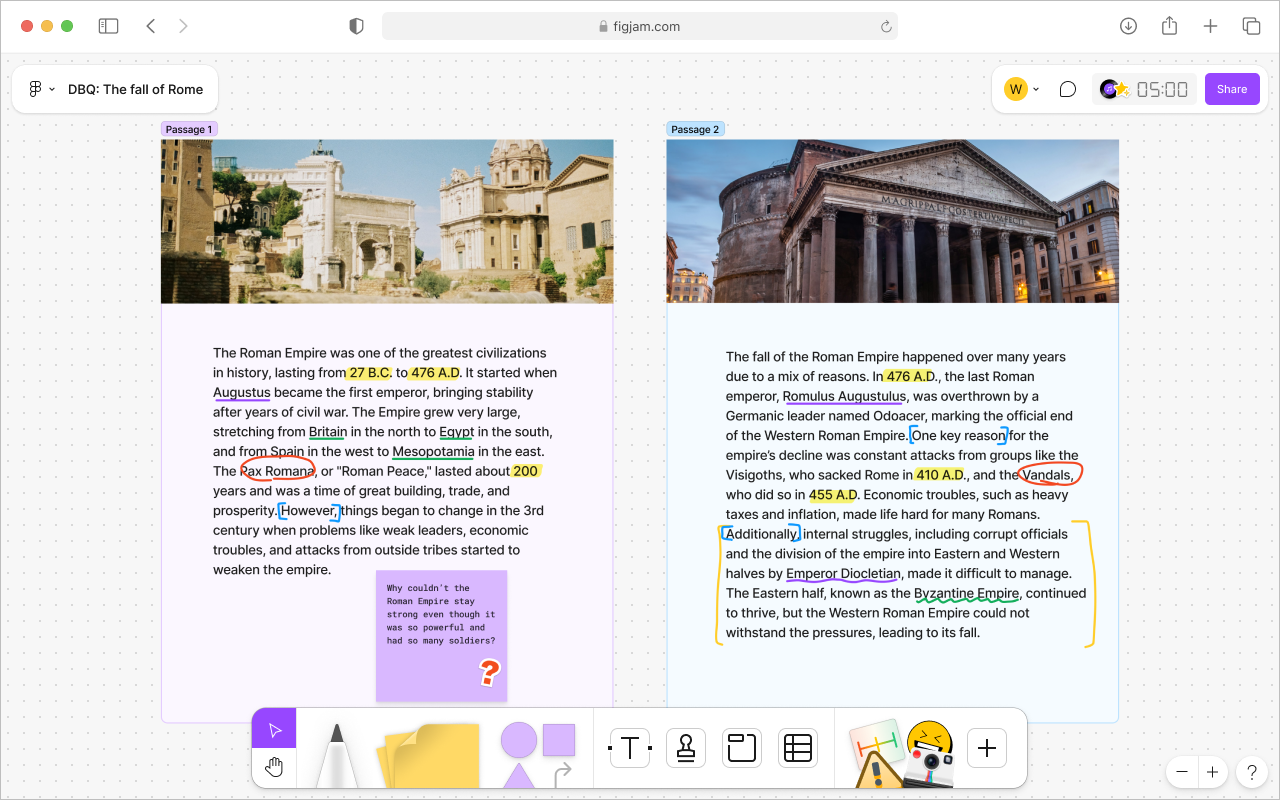
2. Annotate text: Prompt students to annotate over existing text like PDF’s or images imported into FigJam.

3. Free-draw: Encourage students to use the pen tool to draw out concepts, ideas, or quick sketches directly on the FigJam board. It’s perfect for visualizing thoughts, making abstract ideas more concrete, and adding a personal touch to their learning.
Check out this Help Center article to learn more about FigJam’s marker and highlighter tools .
Ready-to-use lesson templates: these ice breakers, games, and thinking routines are excellent opportunities for students to use the pen and highlighter tools in FigJam. They provide fun, interactive spaces where students can draw, annotate, and engage creatively while collaborating with their peers.
Shapes and connectors
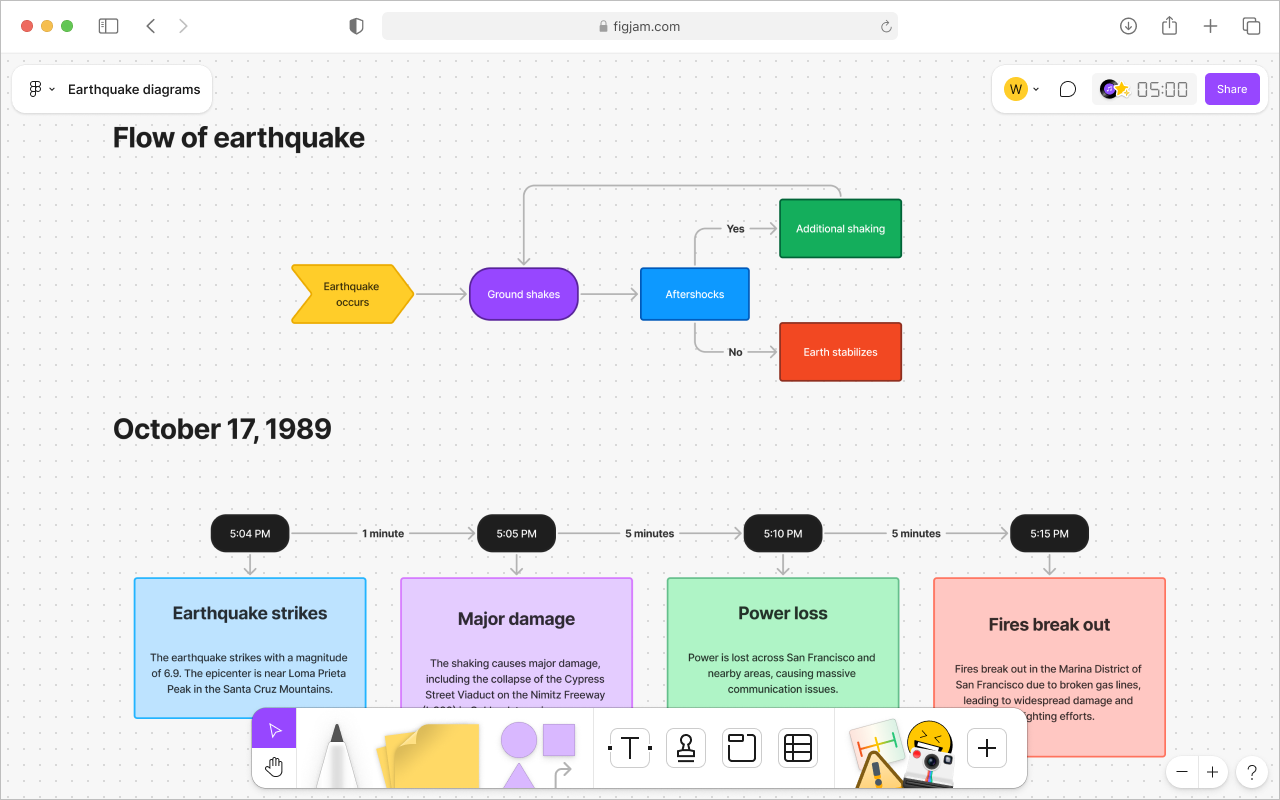
FigJam’s shapes and connectors provide students with tools to visually organize and display their thoughts, fostering deeper understanding. By using shapes and connectors, students can create clear, structured representations of complex ideas, enhancing their ability to communicate and collaborate effectively.
- Shapes: In FigJam, shapes are great additions to visual organizers, timelines, and flow charts. Resize, rotate, or customize them with dashed or solid outlines to help students structure their thinking in diagrams and mind maps.
- Lines and connectors: Lines are great for connecting ideas, linking sticky notes, or showing sequences in student work. Customize lines with colors, text, and end points to create clear, engaging visuals that enhance understanding and keep lessons interactive.

Widgets
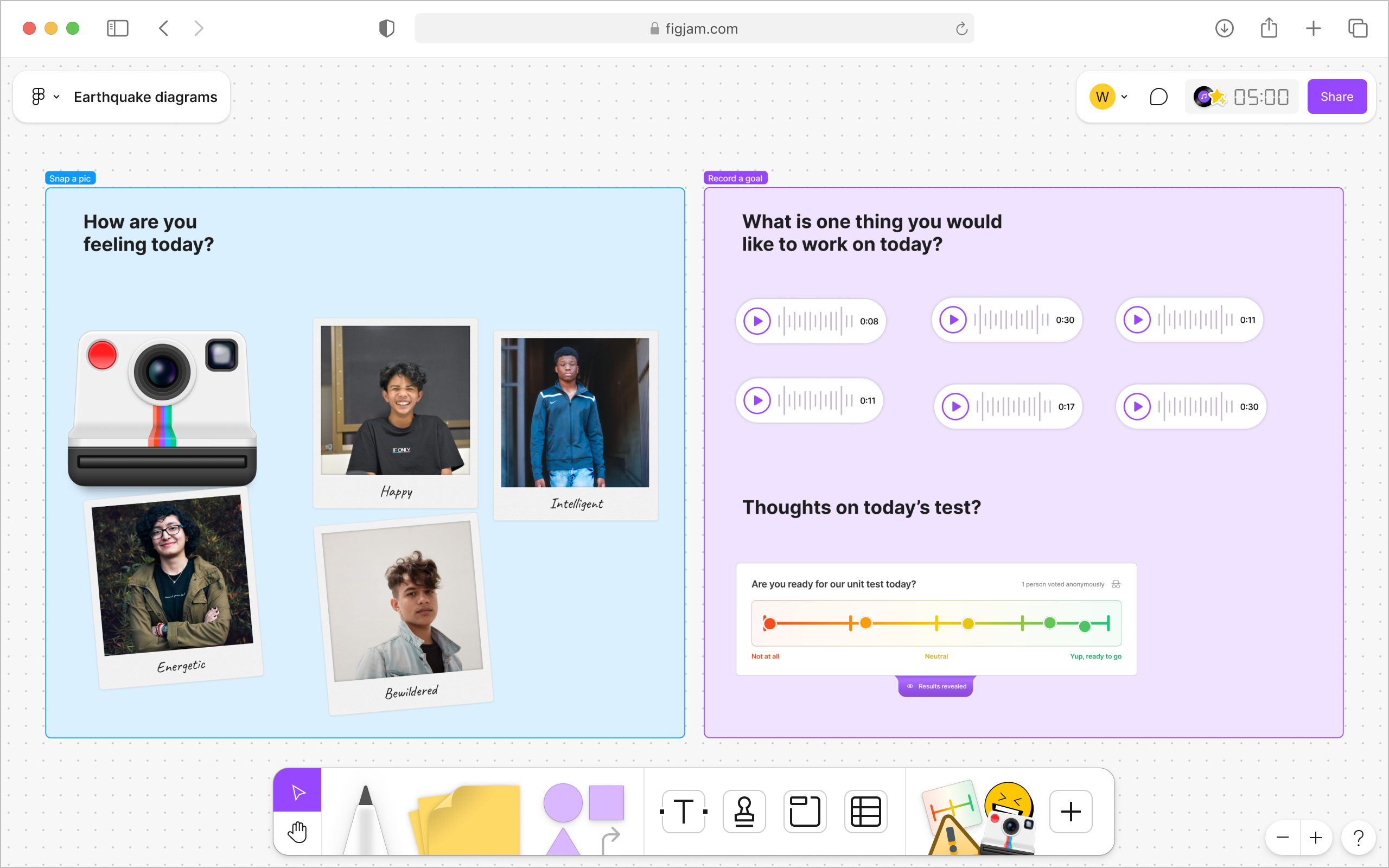
Widgets in FigJam are on canvas apps that enhance your classroom activities by adding interactive elements. Widgets are visible to everyone working on the board, allowing students to collaborate more effectively. Teachers can use widgets to bring in voice recordings, polls, or other interactive tools, making lessons more engaging.

3 Widgets you should try
- Photo Booth: Use this widget for student introductions, class projects, or to capture moments during collaborative activities.
- Voice Memo: Enable students to record audio responses for discussions, language practice, or reading activities, giving a voice to all students and making participation more inclusive. You could also use this to give quick verbal teacher feedback on student work!
- Poll: Use the poll widget to quickly gather student feedback, check understanding, or vote on class decisions, making it an interactive and efficient way to involve all students in the lesson.
Extra credit
→ Learn FigJam by diving into templates, found in the template library. These ready-to-use resources are perfect for various classroom activities, and you can mix and match or customize them to fit your teaching needs. Get creative by combining templates, experimenting, and discovering all that’s possible in a FigJam board!
→ Explore FigJam more deeply by watching this YouTube playlist, designed to guide you through key features and creative uses for your classroom. These videos walk you through practical tips and tricks, helping you apply FigJam tools and strategies directly in your lessons.
→ For the adventurous teacher who loves to create from scratch, FigJam.new is your blank canvas. Open a new board instantly and let your creativity run wild, building lessons, activities, and brainstorms from the ground up.