Design lessons


Share Design lessons
Designing engaging lessons in FigJam
Explore more from
Team productivity
Teach, share, and collaborate in FigJam
Activities, lessons, and file sharing—all in one interactive classroom space.
Designing engaging lessons in FigJam

Why use FigJam with students
You may be asking yourself, why try FigJam with students? Here are four great reasons:
- Interactive learning: FigJam encourages active participation, allowing students to collaborate and engage visually.
- Creativity unleashed: The flexible tools like pens, shapes, and stickers help students express ideas in creative, non-linear ways.
- Collaboration made easy: Whether in small groups or whole-class activities, FigJam promotes teamwork and shared idea-building.
Customization: Teachers can tailor lessons to student needs, using templates or creating activities from scratch for a truly personalized learning experience.
How to introduce students to FigJam
To introduce students to FigJam, start with a phased approach for best results:
- Phase 1: Individual Work: Have students begin by exploring FigJam on their own board, experimenting with the basic tools like sticky notes, shapes, and drawing. This builds familiarity and confidence.
- Phase 2: Small Group Work: Next, transition to small group activities where students can collaborate, share ideas, and practice using FigJam’s collaborative features.
- Phase 3: Whole-Class Activities: Finally, bring everyone together for a full-class activity, encouraging participation, brainstorming, or presenting ideas as a group on a shared FigJam board.
Building lessons in FigJam
Building lessons in FigJam is an exciting way to engage students in the classroom. You can start with a variety of templates or create a fresh board by typing FigJam.new into your browser. Whichever approach you choose, there are key features and best practices to consider before sharing boards with your students. Watch the video below to learn more about effectively preparing and managing your FigJam lessons for the classroom.
Classroom Management in FigJam
Set clear expectations
Before beginning, establish guidelines for how students should interact with the board and each other. Clarify whether they are simply viewing others' work or providing feedback. If feedback is required, specify the format - whether through sticky notes, comments, or another method. Clear instructions ensure that students understand their roles and contribute appropriately to the activity.
Show a non-example
Demonstrate what inappropriate engagement looks like in a FigJam activity. For instance, show how randomly moving or deleting other students' work, adding off-topic doodles, or flooding the board with excessive sticky notes can disrupt collaboration. Use this non-example to highlight the importance of respecting others' contributions and following agreed-upon guidelines.
Make sure students are tracking with the lesson
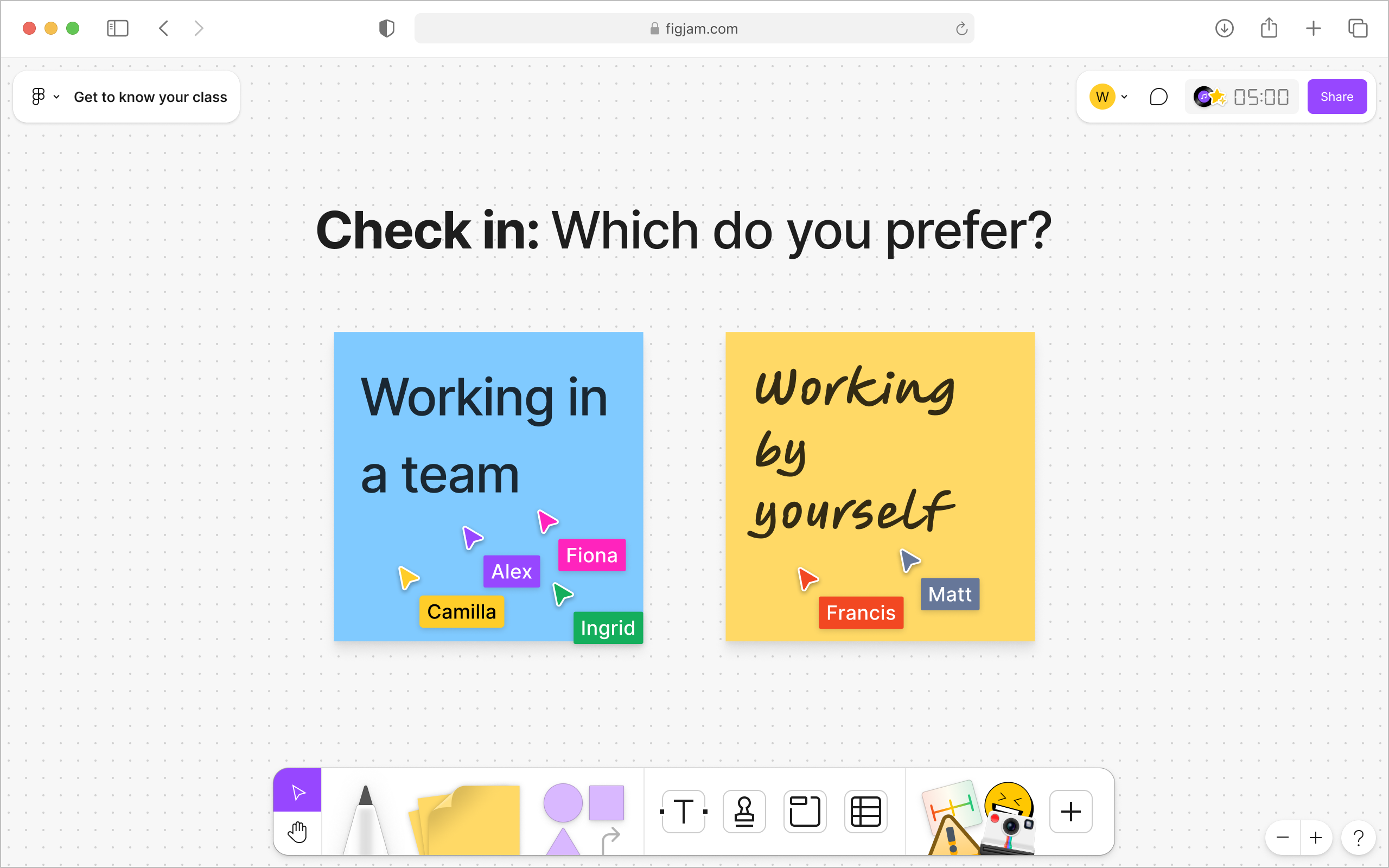
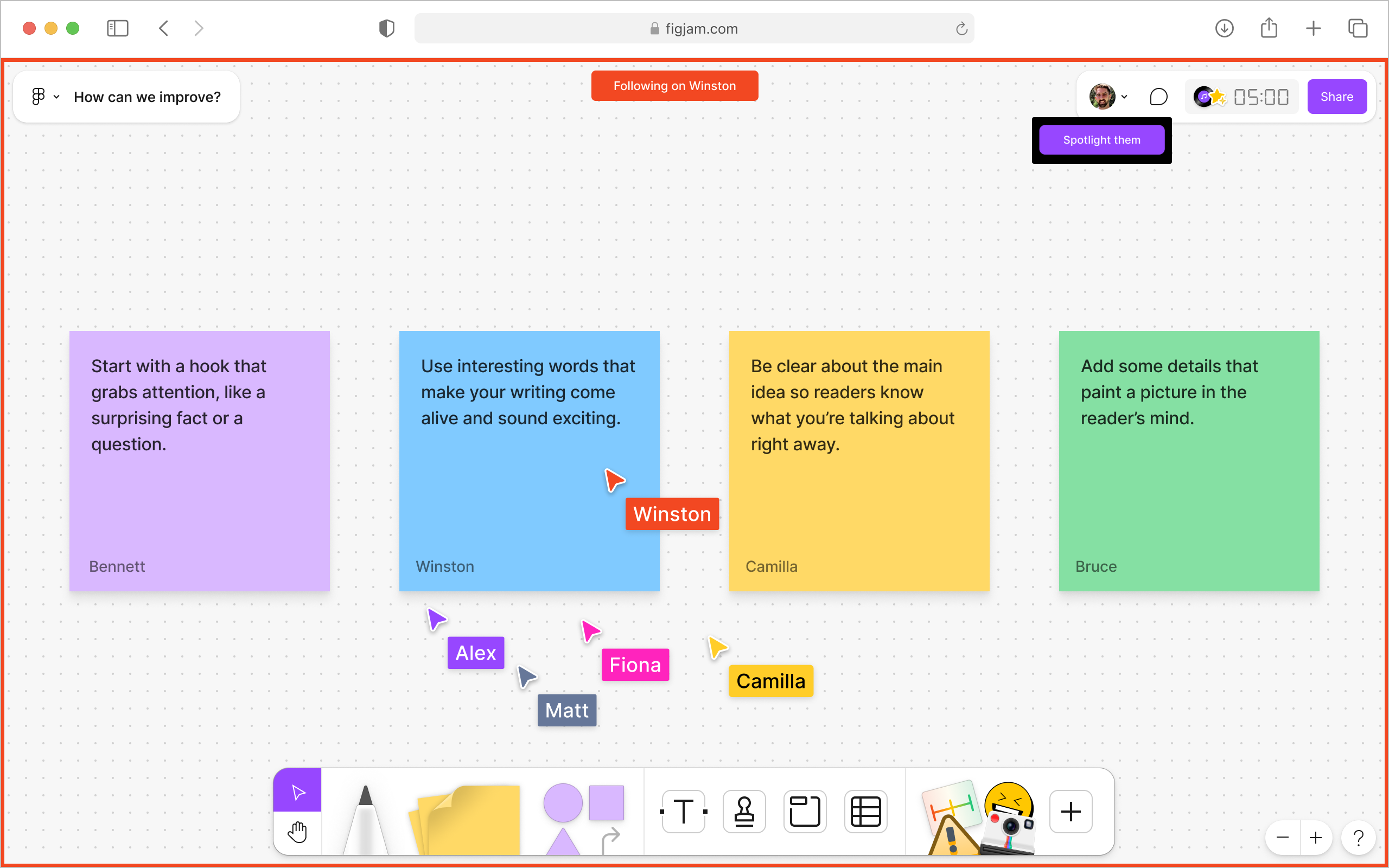
If you need all students to focus on one spot in FigJam, try adding a shape, sticker, or other visual item to the board. Ask students to move their mouse cursor over that item, creating an easy way to get everyone in the same space. This helps the teacher quickly see who’s following along with directions and ensures that everyone is engaged in the same area of the board. It’s an effective, visual way to manage student attention during FigJam activities.

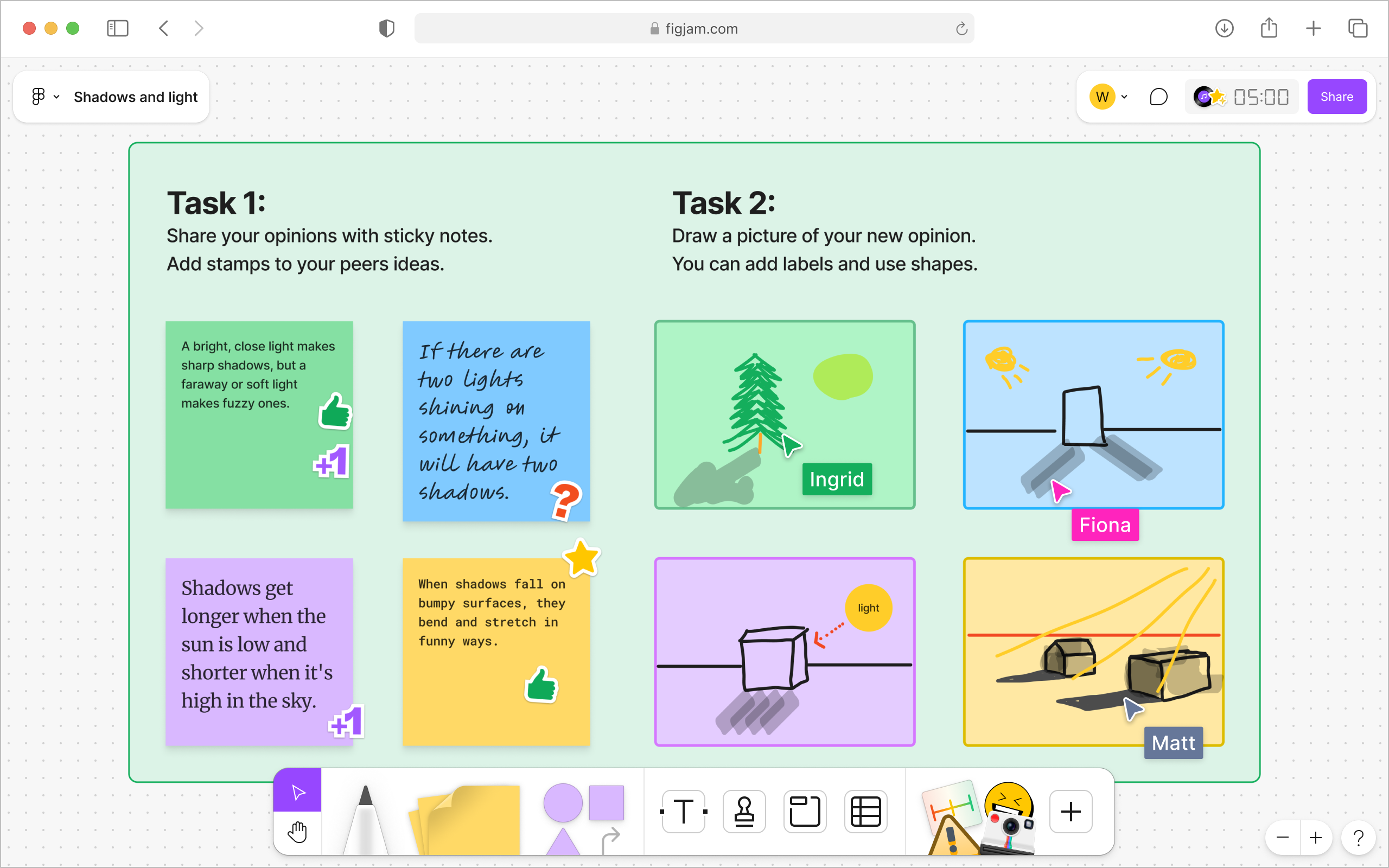
Add clear text directions
Use the text tools in FigJam to format your instructions clearly and communicate tasks, roles, and expectations to students. Well-structured text guides students through activities, helping them stay focused and understand what’s required in each area of the FigJam board.

Essential settings
Here are four essential setting considerations to think through before using FigJam in the classroom:
1. Undo actions: Pressing Ctrl + Z is a keyboard shortcut that undoes your last action in FigJam. To redo an action that you just undid, use Ctrl + Shift + Z.
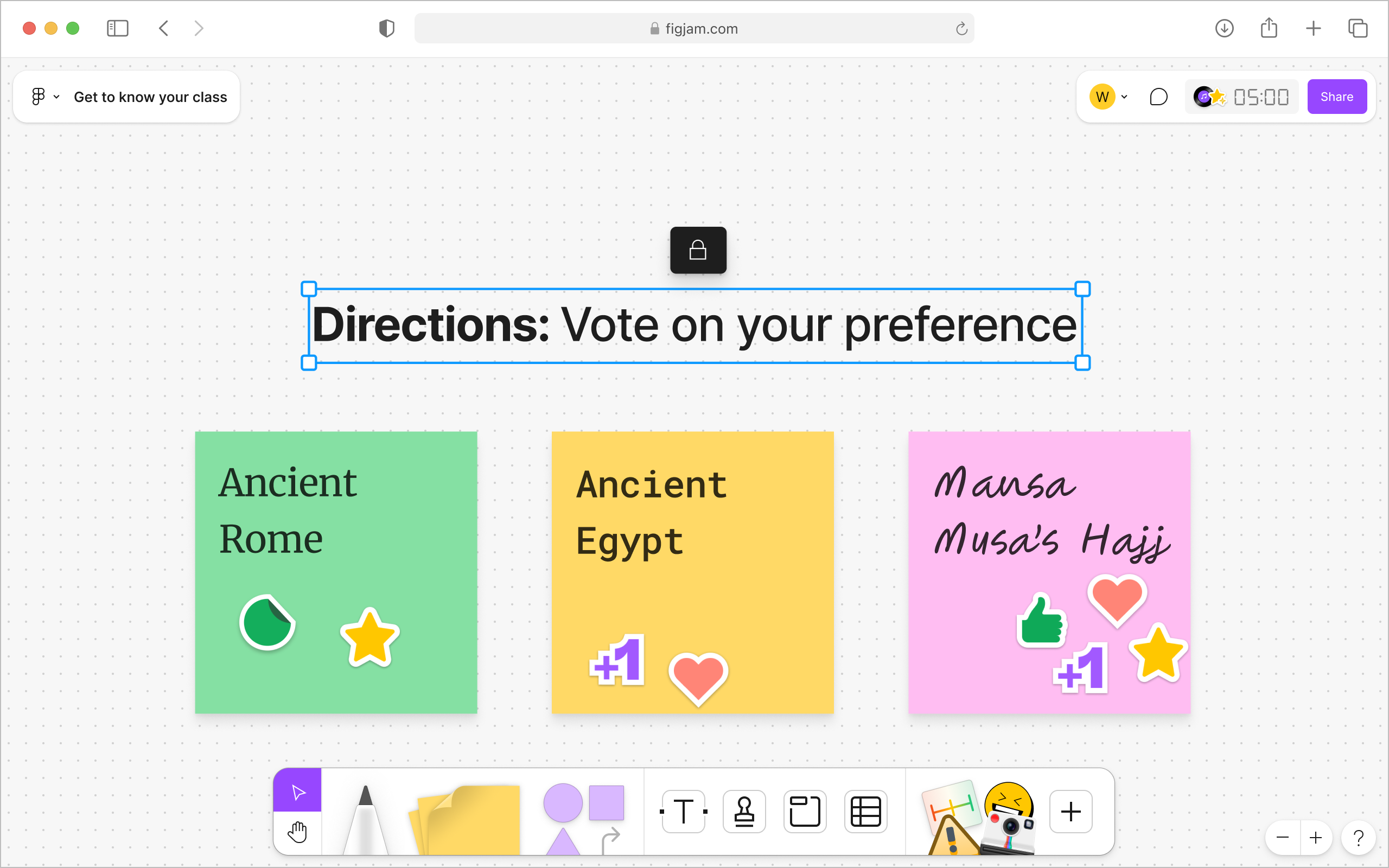
2. Locking and unlocking: Secure elements on the board to prevent accidental changes, while leaving specific items unlocked that students will interact with.

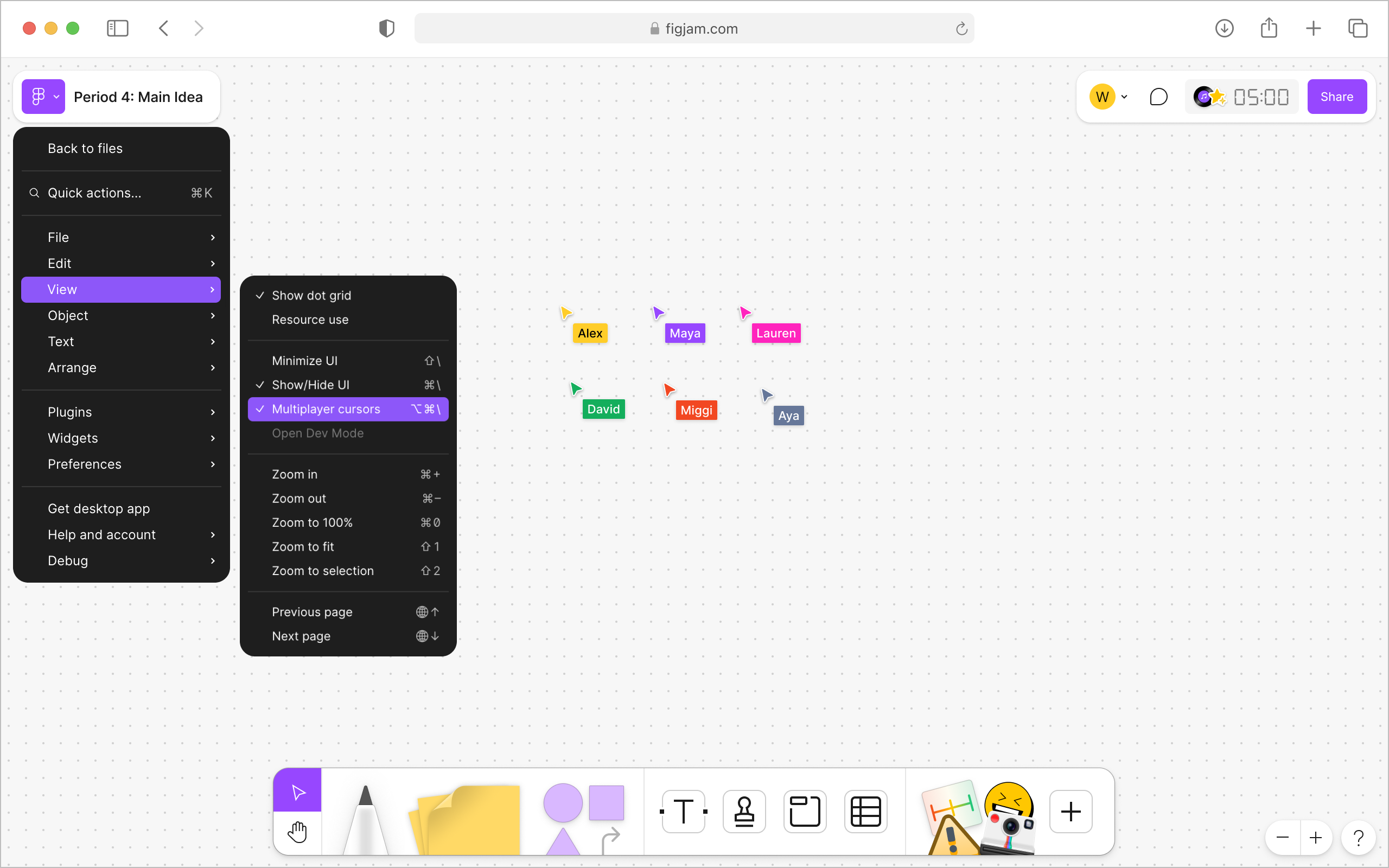
3. Turning cursor view on and off: Control whether you can see where others are pointing, which is useful for guiding discussions or focusing attention. If the cursors are distracting , you can simply toggle them off under the view settings.

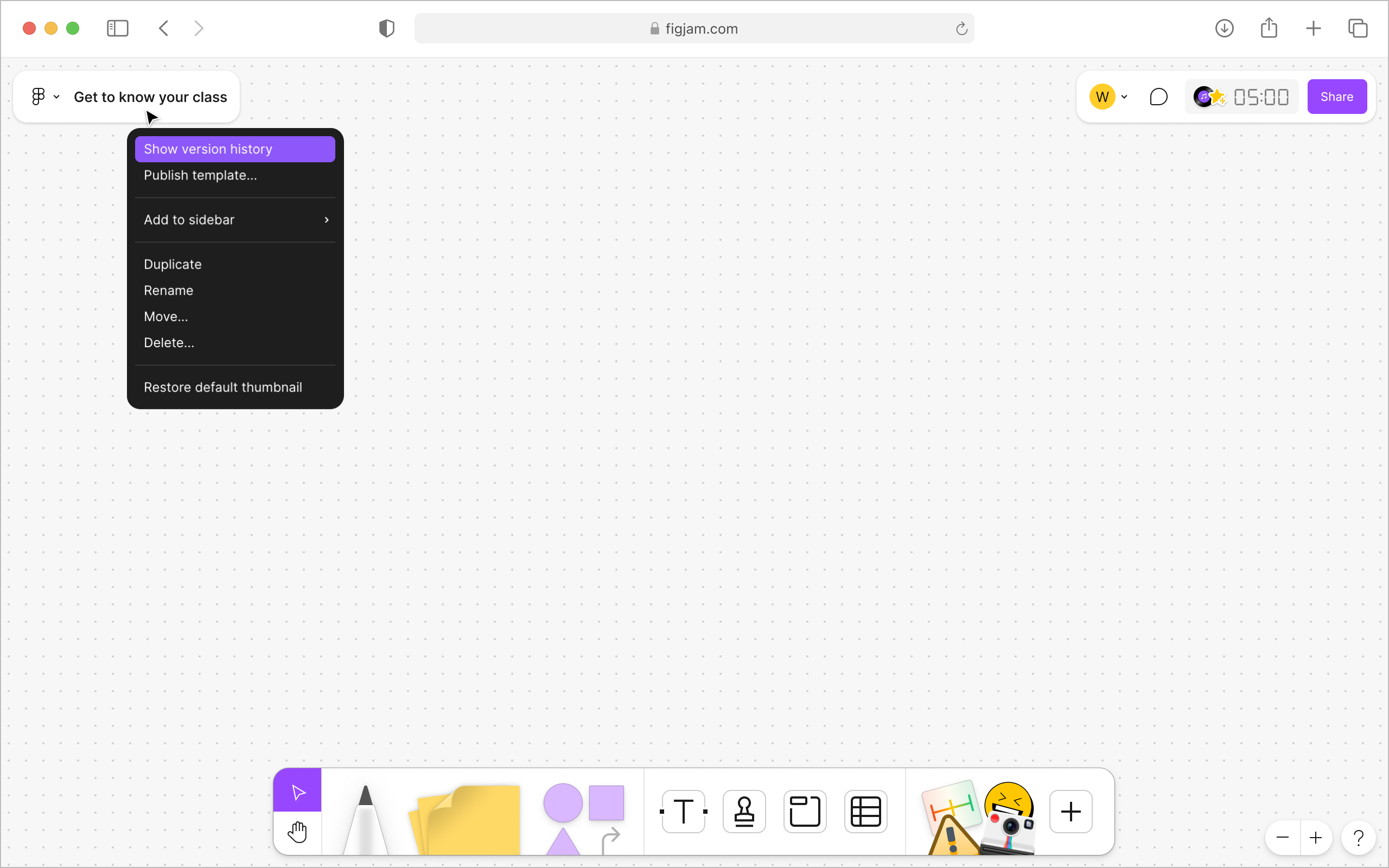
4. Attribution and version history: Keep track of who contributed what and easily revert to previous versions if needed.

5. Spotlight mode: Focus student attention by spotlighting your cursor, helping guide their focus during class activities. To activate Spotlight mode, hover over your avatar in the toolbar, open the Multiplayer tools dropdown, and select "Spotlight Me." Read this FigJam help center article to learn more.

Extra Credit
→ Explore the template library and customize a template to fit your upcoming lesson, adding your personal touch to make it unique.
→ Practice using shapes and connectors by designing a lesson where students create flowcharts, timelines, or sequence events to deepen understanding.
→Run a trial lesson with a small group or fellow teachers to practice using FigJam and test classroom management tips.