How to build an app with AI in 7 simple steps
Share How to build an app with AI in 7 simple steps
Explore more from
Building with AI

Not long ago, building an app meant hiring developers, managing infrastructure, and writing thousands of lines of code—just to launch a prototype.
Now? AI-powered tools like Figma Make make it possible to go from idea to working product without a single line of code. Whether you’re a designer, founder, or just experimenting, you can build fully functional apps by prompting, tweaking, and testing in a collaborative visual workspace.
In fact, 34% of Figma users say they’ve shipped apps that include generative AI—proof that this shift is already underway.
In this guide, you’ll learn:
- 7 steps to make an app with AI
- AI app development best practices
- The top 6 AI app builder tools
- How to use Figma to build an app with AI
- Answers to FAQs about using AI to make an app
Step 1: Clarify your app concept
AI app builders are powerful tools that help your team build an app from concept to launch. But they can’t invent your idea for you. Before you open a builder, invest time upfront to define your target audience, identify their specific pain points, and plan how your app will address them.
Beyond basic function, think about your design goals. How do you want your target audience to interact with your app? Consider how you can design the user interface (UI) to meet their expectations while delivering the most valuable user experience (UX). A strong concept includes not just what the app does, but how it works for the people using it.
Pro tip: Use a user journey map template to align features with real user needs and avoid building in a vacuum.
Step 2: Choose your AI app builder
There are countless no-code AI app builders out there, but not all of them will suit your project. Start by defining what your team needs most, from interface design to backend flexibility. Then, take time to make trial accounts and test a few tools before committing.
If you’re not sure where to start, here are key factors to evaluate:
- Price. There is a range of AI app builders available for any price point. Weigh the pricing against the tool's values and consider pricing models, such as monthly vs. token-based pricing.
- Project type. Some app builders work better for different project types. For example, if you’re building a healthcare app, you’ll need a builder who ensures your app stays HIPAA-compliant.
- Design features. Consider different AI design tools included with the app and their compatibility with any tools in your design team’s tech stack.
- Development features. Determine whether the app uses a drag-and-drop interface, supports manual code edits, or both after your initial app draft is generated.
- QAs and testing. Check out the features and compatibility to conduct QAs, test the app, and make changes.
- Deployment. Some AI app builders can publish your app when you’re finished, while others may require a third-party tool or development team.
Pro tip: Explore our list of the best vibe coding tools to find popular AI app builders to test.
Step 3: Describe your app with a prompt

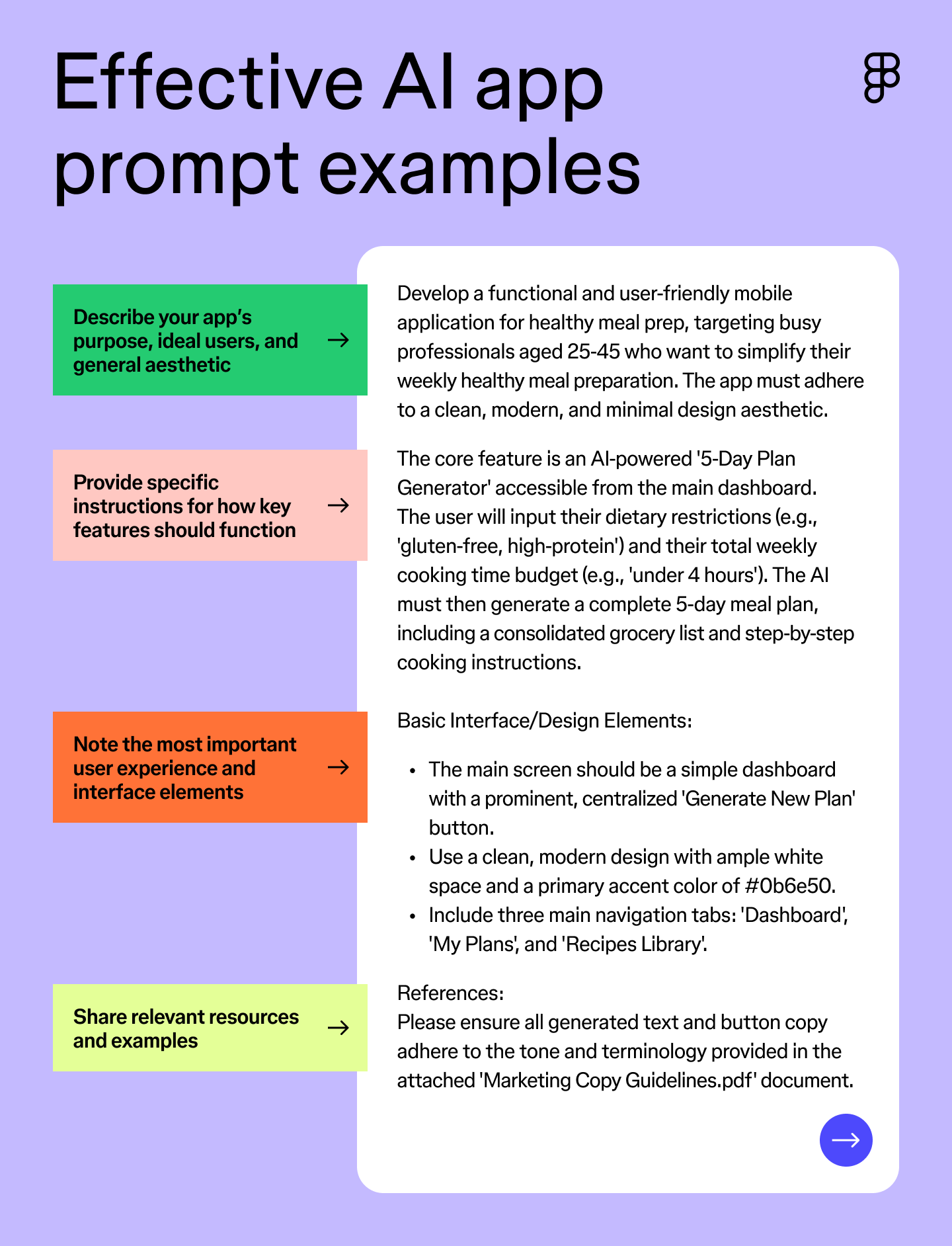
Now the fun begins. A well-crafted prompt can be the difference between building an app with bare minimum functionality and creating an app that outperforms its competitors. To get useful results, your prompt should include:
- Clear intent. Describe what your app does and who it’s for—your ideal personas.
- Interface details. Mention key screens, navigation flows, or component types (e.g., dashboards, forms, menus). Design cues: If you have a preferred style or tone (clean, playful, minimal), spell it out.
- Brand inputs: Link to or upload assets like style guides, messaging frameworks, or past mockups.
Some AI app builders also feature templates, which can help you get your app to the finish line with less back-and-forth with the LLM to clarify your vision.
Pro tip: Figma Make templates are a fast and easy way to test ideas or anchor your first draft in a known structure.
Step 4: Generate and review your first design
After submitting your prompt, it may take some time for the tool to interpret your instructions and generate a wireframe or prototype. Most tools offer a few options for screens, layouts, interfaces, and user flows.
Take the time to explore what the AI created:
- Test interactivity. Walk through flows if possible—buttons, menus, page transitions.
- Note strengths. Identify elements that match your expectations or feel intuitive.
- Flag gaps or errors. Make a list of what’s missing, off-brand, or confusing.
Pro tip: If you’re not sure how you want your app to look, vibe coding drafts can be a source of inspiration.
Step 5: Refine and customize
If there are major issues with the initial output, most tools will let you edit your initial prompt or send follow-up messages to get closer to what you intended. You don’t need perfection—once you’ve achieved “close enough,” switch to the tool’s visual editor to finalize details.
Most AI app builders offer a drag-and-drop editor that lets you modify the UI, visual elements, and page layouts. This step matters. A smooth UI is the key to retaining users. Users won’t stick around if they can’t easily navigate your app. Some platforms also support manual code changes. For example, there are multiple ways to build in Figma Make: natural language prompts, direct code editing, or a combination of both.
To access more advanced features, like payment processing, you’ll likely need Application Programming Interfaces (APIs). In Figma Make, you can connect these via prompts. In other tools, it may require more technical expertise.
Step 6: Test and preview interactions
Your AI app might look finished, but launch comes later. Quality assurance (QA) is a key component of the product development process that identifies bugs to resolve them before your app launches. If you don’t have a dedicated QA team, many AI coding tools now include basic testing features—or you can run manual tests using preview mode. Walk through every screen, clicking every:
- Button
- Link
- Navigation path
- Form
- API connection
- Login or gated feature
Note any issues with functionality, speed, or overall experience. If your tool doesn’t include accessibility checks, audit key areas yourself: Ensure readable font sizes, strong color contrast, and screen reader-friendly structure. Add alt text to all images. Test keyboard navigation
Fix issues, preview again, and repeat until the app works cleanly across all flows.
Step 7: Export, publish, or share your app
The last step is the one you’ve been waiting for: It’s time to finalize and share your app with the world. If you’re working with a development team, you can share the exported version with them or use a third-party tool that can turn your prototype into a finalized app.
With your app finalized, there are a couple of additional things to consider, such as your marketing and user acquisition strategies. You can drum up interest while your app is still in development by creating social media pages to share updates and preview features, and by gathering an audience that can convert into users once your app is live.
This interest will also give you a head start, so you already have some momentum once you’ve launched your product. It’s also valuable because you can get early user feedback to make tweaks. Start tracking user engagement and consider how to scale your app as its user base grows. Scalability is another important consideration, whether that means upgrading your data storage, adding more servers, or scheduling regular app updates to accommodate and grow with your users.
Pro tip: Use Figma’s integration with Supabase to add a backend to your Figma Make prototype for a ready-to-launch app with no coding required.
AI app development best practices
Building an app with AI tools can speed up development, but it’s not a hands-off shortcut to success. AI app building comes with its own considerations, so keep these best practices in mind:
- Set SMART goals. Specific, measurable, attainable, relevant, and time-bound goals keep your team aligned and focused throughout the build.
- Plan for scalability and integration. Make sure your app fits into your existing tech stack. Think ahead to how it will scale—both in terms of infrastructure and feature growth.
- Make design decisions explainable. You’ll move faster if you (and the AI) know why each design choice was made. Build with intent. It makes handoff and collaboration smoother later on.
- Watch for bias and poor data quality. Garbage in, garbage out. Ensure your AI tools are trained on quality, representative data. Run sensitivity checks where appropriate.
- Build maintenance into your roadmap. AI systems degrade without regular tuning and retraining. When scheduling app maintenance, ensure it includes your AI models.
- Take data privacy and security seriously. Check how each tool, API, or platform handles user data. Look for zero-data retention policies and encryption by default.
- Ensure regulatory compliance. Especially if your app handles sensitive info—medical, financial, or anything user-specific—make sure you’re meeting legal obligations like GDPR, HIPAA, or CCPA.
6 of the best AI app builder tools
If you’re unsure which tools to try to find the best fit, consider testing some of these leading AI app builders:
| AI website builder | Best for | Key features (specific AI capabilities) | Free option available? |
|---|---|---|---|
| Figma Make | No-code app development and design | Natural language prompting, built-in code, and visual editors | Yes |
| Replit | No-code full-stack app creation | AI coding agents, online IDE, and hosting | Yes |
| FlutterFlow | Low-code complex app development | Drag-and-drop UI elements, code export, AI component, and page generation | Yes |
| Softr | Creating apps from spreadsheets | Spreadsheet-driven app creation using pre-built blocks and templates | Yes |
| Bubble | Creating scalable apps | Visual workflows, database modeling, robust plugin ecosystem | Yes |
| Create | Code creation and customization | Text-to-app code generation, multi-model AI support | Yes |
How to use Figma’s AI App Builder: A step-by-step guide
Figma’s AI App Builder combines natural language prompts with smart design tools to instantly generate app prototypes and production-ready code. You don’t need coding skills or previous experience. Just describe your idea, and Figma Make brings it to life in one collaborative workspace.
Key features include:
- No-code app generation from natural language prompts
- Customizable templates for web, mobile, dashboards, and flows
- Instant prototyping and navigation creation
- Full visual editing without switching tools
- Live data preview with backend connections
- Export-ready designs, or use plugins for launching production apps
Step 1: Open Figma Make and draft your prompt

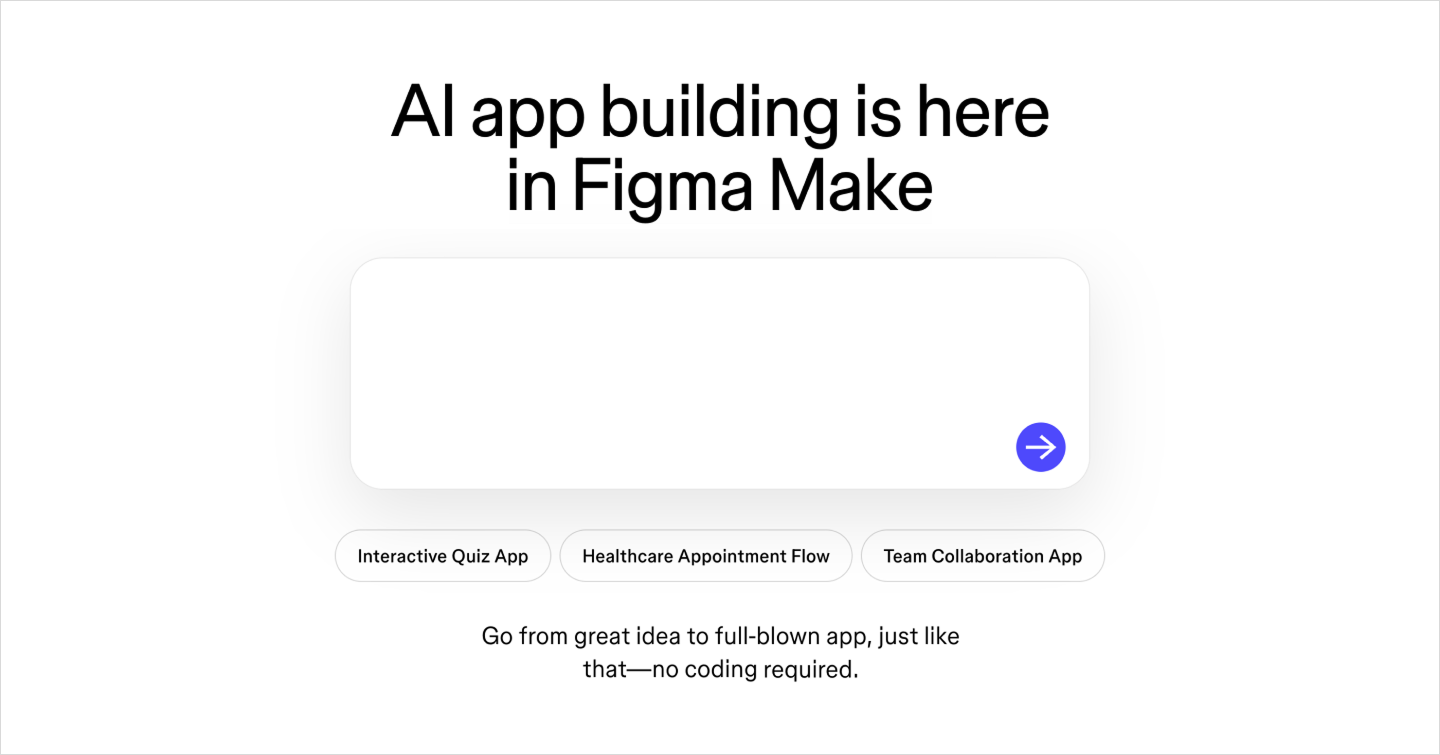
Start with Figma Make. Craft a clear, specific prompt that describes your app’s purpose, layout, audience, and standout features. If you’ve already defined user needs or design goals, incorporate those here.
Step 2: Enter your prompt

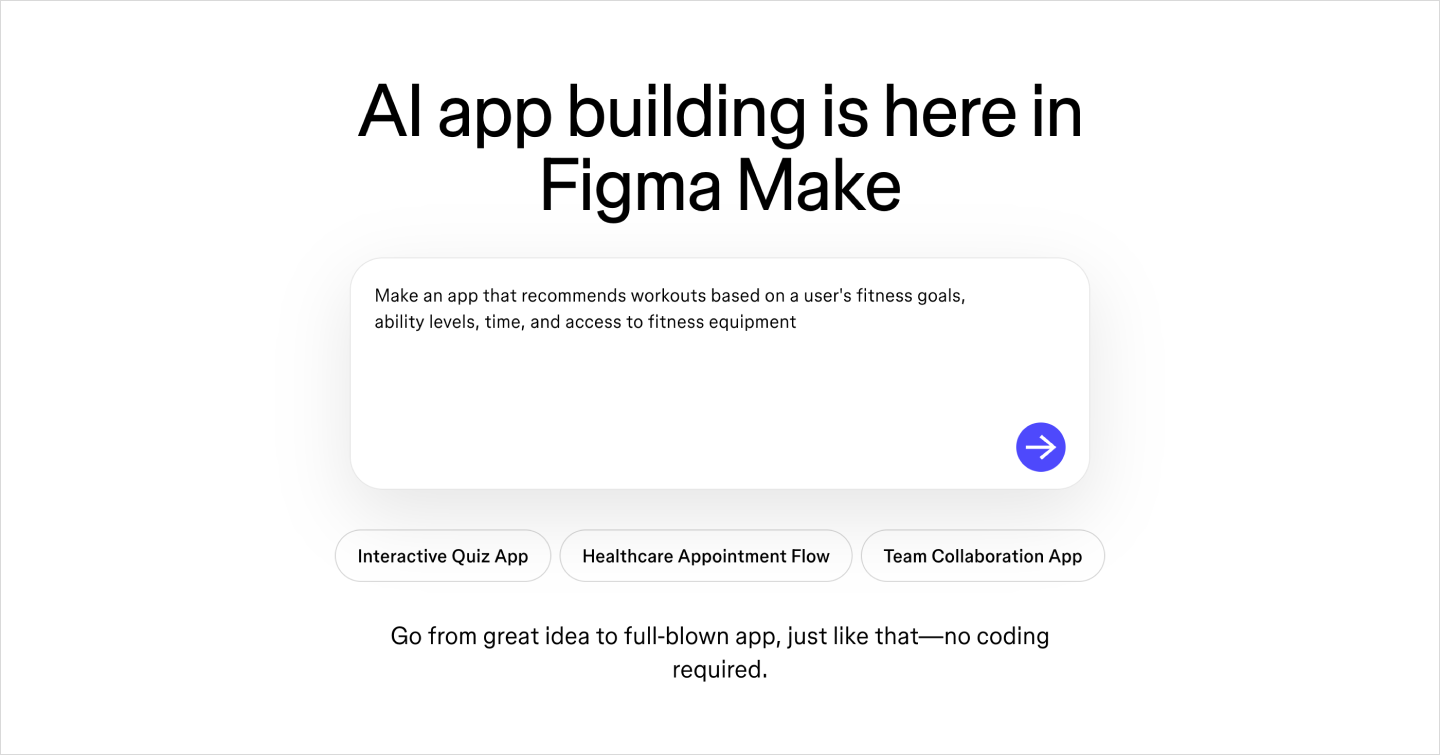
Use plain English to tell Figma what you’re building. For example, “I want an expense tracker app with a dashboard, transaction history, and monthly reports.”
Figma will interpret the prompt and automatically start generating layouts, flows, and components.
Step 3: Watch your prototype come to life

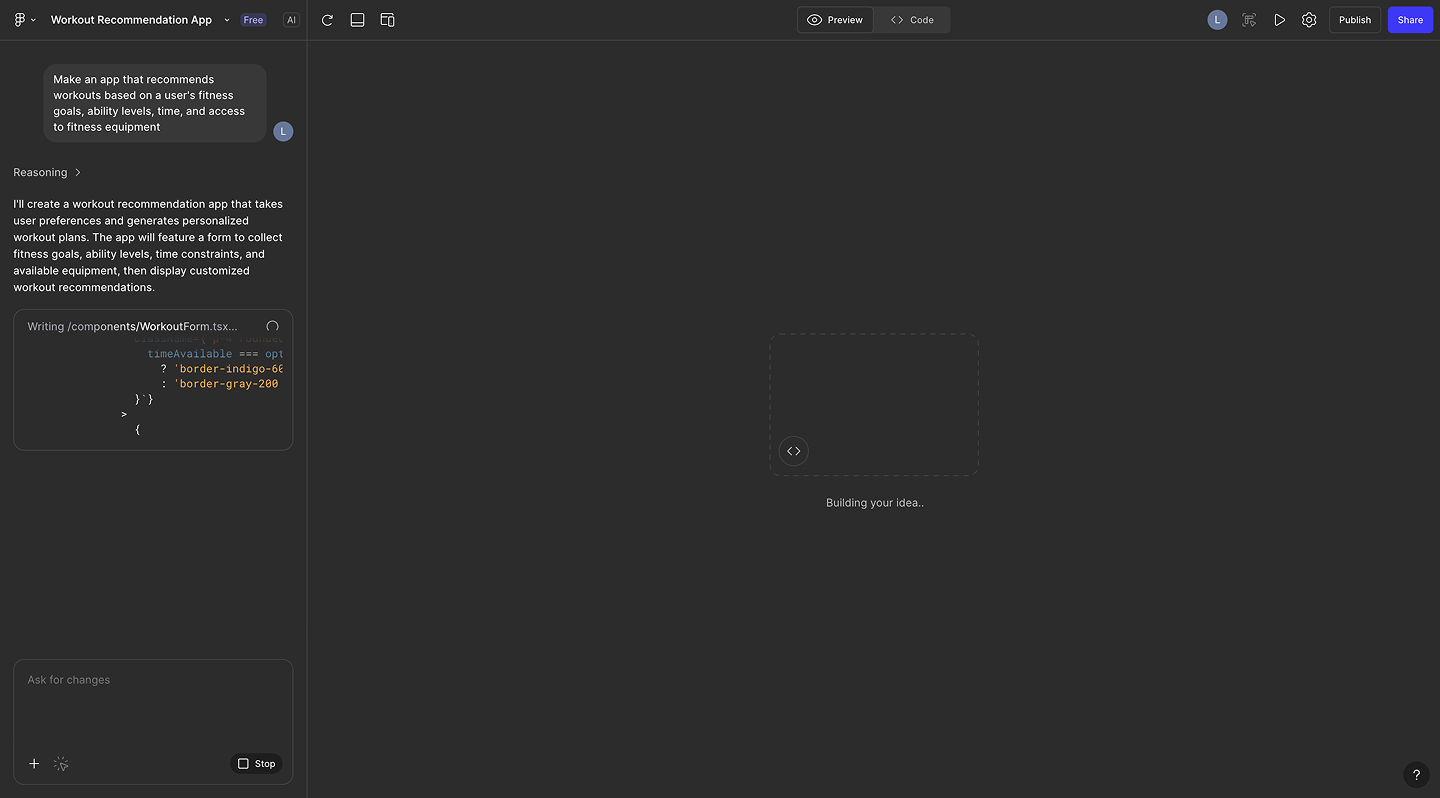
You’ll see a wireframe or prototype take shape in seconds. Figma Make connects screens based on your prompt and generates multiple layout options. Preview them, then choose a direction that fits your vision.
Step 4: Refine and customize

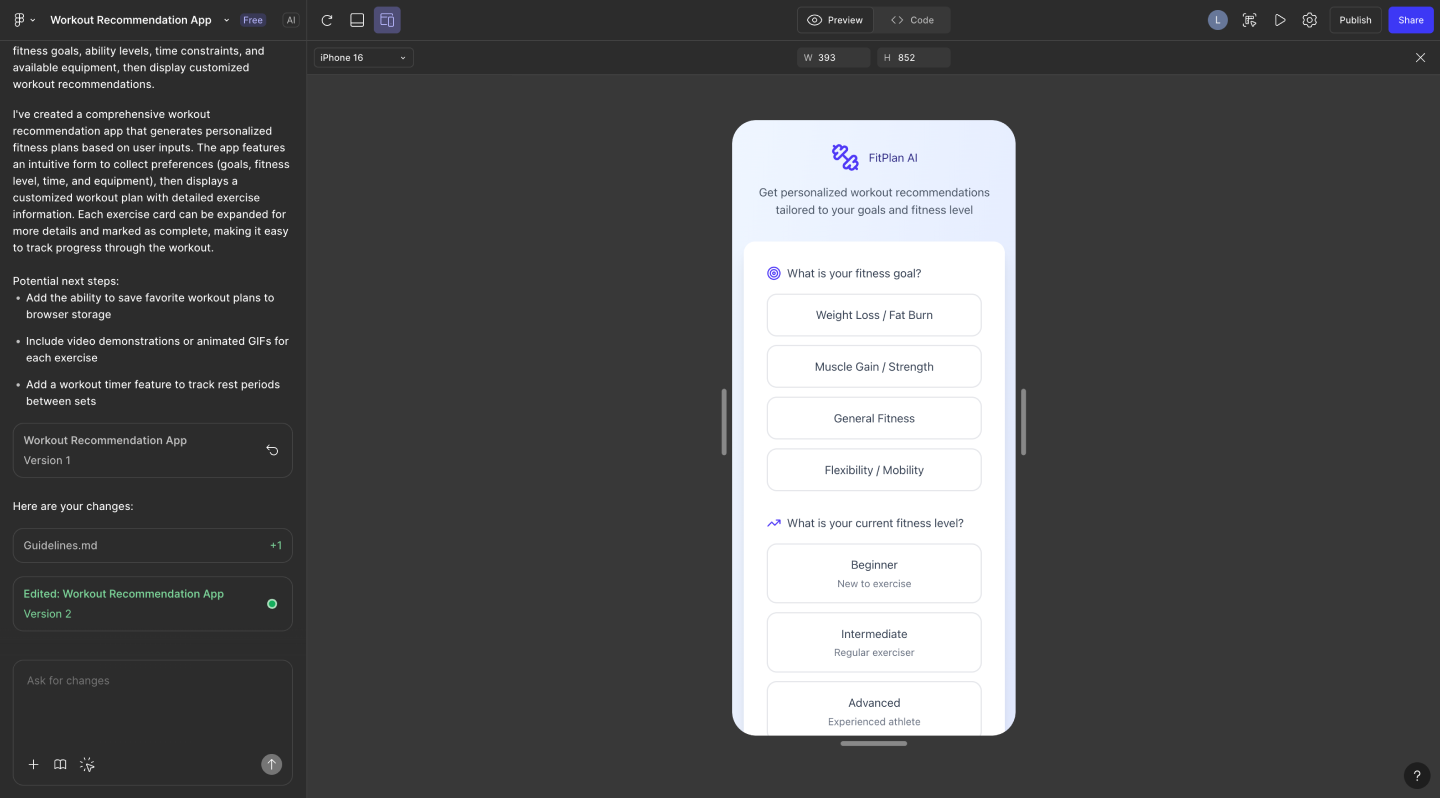
Once you’ve picked a direction, use Figma’s visual editor to make it your own:
- Change colors, fonts, images, and other layout components
- Add or remove app screens
- Try new prompts for instant updates
You can prompt updates, tweak designs manually, or test interactions directly in preview mode. If your app connects to real data, enable backend access—or simulate it using in-app dummy data.
When you’re ready, you can export or copy your preview into the Figma canvas to extend, iterate, or share with your team.
Level up your app development with the power of AI
Generate designs, UI, and app flows with intelligent prompts and instant automation.
Building an app with AI FAQ
Keep reading for answers to frequently asked questions about usability testing.
How long does it take to build an app with AI?
Building an app with AI is much quicker than traditional methods, but it can still take anywhere from a few days to a year, depending on the complexity of your project. They save the most time on design and rapid prototyping, which can take months with traditional coding.
Can I build my own AI app for free?
Yes, many tools, including Figma Make, offer free AI builders without coding requirements. This is great for beginners learning to design an app with AI or for seasoned professionals testing a new tool.
Keep in mind that more advanced features, such as publishing, might not be available without a paid plan from specific providers.
What are the benefits of building apps using AI?
Using AI to build an app can offer many benefits to developers:
- No coding required. Many tools can bring you from ideation to publishing using only AI prompting or drag-and-drop interfaces.
- Customizable. AI tools offer just as much customizability as traditional coding, even if you’re starting with a template.
- Better decision-making. Analyze user data and find the best ways to improve your app’s design or features.
- Automation of repetitive tasks. AI can create basic layouts or flag bugs, freeing up your time to focus on your product’s unique features.
- Competitive advantage. Get your app to market quicker and make data-informed decisions about app updates to stay ahead of the competition.
Can I build an app without any coding knowledge?
Anyone can try Figma Make and generate apps with the free AI builder. There’s no need to write or understand code to build, change, or test your app, although more technical users can refine generated code if that’s your jam.
Simply select a template, then use AI to customize your design and add content. Preview flows, actions, and screens using Figma’s built-in tools and connect to live backends for fully interactive prototypes, all via AI prompting or drag-and-drop building.
Can I integrate AI into my existing app?
Yes, you can take an existing app and integrate AI features via APIs that connect LLMs to your app. These can add features such as AI-powered search for users, generate optimized content, or gather data on user behavior for future app improvements.
How can I ensure data privacy in my AI app?
To maintain data privacy in your app, you should encrypt all data, whether it’s being stored or sent between systems. Also, review the data policies of any third-party backend systems, APIs, and AI app creators to ensure data security at every stage.
How can I ensure the AI model in my app remains accurate over time?
AI models require regular updates and retraining to maintain their accuracy. For example, you might be gathering user data. Still, you need to update the model with that knowledge to ensure you’re not asking for recommendations based on user behavior from six months ago.
Can I integrate third-party tools into my AI-built apps?
Yes, you can integrate third-party tools into your AI apps, typically via APIs or built-in integrations in your app builder. Third-party tools are useful for adding advanced features, such as payment processing, login pages, and backend functionality, among others.
Launch your brightest ideas today, no coding experience required
Building and deploying apps has never been easier or more accessible, especially now that you know how to build an app with AI. Figma’s Free AI App Builder is a powerful, no-code solution that lets you turn your app idea into a high-fidelity prototype in minutes, working seamlessly with other Figma tools to give your app a competitive edge. Here’s how:
- Create responsive web pages with Figma Sites to market your app and reach potential users.
- Use the Figma AI Code Generator to generate code from prompts—no developer required.
- Dream up your next project with FigJam’s collaborative online whiteboard
Ready to start coding with AI?
Experience the power of Figma Make and bring your ideas into reality.
Keep reading


What is vibe coding?
Vibe coding combines mood-driven design with seamless coding to create immersive digital experiences that connect emotionally and function flawlessly.


Seven essential UI design principles + how to use them
UI design starts with a clear understanding of best practices. Learn the seven essential UI design principles and how to apply them in this guide.