9 of the top AI tools for UX designers in 2026
Share 9 of the top AI tools for UX designers in 2026
Explore more from
Building with AI

Most UX designers are under pressure to move faster without sacrificing quality. Stakeholders want to see multiple design options. Developers need production-ready specs. Users expect accessible, intuitive experiences. And you’re supposed to deliver all of this while also conducting research, refining interactions, and maintaining a consistent design system.
AI tools for UX designers are helping bridge the gap between rising expectations and limited time. According to Figma’s 2025 AI report, 78% of designers and developers believe AI boosts their work efficiency. The right tools let you explore more ideas, surface accessibility issues early, and validate your layouts with data, not just intuition.
Read on to learn:
- 9 of the top AI tools for UX design and what makes each one unique
- How each tool fits into different parts of the UX workflow
- The key benefits of using AI in UX design
| AI tool | Ideal for | Key features |
|---|---|---|
| Figma Make | Prompt-to-code generation | AI-powered prompt-to-code generation; Design system integration; Advanced editing tools |
| Figma Design | Collaborative design | Auto layout; Components and reusable styles; Clickable prototyping |
| Uizard | Wireframe scanning | Wireframe scanner; Prompt-to-UI generation; Built-in chatbot |
| Stitch | Exploring new AI tools | UI generation; Rapid iteration; Direct export to Figma |
| Jasper | Design copywriting | Real-time content generation; Tone and style variations; Template library |
| Adobe Firefly | Generative AI | Multi-modal content generation; Interactive component generation; Smart design variations |
| Attention Insight | Eye-tracking simulation | Instant AI heatmaps; Advanced attention metrics; A/B testing comparison |
| UX Pilot | UX research | Prompt-to-UI generation; AI-powered UX design review; Predictive heatmap generation |
| Khroma | Color palette generation | Personalized AI; Infinite palette generation; Searchable library |
1. Figma Make


Ideal for: Prompt-to-code generation
Most AI tools for designers work alone, cut off from the rest of your workflow. Figma Make works differently. It brings AI, design, and development tools together in one place so your team can go from idea to production without switching between apps or losing your work along the way.
What sets Figma Make apart is its deep integration with your design system. It pulls in the buttons, cards, and layouts your team already uses—like buttons, layouts, and tokens— so the AI-generated prototypes feel on brand from the start.
The workflow is simple and fast. Start with a prompt, let AI create a first draft, then fine-tune the details with Figma’s editing tools. Because your design and code stay connected, updates move straight to your development team. This makes it perfect for cross-functional teams who want to validate concepts before writing production code.
Key features
- Prompt-to-code generation from natural language instructions
- Design library integration for consistent components across projects
- Advanced editing for layouts, spacing, and UI copy
- Seamless code handoff connected to production-ready components
Go from prompt to prototype in minutes
Figma Make helps your team build faster with AI that understands your design system.
2. Figma Design

Ideal for: Collaborative design
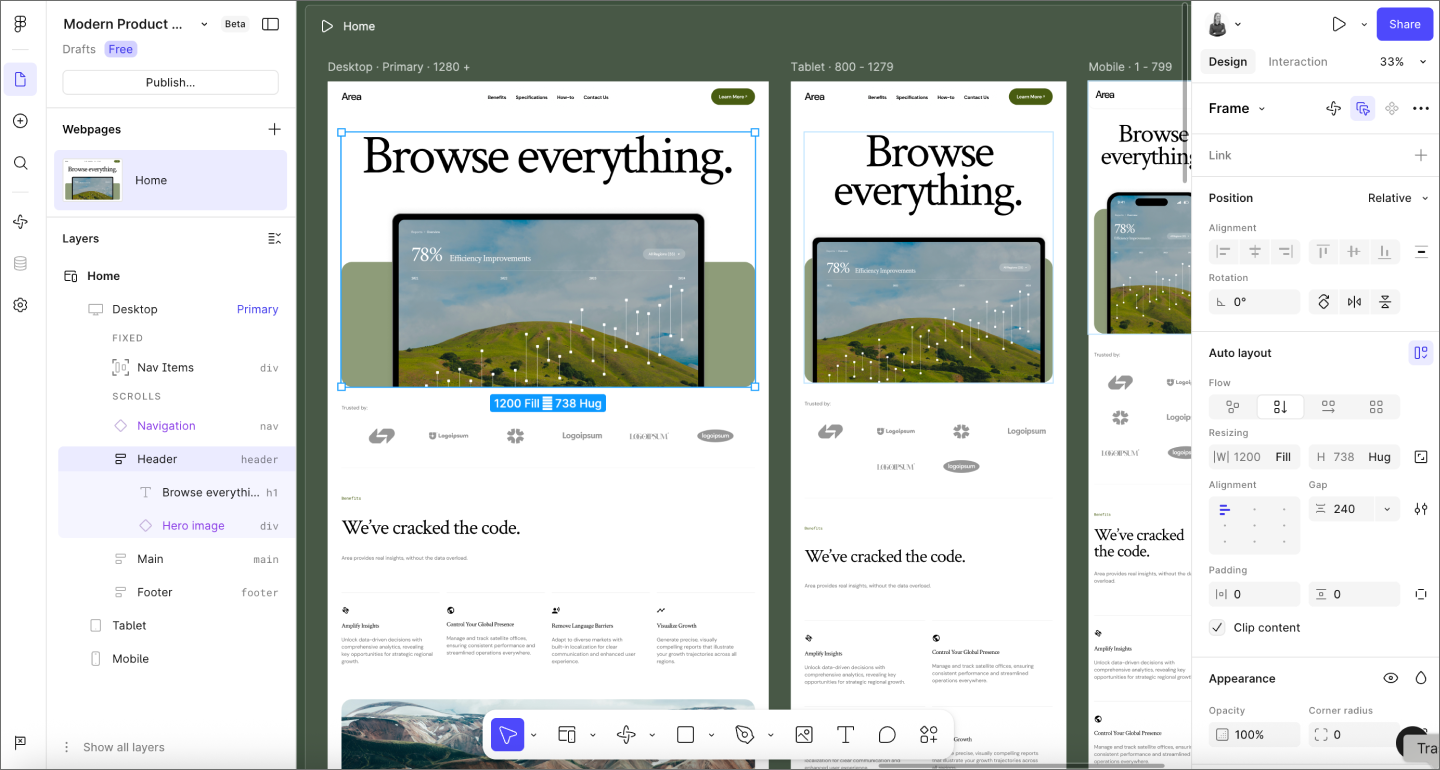
Once you’ve created your initial prototype in Figma Make, Figma Design is where you refine it. This is where most UX designers spend their time—adjusting layouts, testing flows, and polishing interactions. Figma Design combines powerful design tools with real-time collaboration, so your team can co-create and iterate.
Multiple designers can work in the same file at once, stakeholders can comment directly on designs, and you can build realistic prototypes to test user flows, all in one place. AI features speed up everyday tasks like generating designs from prompts, writing UI copy with text suggestions, and searching across your team’s files to find what you need.
As your team grows, Figma Design helps you maintain consistency. You can define shared styles, components, and design systems that scale across projects, keeping your interfaces aligned, accessible, and easy to update.
Key features
- Multiplayer editing with real-time collaboration and version control
- Advanced prototyping tools for creating interactive user flows
- Design system management with reusable components and variables
- AI-powered design generation and content suggestions
Bring your ideas to life
Use Figma Design to build polished interfaces, test user flows, and keep everything consistent with your design system.
3. Uizard

Ideal for: Wireframe scanning
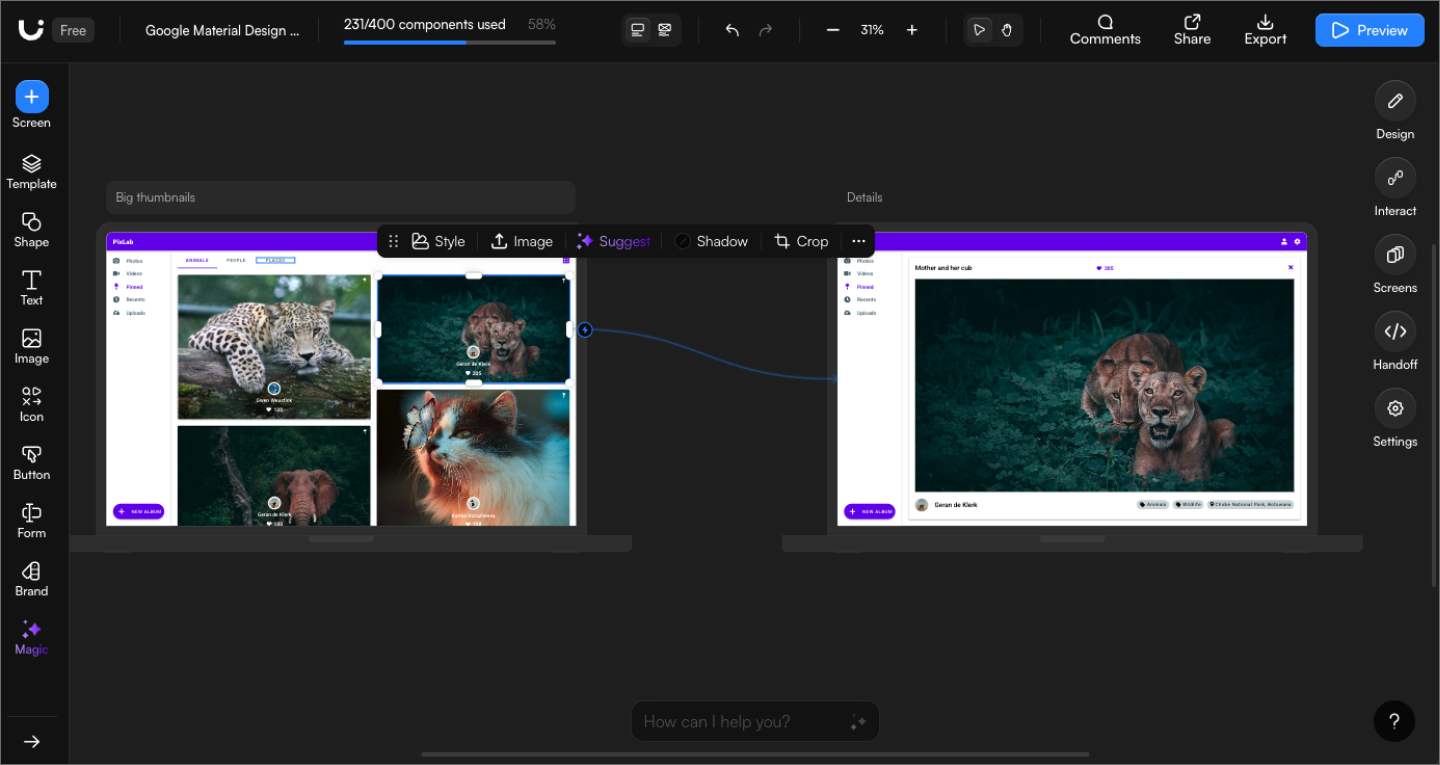
Uizard stands out for one unique feature: its ability to scan hand-drawn wireframes and convert them into digital designs. If your team sketches ideas on paper or whiteboards during brainstorming sessions, Uizard can save you time by turning those sketches into editable mockups.
The tool includes a prompt-to-UI feature and a built-in chatbot that lets you request design revisions through conversation. You can also create interactive prototypes to test basic user flows. For teams that want to move quickly in the ideation phase, Uizard helps you visualize rough concepts with minimal manual work.
However, the designs it generates typically need additional refinement before they’re production-ready. Exporting to other tools like Figma for further editing can be tricky, which means you might need to recreate elements manually. For those reasons, Uizard works best as a quick concept tool rather than a complete design solution.
Key features
- Wireframe scanner that converts hand-drawn sketches into digital designs
- Prompt-to-UI generation with natural language input
- Built-in chatbot for iterative design revisions
- Interactive prototyping to test basic user flows
4. Stitch

Ideal for: Exploring new AI tools
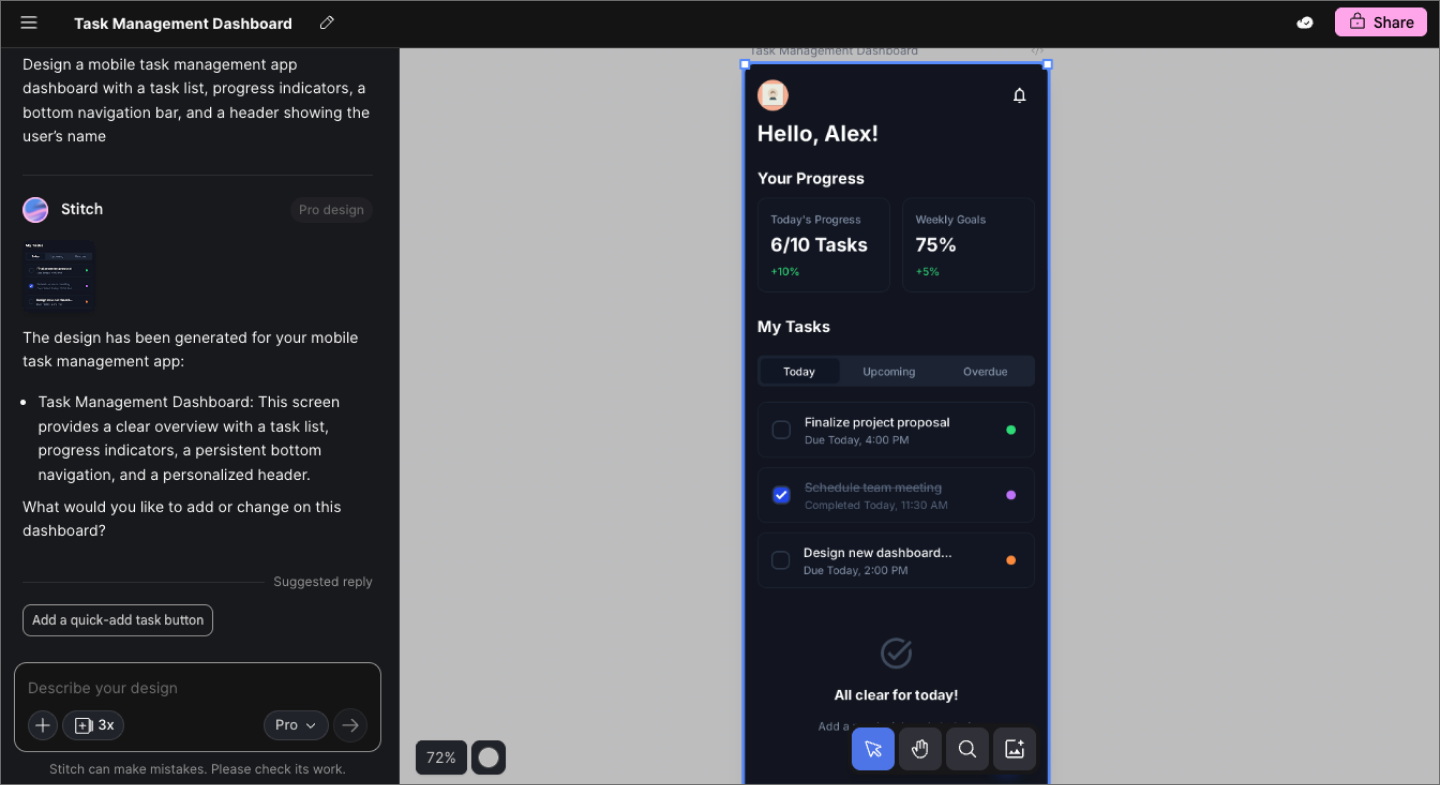
Stitch is a new tool from Google Labs that turns text prompts, images, and wireframes into UI designs and front-end code. Powered by Google’s Gemini models, it’s built for teams who want to move quickly from rough concepts to working prototypes. You can describe what you need in plain language or upload a reference image, and Stitch generates a design along with the corresponding code.
With Stitch, designers can generate variations of screens or entire flows, compare layouts side by side, and refine visual elements without starting from scratch. This makes it ideal for early-stage ideation, concept validation, or user testing, where speed and flexibility matter more than pixel-perfect final output.
But because Stitch is currently experimental, you may encounter limitations: fewer advanced interaction flows, some inconsistencies in brand alignment or component reuse, and a less mature collaboration environment compared to dedicated design platforms.
Key features
- UI generation from natural language prompts, images, or wireframes
- Powered by Google Gemini
- Rapid iteration to explore multiple design directions
- Direct export to Figma for further refinement
5. Jasper

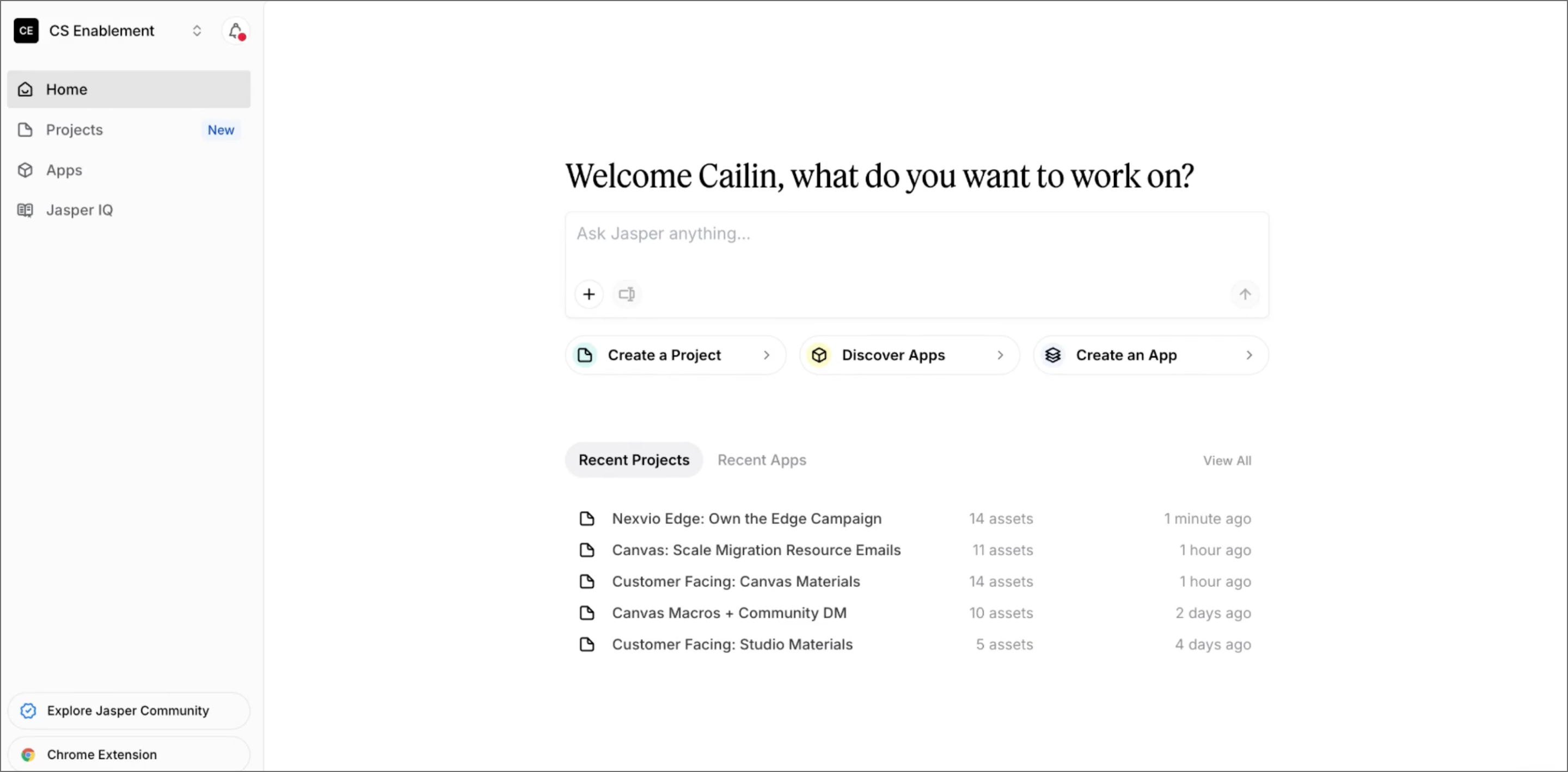
Ideal for: Design copywriting
Jasper is an AI writing assistant that helps UX designers solve one of the most time-consuming parts of design work: writing copy. While it’s not built specifically for UX design, it’s become a go-to tool for designers who need to populate mockups with on-brand text quickly. Instead of using lorem ipsum, you can generate product descriptions, button labels, error messages, and microcopy that reflect your product.
The biggest benefits for UX designers are speed and consistency. You can create multiple versions of the same copy to test how different messaging impacts the user experience. This makes it easier to design with real content from the start, which leads to more accurate layouts and better design decisions.
Jasper can also help with other UX tasks like creating user personas, writing survey questions, or summarizing qualitative feedback. That said, it’s still important to have a human editor review the output for accuracy, tone, and clarity before it’s pushed to production.
Key features
- Real-time content generation and editing
- Multiple tone and style variations for content testing
- Template library for common UX writing patterns
- Integration with design tools and workflows
6. Adobe Firefly

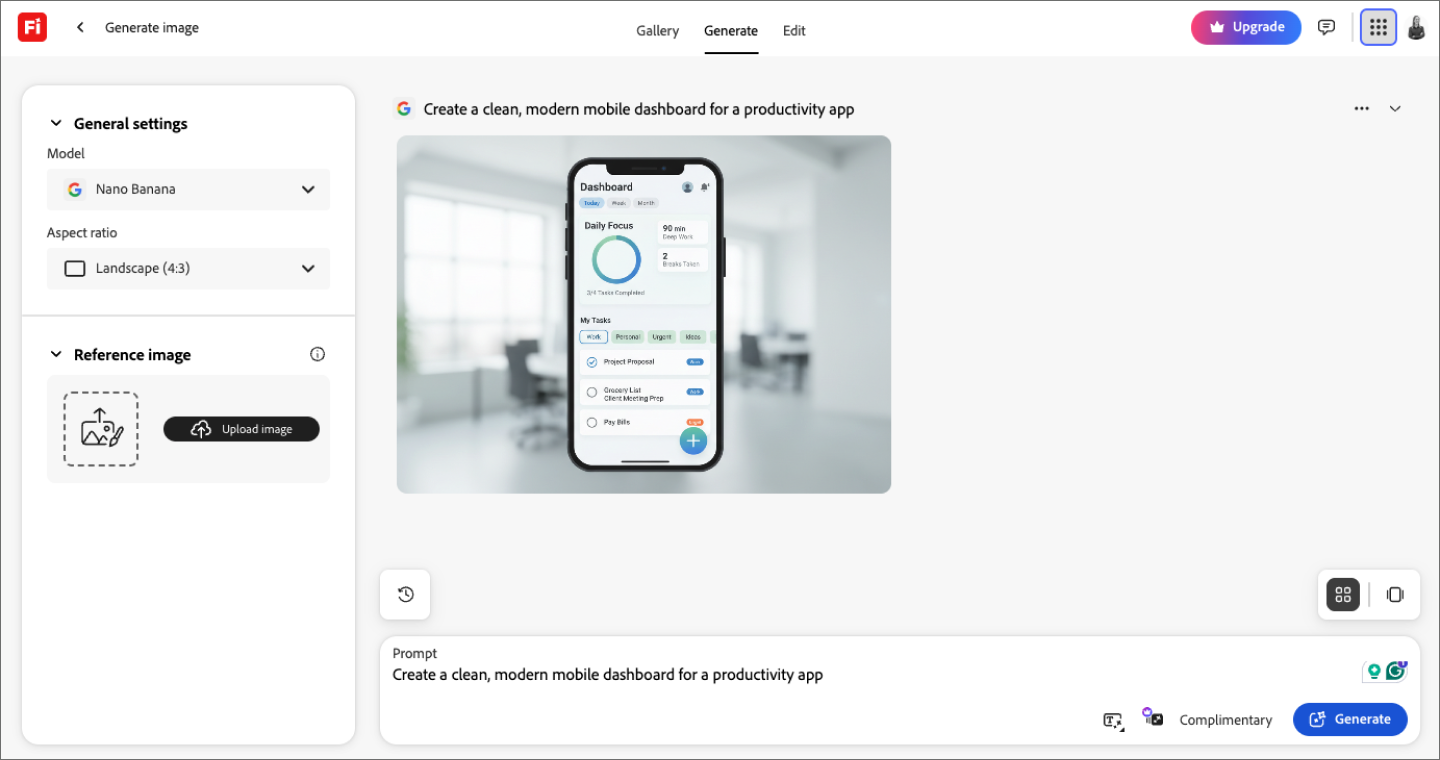
Ideal for: Generative AI
Adobe Firefly pulls from multiple AI models to help you create images, video, audio, and design assets. UX designers often use it to create mockups and explore different design directions. You can create custom images for mockups and explore visual directions without waiting on stock photos or custom illustrations.
Firefly includes helpful features like mood board generation, layout alternates, and interactive elements you can use to test UI ideas. You can compare design variations side by side and iterate quickly before committing to a direction.
This tool is a strong choice for teams already using the Adobe ecosystem, thanks to its smooth integration with other Adobe products like Photoshop and Illustrator. If you’re working outside of Adobe, it may not fit as seamlessly into your workflow.
Key features
- Multi-modal content generation for images, video, and audio
- Interactive component generation
- Smart design variations for layout comparison
- Integration with Adobe Creative Cloud tools
7. Attention Insight

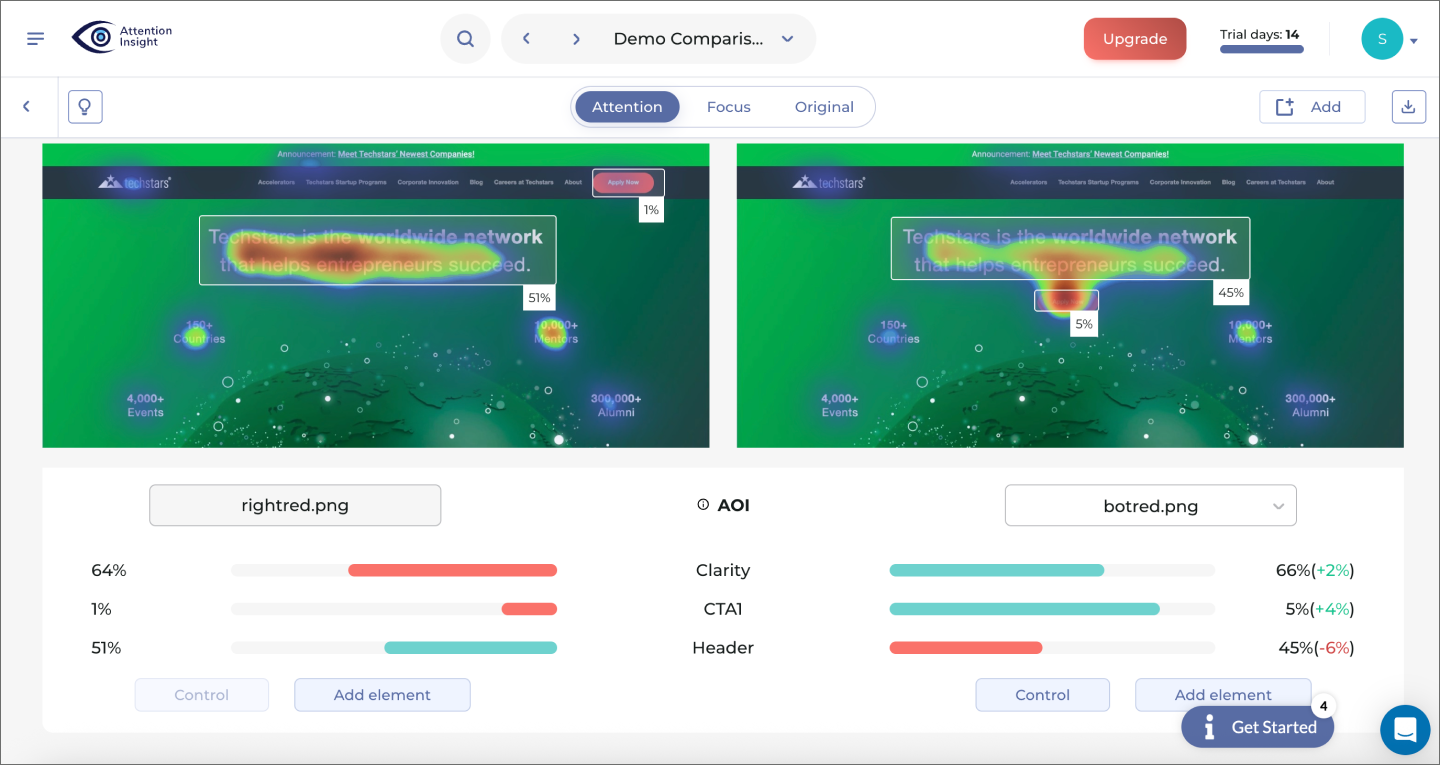
Ideal for: Eye-tracking simulation
Attention Insight simulates eye-tracking using AI trained on millions of real fixation points. It helps UX designers predict where users are likely to focus—before any usability testing happens.
You can generate heatmaps to see which elements stand out (or get overlooked), compare design variations side by side, and check if key elements—like buttons or CTAs—are drawing attention. The tool also offers recommendations on how to improve visual hierarchy based on what it detects.
Attention Insight works well early in the design process, when you’re deciding between layout options or want to catch potential issues before user testing. It also includes a Figma plugin, so you can analyze designs directly within your workflow without exporting files or switching tools.
Key features
- Instant AI heatmaps based on real eye-tracking data
- Advanced attention metrics
- A/B testing comparison
- AI-powered recommendations
8. UX Pilot

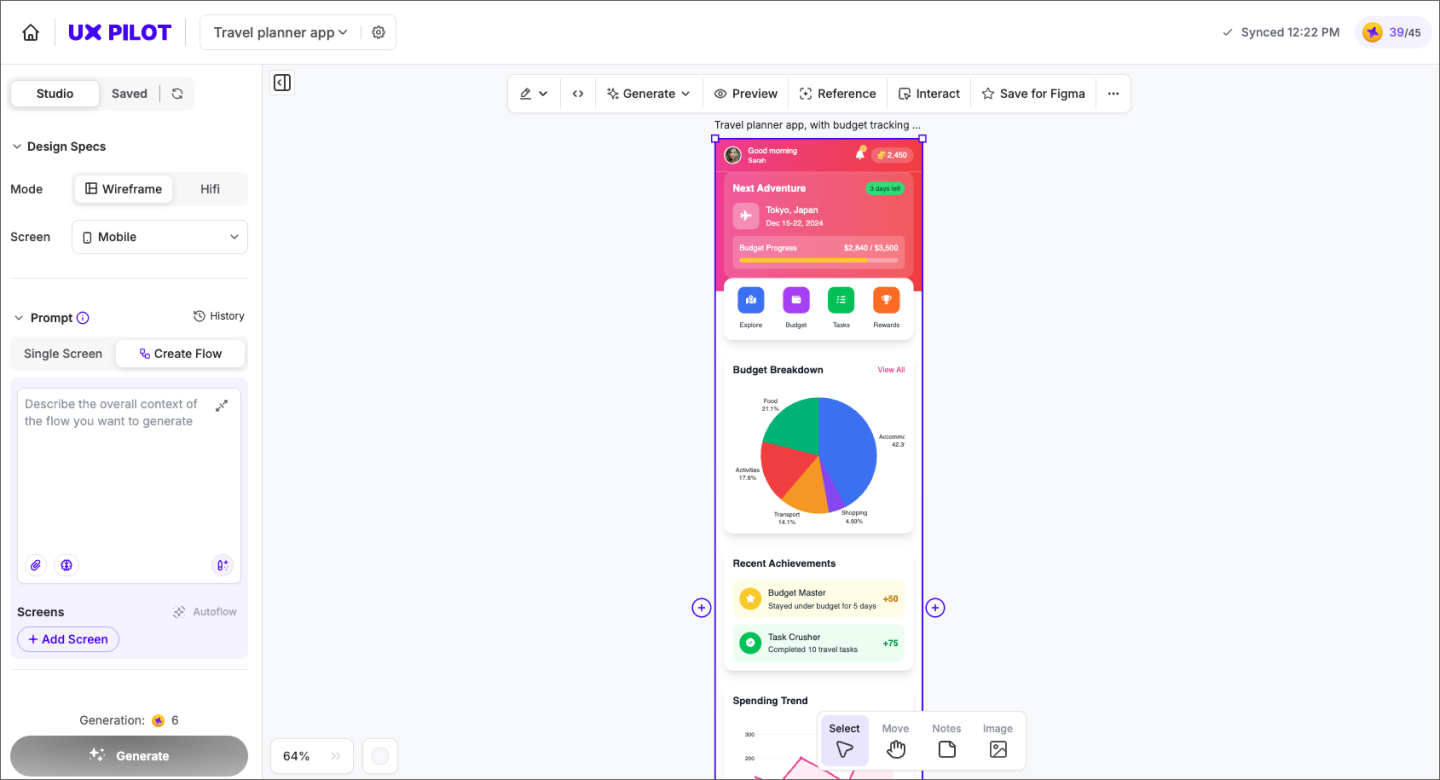
Ideal for: UX research
UX Pilot is an AI assistant that supports the entire UX research and validation process. You can use it to generate user interview questions, gather requirements, and get usability feedback to streamline your research workflow.
It offers predictive heatmaps and automated UX reviews to flag friction points in your interface. This makes it useful not just for researchers, but also for product managers, and UI or UX generalists looking to move faster without skipping over critical insights.
As a Figma plugin, UX Pilot fits easily into your existing workflow.
Key features
- Prompt-to-UI generation with high-fidelity outputs
- AI-powered UX design review
- Predictive heatmap generation
- User research question and interview guide creation
9. Khroma

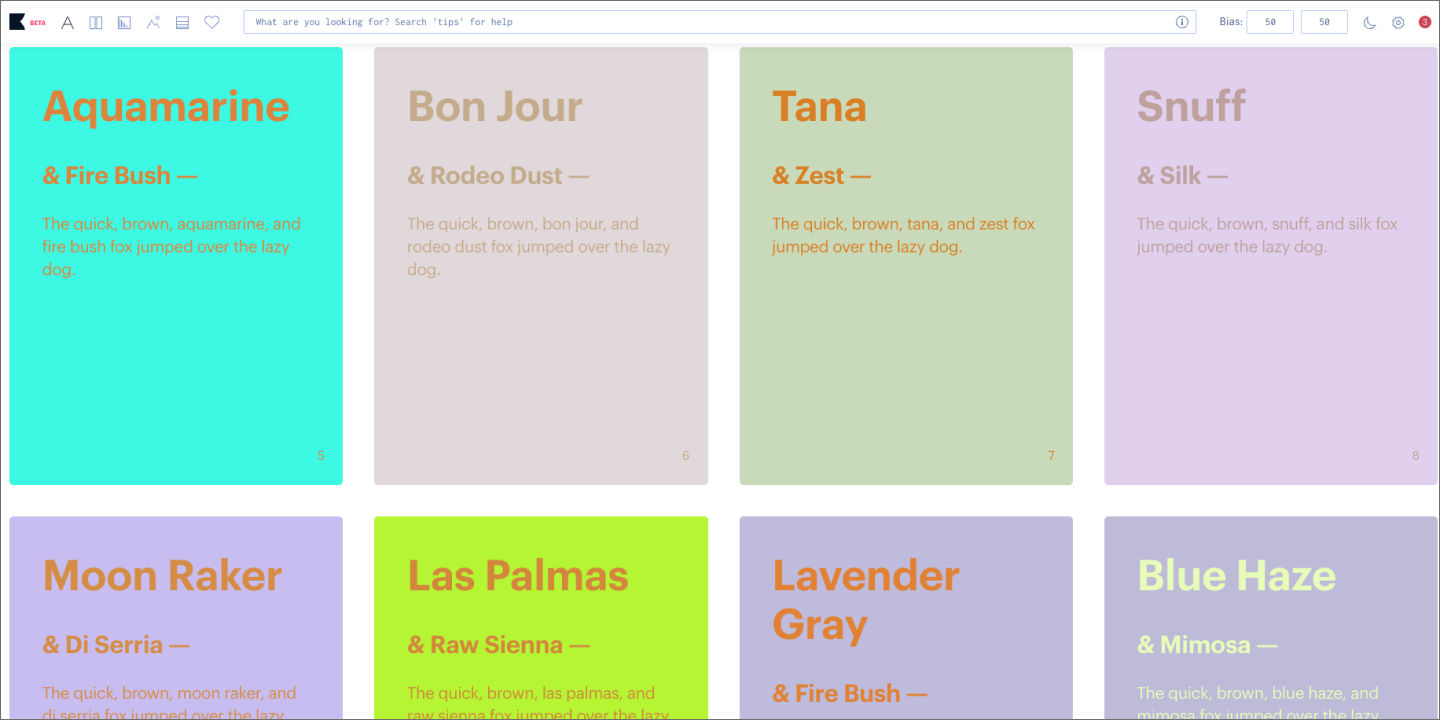
Ideal for: Color palette generation
Khroma is an AI tool that learns your color preferences and generates personalized palettes. You train it by selecting colors you like, and it suggests combinations that match your taste. UX designers can use it to establish a visual direction early in the design process.
You can view palettes in different formats—typography, gradients, or image overlays—to see how they’ll look in real-world contexts. The search function lets you filter by specific values when you have something particular in mind. It also includes accessibility ratings, so you can check if your color choices meet contrast requirements.
Keep in mind that Khroma focuses specifically on color, so while it won’t generate layouts or components, it’s a great way to explore visual direction before applying your palette in your design tool like Figma.
Key features
- Personalized AI that learns your color preferences
- Infinite palette generation from popular color combinations
- Searchable library with hex codes and CSS export
- Multiple viewing modes to preview colors in context
The benefits of AI for UX designers
No matter which tools you choose, using AI in UX design can help you spend less time on busywork and more time designing thoughtful, user-focused experiences.
Here’s what that looks like in practice:
- Faster prototyping and iteration. Generate multiple design variations in minutes instead of hours, so you can test more ideas and find the right direction quickly.
- Accessibility feedback. Get instant compliance checks and contrast ratings to ensure inclusive designs from the start.
- Smarter visual tweaks. Use AI-powered heatmaps and attention predictions to optimize layouts based on how users actually view content.
- Personalized design suggestions. Receive recommendations tailored to your brand, design system, and past work to maintain consistency across projects.
- Meaningful mockups. Automated content generation gives you meaningful text and imagery right away, helping you judge hierarchy, flow, and clarity long before final content is ready.
Bring your UX ideas to life with Figma
AI tools for UX designers are evolving quickly—and they’re helping teams streamline their entire workflows from first idea to final handoff. Figma supports that process with tools that keep everyone aligned along the way.
Here are a few ways teams can make the most of Figma features:
- Use FigJam to map user journeys, brainstorm flows, and organize research before designing interfaces.
- Switch into Dev Mode to give developers a clearer view of components, specs, and code information.
- Browse Figma’s UI kits to access ready-made interface components and templates that help jumpstart your designs.
Ready to go from idea to production?
Turn your concepts into production-ready code with Figma Make’s AI-powered tools.
Keep reading

How to use AI to create a website
Learn how to use AI to create a website from start to finish. Discover tools, tips, and strategies to design, build, and launch your site faster than ever.

6 stages of the product development process
Learn how to master the stages of the product development process, from concept to launch, and how FigJam can help in this step-by-step guide.