How to plug in and power up your designer-developer handoff with Figma and Jira


Product development teams from Ingka Group, One.com, and Condé Nast share the tools and tips for achieving that elusive design-development flow state.
Share How to plug in and power up your designer-developer handoff with Figma and Jira
Artwork by Jaedoo Lee.
Pioneering researcher Mihaly Csikszentmihalyi first coined the term “flow” decades ago, and describes it as “a state in which people are so involved in an activity that nothing else seems to matter; the experience is so enjoyable that people will continue to do it even at great cost, for the sheer sake of doing it.”
Product velocity—the ability to ship the right features fast—is the holy grail of building good user experiences. Yet it’s rare for a company to maintain high velocity as it scales. The ability to ship and experiment quickly doesn’t just happen; behind every new feature or product update is a foundation of tools, processes, and rituals that help teams work better together. This foundation is in service of achieving the elusive flow state, which enables teams to iterate, collaborate, and ship as efficiently as possible.
In his popular essay, “Maker’s Schedule, Manager’s Schedule,” Y Combinator founder Paul Graham explains that while managers can change what they’re doing every hour, makers prefer to use time in half-day intervals. He writes, “You can’t write or program well in units of an hour. That's barely enough time to get started.”
Flow states are generally associated with a person working in solitude, with a specific task, and large chunks of undisturbed time. But that’s rarely what things are like in practice, especially in today’s hybrid working world, where calendars can look like Tetris and requirements change constantly. Much like how maintaining velocity needs effort, finding a flow state in this environment means working on your foundation first.
At Figma, we’re always looking for new ways to bring design and development workflows closer together, so that the team can achieve a flow state amidst the constant barrage of notifications that threaten our productivity. Ahead of launching the updated Figma for Jira app, we checked in with teams across industries to see how they get their teams into the flow.

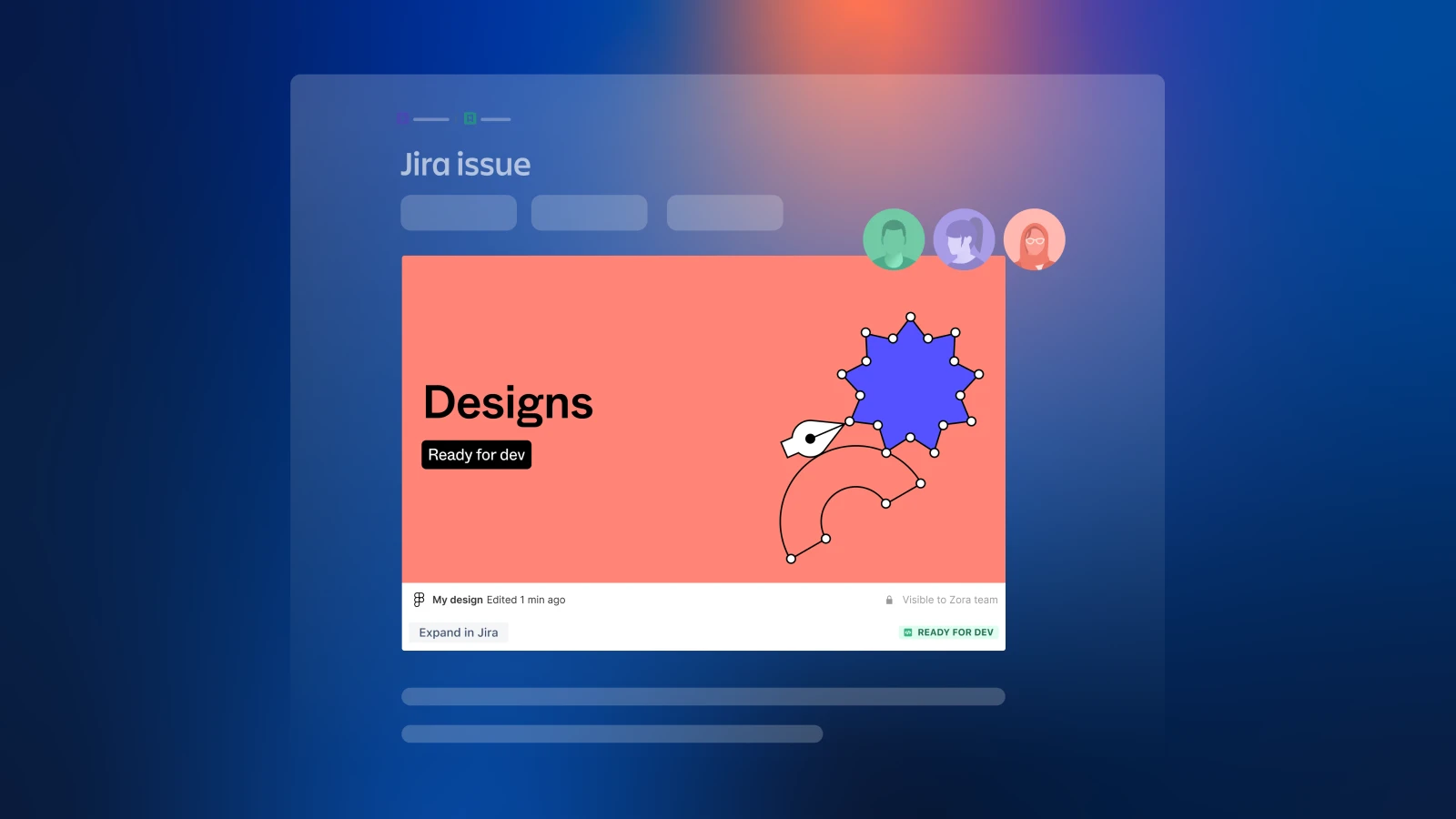
Get full context when turning designs into code with Figma for Jira.
A prototype is worth a thousand words
As companies grow, processes slow down. Larger teams pull people and working groups into siloes, and a hybrid working model can make teams fall out of sync. The key to keep the team in sync is to make sure everyone knows where they want to go, and to push in that same direction. Constant alignment, which is particularly essential for the product development process, requires constant communication.
Understand each other with a high-fidelity prototype
While the same word can mean different things to different people, designers and developers can more easily speak the same language when they see a prototype in action. At One.com, the Denmark-based design team meets regularly with the development team in India to discuss requirements, blockers, and potential issues. In a recent meeting, the design team presented a prototype for a new text feature. The development team gathered around a high-fidelity prototype in Figma so that everyone could follow along and review the interactive state. While a static, low-fidelity prototype provides a general idea of the design, an interactive, high-fidelity prototype enables developers to get a clear sense of how the final product should work—critical details like how user flows happen, how windows pop up, and how dropdowns function. Group Head of UX and Design Nick van der Meulen says, “That’s a big shift from what we had in the past with other software, which involved basically clicking a million pages by linking them to each other. Now, we have interactive prototypes in one piece of software.”

A high fidelity prototype also provides and preserves context for the larger team working asynchronously and remotely. Because what happens during a meeting enables flow outside of it. At Condé Nast, the product development team hosts a daily standup to discuss progress and priorities. These meetings ensure the team stays aligned, anticipates roadblocks, and calls out questions in a timely fashion. During one of these meetings, the team was discussing a large-scale project conveyed through a high-fidelity interactive prototype in Figma. Senior Director of Design Tom Smith recalls, “This prototype served as a bridge between design and development. It allowed our developers to interact with the design in a tangible way, solidifying our shared vision and motivating the team to work collaboratively to bring it to life.”
Present your work, even while it’s in progress
The designers and developers on the Design System team at Ingka Group, the largest IKEA retailer, like to share in-progress work through low-fidelity prototypes. While Ingka Group’s team demos its more polished prototypes each month, they also hold weekly internal sessions encouraging teammates to share learnings in a relaxed, informal setting. Henrik Wangström, an Experience Design Operations Program Manager, says, “You can show a piece of paper, basically, if you wanted to.”
Teammates encourage each other to present incomplete work, even when it feels scary. Nouman Tariq, an Engineering Manager for the Design System team, says, “Presenting incomplete work tends to be a blocker in a lot of people’s minds... They might think, ‘It’s not complete yet,’ or ‘I’m not happy enough with it yet.’ The idea is to create a culture in the team to gather often and early feedback so we can be sure that we are building the right things and shipping them often.” Sharing early work—whether through a prototype, a rough sketch, or even the results of a team brainstorm—is key to being able to iterate and experiment quickly.
The idea is to create a culture in the team to gather often and early feedback so we can be sure that we are building the right things and shipping them often.
Even short-lived updates need a source of truth
In a world of hybrid remote and in-person work, there’s a constant hum (and occasional alarm) of file updates, Slack notifications, and moving deadlines. Amidst that noise, it’s easy to miss an update and find yourself doing work that’s no longer relevant. When people make decisions in a meeting or in Slack, those decisions need to live on elsewhere. This is where having reliable sources of truth becomes critical.
Align on different sources for different information
While many teams still aim for a single source of truth, it doesn’t always make sense to have one space or forum for every team. Each team requires different types of information, tools, and tactics.
While Figma is the home for designers, developers need to use many different tools to get their work done. “If we need to indicate the technical detail for a text field as an example, a developer needs to be able to set multiple types, such as a number or a text string on web,” says Carlos Báez, Design Systems Director at Turo. The development team documents technical details in their product requirement docs (PRDs), which have tables outlining component properties and documentation, token dependencies, and user interaction and design. Carlos says, “The tables are fairly complicated for these components, where we have everything just listed out, and we use that as a source of truth for the component API.”
Experian organizes information by how strategic or tactical it is. Design Systems Developer Shelby Foster says, “Figma is perfect for scenarios where you want to directly communicate with design around a given component, and Jira allows the team to communicate on higher-level discussions surrounding specific features or workflows.”
Figma is perfect for scenarios where you want to directly communicate with design around a given component, and Jira allows the team to communicate on higher level discussions surrounding specific features or workflows.
Still, the ideal way to manage these multiple sources of truth is to integrate them. Design Systems Designer Keith Barney says, “We’ve recently started using the Figma for Jira app with the overall goal of bringing all project related information in one place. This benefits both designers and developers because we are all looking at the same source information and can reduce task/app switching.”
Experian’s design systems and front-end development teams also use Dev Mode, Figma’s workspace designed for developers to get what they need to manage their workflows. Shelby says, “It has allowed us to consolidate all of our component documentation and resources into a single place without needing to rely on multiple tools. It provides the rest of our front-end teams with a single source of truth for our design system components and a component playground to interact with them.”

Learn more about how you can work faster in your preferred tools with Dev Mode here.

Save on the toggle tax
When there are multiple sources of truth that don’t clearly map to each other, you pay a toggle tax—time, energy, and context lost switching between different artifacts. This can be expensive and exhausting. For example, the product development team at Woolworths used to spend time debating whether a Jira ticket contained the latest designs which the team annotated by way of screenshots. By integrating their two sources of truth—Figma and Jira—outdated screenshots are no longer a problem.
“We use Figma’s live embed feature to include the most up to date designs in our Jira tickets for our dev teams,” says User Interface Design Manager Cindy Ramos. “That also makes sprint planning that much quicker when we can run through the updates or journeys directly from Jira. We also use the Jira widget to tag smaller updates directly in our Figma boards so devs know exactly where to find them.”
Similarly, Condé Nast uses Jira for project management and tracking issues, and Figma for the latest design assets and prototypes. The technology team integrates the two by linking Figma files directly to Jira issues.
Get full context when turning designs into code with Figma for Jira.
Flow is just a repeatable framework

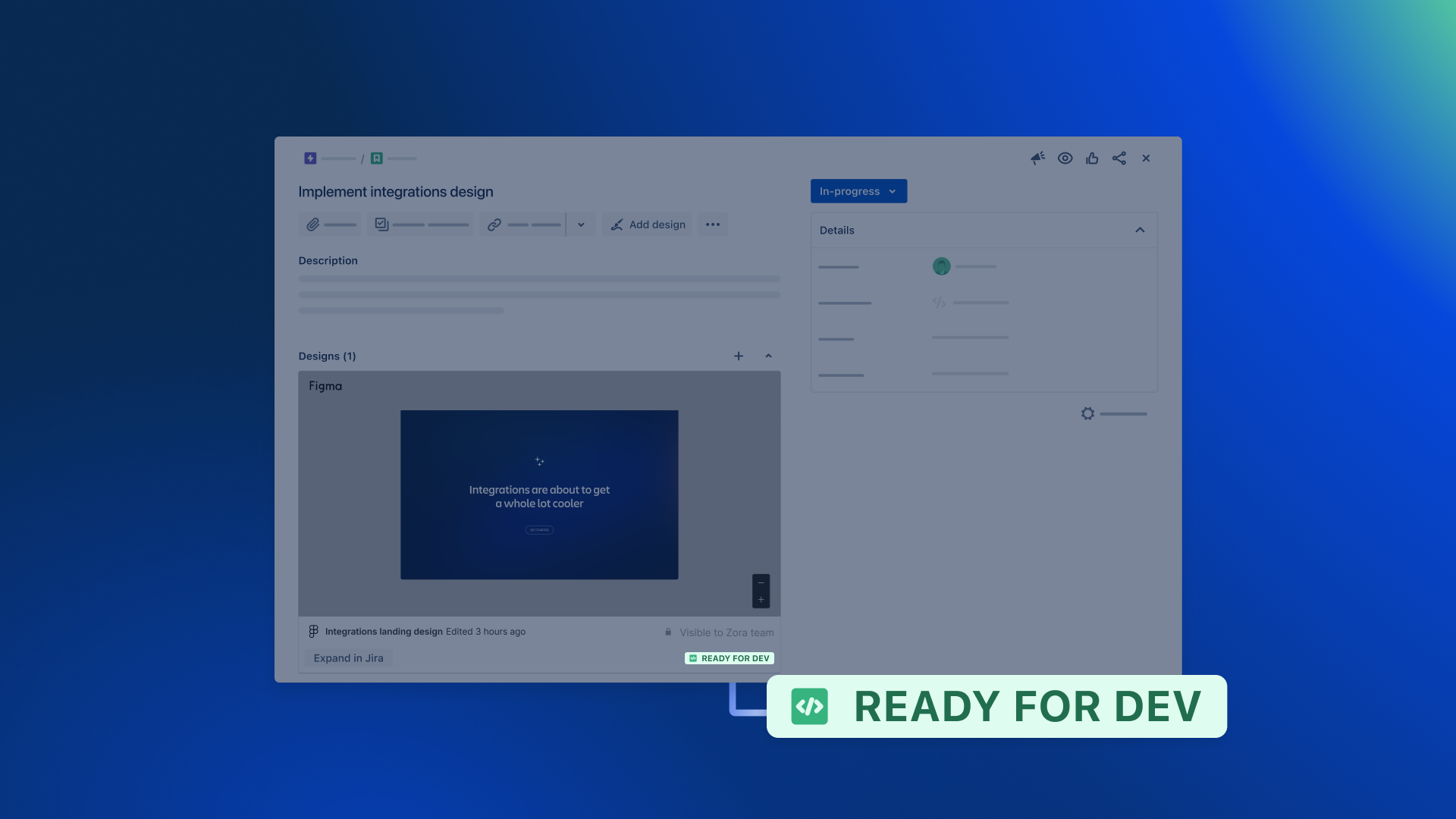
When a design is marked as ready for development in Figma, you can see the corresponding status in linked Jira issues.
Consistency saves time and mental energy. For One.com, this means drawing inspiration from one of the most consistent companies in the world, McDonald’s. “When you go into any McDonald’s store, you know exactly what you’re getting. When a developer gets a file, the content will be different, but the way it’s structured, the way it’s named, always looks the same,” says Carl Webb, a Lead UI designer at One.com. “That also makes it easier for me. If I take over another UI person's work, then I know where everything should be.”
Lean on templates
To achieve that aspirational level of consistency, One.com creates a handoff file in Figma. Berrie Schoots, Design Ops Lead at One.com, describes the handoff file as “a template that has all the different repopulated pages—from a playground to the wireframes, to the actual designs in the specs where you write it out. Anyone using the file can see what work is being done, what’s ready for the developers to build, and what developers have already built.”

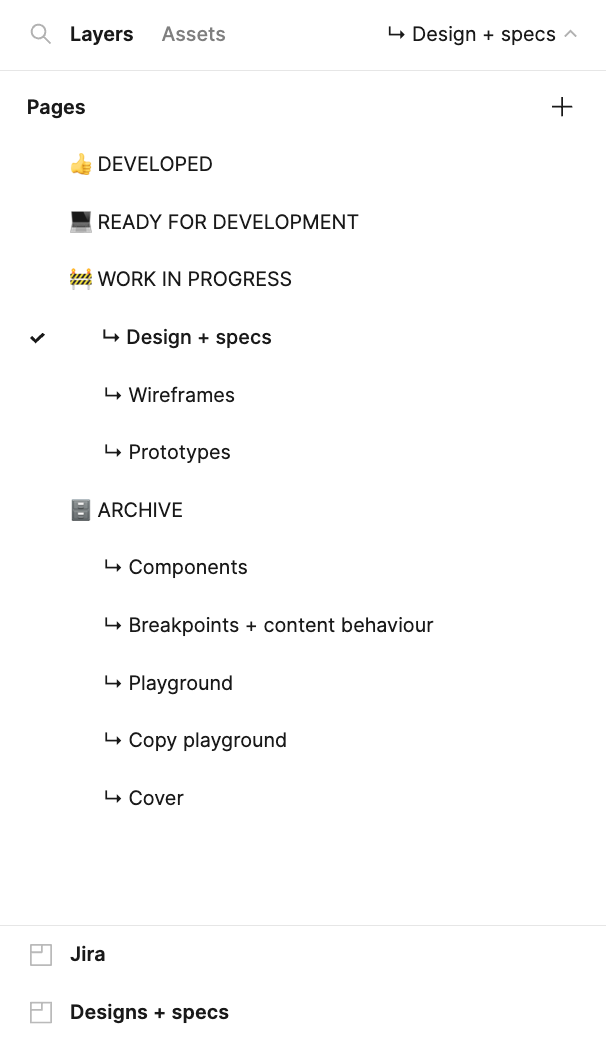
Carl says, “In the work in progress and design page, there’s already a Jira widget sitting there waiting. So the designer just has to link their task with it. Everything gets put into sections. So it’s easy to kind of see, this belongs together. This is something separate.”
While these files contain a prototype, they usually also have a flowchart that developers can follow. It looks like a map of the screens with arrows (copied from FigJam) and explanations for what happens next and what interactions take place. Senior Software Engineer Yannick de Lange says, “I prefer the overview pages compared to the prototypes because they put things in context. From one screen to the other, they show us what is going on, with annotations. I never click the play button.”
There’s clearly no silver bullet to moving work forward through the messy middle. Perhaps one final trick is to appreciate this: While a flow state might feel effortless when you’re in it, setting up the foundation to make it happen involves a fair share of elbow grease. Apps like Figma for Jira help serve as the glue to keep the critical little things together so that you can focus on the big decisions, planning, and execution. Learn more about our latest release of Figma for Jira here.
Get full context when turning designs into code with Figma for Jira.