Top 10 things we shipped this year




From the Handoff Hero to the Scroll-Stopper, we crown our favorite updates among the quality-of-life improvements and spotlight-stealing features rolled out in 2023.
Share Top 10 things we shipped this year
Hero illustration by Rose Wong.
By all accounts, it’s been a banner year at Figma. From the biggest Config ever We’re launching Dev Mode, variables, advanced prototyping, and a series of quality of life updates to help you go from design to build. How can a design tool work better for developers? It’s a question we’ve been asking ourselves and our community. Today, we’re excited to introduce Dev Mode, a new workspace in Figma that’s designed to get developers what they need, when they need it, harnessing the tools they use every day.Config 2023: Reimagining where teams design and build together


Making Figma better for developers with Dev Mode
To celebrate, we asked our fellow teammates: What were your favorite features shipped this year? We loved hearing their responses: “There are over 200 to pick from,” says Elvira Mah, Director of Product Marketing. Folks brought the hype for updates that ran the gamut, focusing less on ranking them and more on appreciating the precision and power of each at different stages of product development. That’s something we see reflected by our users, too. Whether it’s a bug fix or a headline-making feature, our community treats updates of all kinds as MVPs (that’s Most Valuable Players, not Minimum Viable Products). So in true MVP fashion, we’re revealing our top 10 features crowned with the titles they deserve, based on what they do best.
New Serifs in Town
We’re not sure if you’re aware, but there are other fonts besides Inter. We kid, we kid. But seriously, now that font picker on-canvas previews are live and you can see what your text will look like without having to actually select it, choosing the right typeface for the canvas is as simple as moving your mouse. Cue the happy dance.
The Smart Play

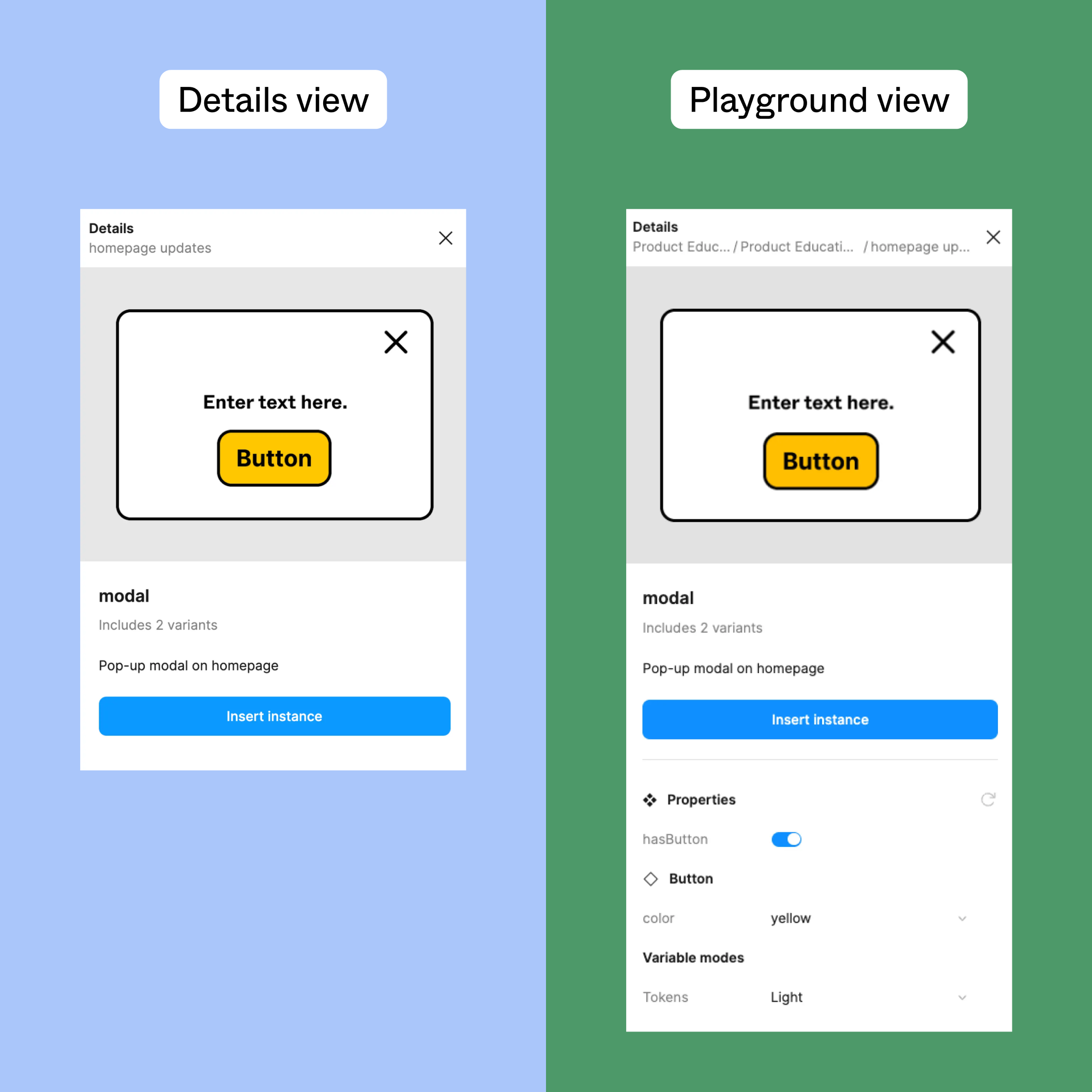
A comparison between the component details modal versus the component playground.
She is beauty, she is grace. She is the component modal and playground in the assets panel, which allows you to click an asset to open a modal with more component details and a link to the main library. If you’re on a Professional plan or higher, you also get a playground to swing through previews of variants, properties, and variable modes. This means easier iteration, more freedom to experiment, and more time spent in your flow state.
Most Agile
You’ve been waiting for reusable values in Figma with bated breath, and this year, they finally arrived with color, number, boolean, and string variables. Recently, we followed up with variable support for effects, stroke weight, layout grid, layer opacity, and corner radius, and now variables can be bound to a specific component instance—not just the parent instance. It makes maintenance a whole lot easier for design systems managers Variables, one of Figma’s newest features, help you streamline designs and connect more closely to code, but what do they tell us about larger shifts in the industry? We dig into what they might signal for the future of design systems.
The future of design systems is semantic
The Handoff Hero
Hm, what’s the padding on that header? What’s changed since the last time you viewed this file? If you’re a developer, these are just a few of the questions that pop up when you’re poking around a design file to gather info for implementation. This year, we made it easier to answer those questions—and many more—in one fell swoop with the beta launch of Dev Mode How can a design tool work better for developers? It’s a question we’ve been asking ourselves and our community. Today, we’re excited to introduce Dev Mode, a new workspace in Figma that’s designed to get developers what they need, when they need it, harnessing the tools they use every day. After two months of open beta, we’ve shipped more than 200 of the most-wanted updates to our Dev Mode workspace.Making Figma better for developers with Dev Mode

Dev Mode fast follows: 200+ new features and fixes

Best Fitting
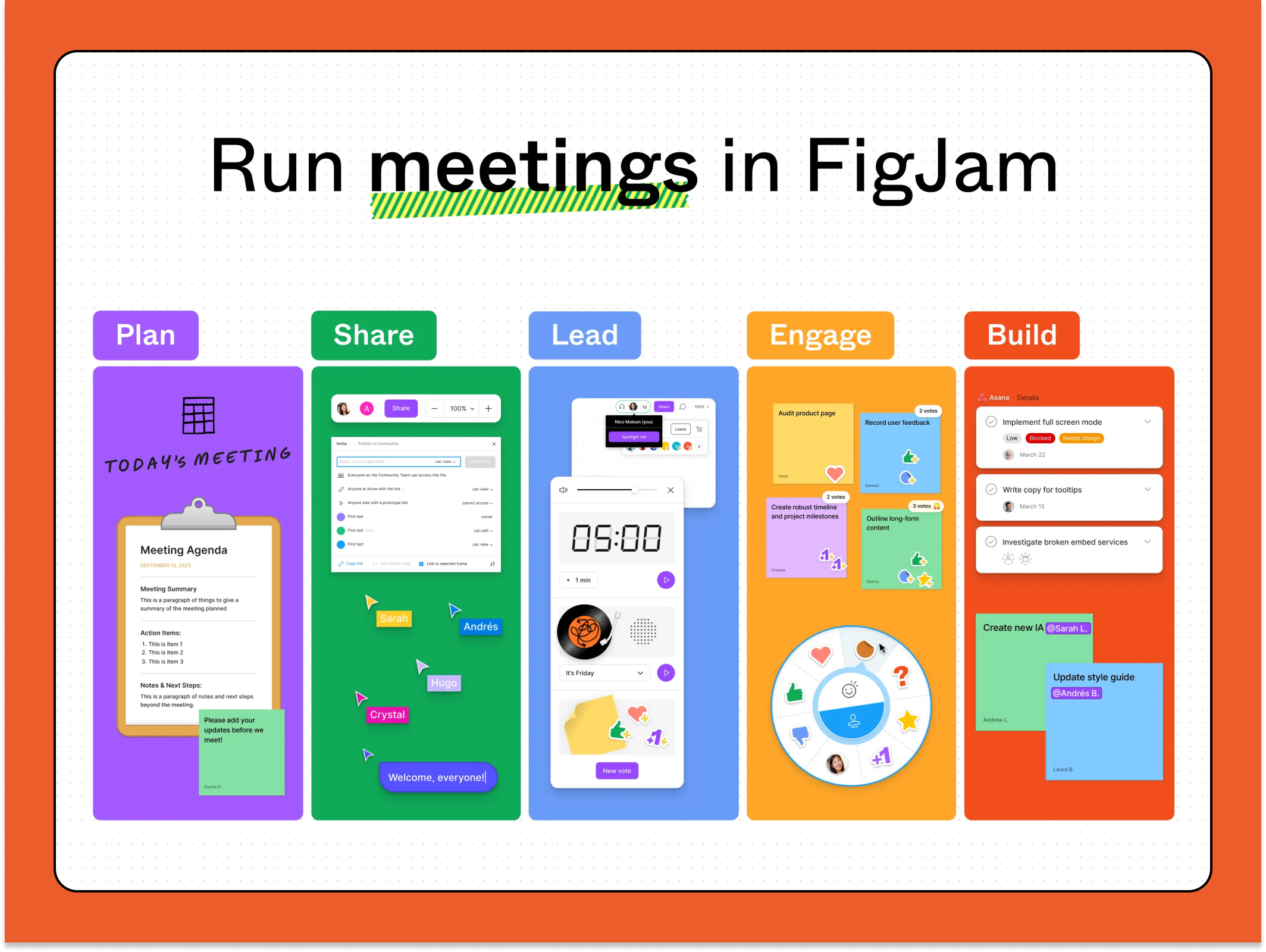
Most of the time, bespoke is better. It’s true of suits, millwork, and FigJam templates, which you can now tailor to your team’s needs, whether it’s for a weekly sync or a project retrospective. Does your crew like to kick off or cool down with a quick drawing exercise? Or, in our editorial team’s case, a cheeky game of Balderdash? Save them to your template files so you can swoop right in.
The Ideator
Learn how to generate boards and diagrams with FigJam AI.
We’ve all been there: staring down a blank FigJam file, palm sweaty on the mouse as we’re trying to structure a team brainstorm. Or we’re squinting at the stickies scattered like confetti in the wake of a meeting, unsure how to sort through them all. With all eyes on AI this year, we decided to harness its powers with a series of AI-enabled features for FigJam Our new AI features help bring the power of visual collaboration in FigJam to even more people.
Introducing AI to FigJam
The Snap Judgment
Few things delight us more than proper kerning or a perfect squircle In a famous 1972 interview, Charles Eames answered a short sequence of fundamental questions about the nature of design. This is a story about one Figma engineer’s hunt for the perfect answer to a programming challenge.

Desperately seeking squircles
The Copycat
Command+Z walked so “select and copy from version history” could run. We know when you’re rooting around in version history, you’re most likely trying to find that thing you deleted, and now desperately need—whether it’s to compare iterations, keep track of design decisions, or undo an honest mistake. Now, instead of duplicating a file or digging into the layers panel to copy something from the canvas, you can just hop into an earlier version and grab what you need.
The Scroll-Stopper
When we first introduced sticky scrolling in prototyping in March, then-Twitter user @GregHuntoon said what we were all thinking: “Thank the lord baby Jeebus in heaven above!” Since then, we’ve made it even better so you can nest sticky elements inside each other to, say, create a stack of multiple scrolled elements. Thank Jeebus, indeed.
The Clean Cut
If you haven’t caught a whiff of it yet, we’re—shall we say—particular about the way text shows up on the canvas. That’s why leading trim, which allows editors to snip off extra space above and below the text, is near and dear to our hearts. We may not be able to make the stars align, but text alignment is the next best thing.
As we bid adieu to this year and ring in the next, we’re reminded that at Figma, it’s not just about the features and updates we release, but the impact we make on our users’ day-to-day lives. From teachers engaging their classrooms Two educators explain why visual collaborative tools, like Figma, are making learning more accessible to everyone, and why teaching by the book is a thing of the past.Unlocking the power of an inclusive classroom with Figma’s open canvas


Explore Figma’s 2023 Handoff