Aashrey Sharma, a UX designer at Epic Games, shares what video game navigation can teach us about building the next generation of interfaces.
Share Press start: How controllers shaped video game design—and where interfaces may go next
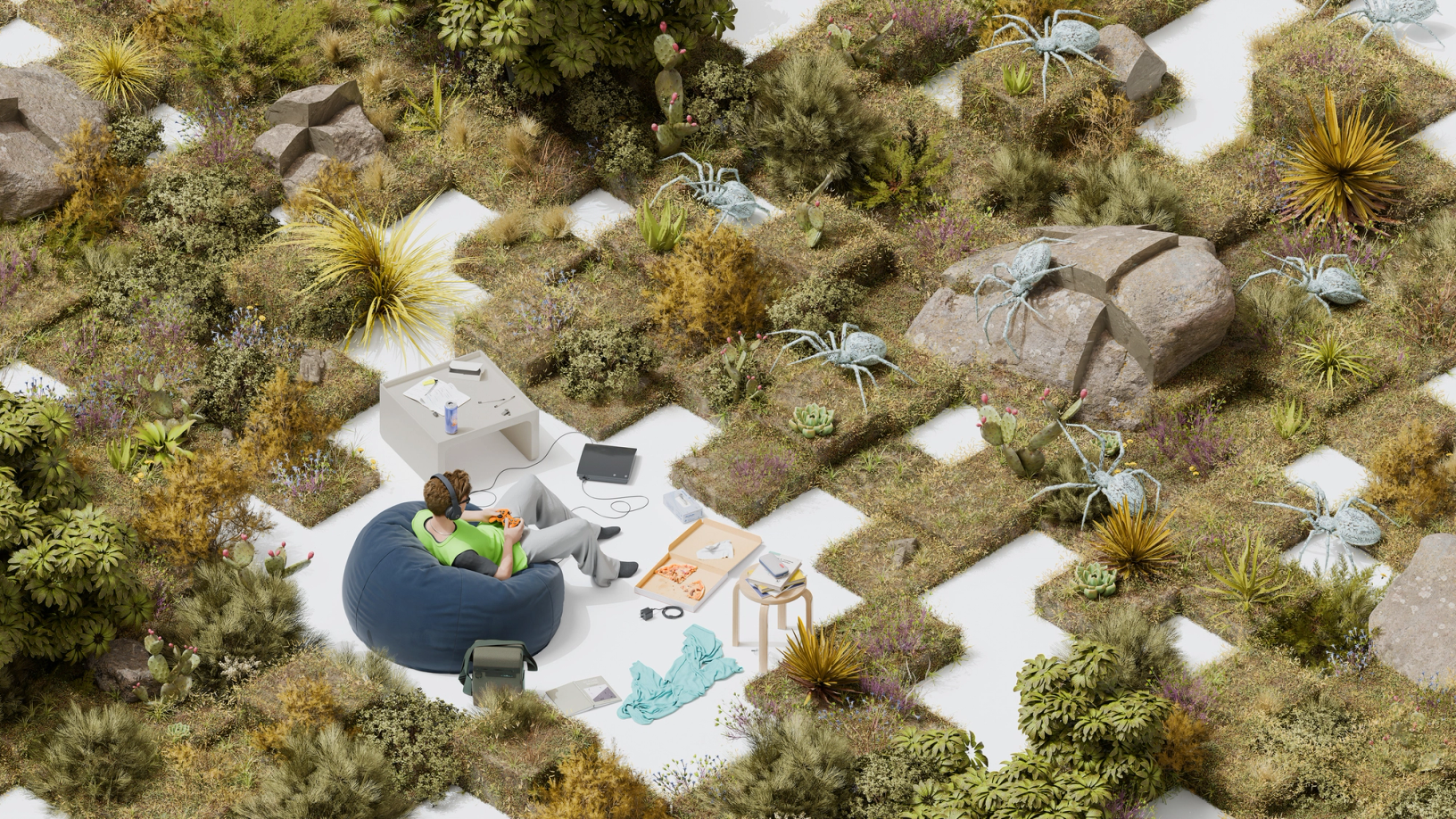
Hero illustration by Max Guther
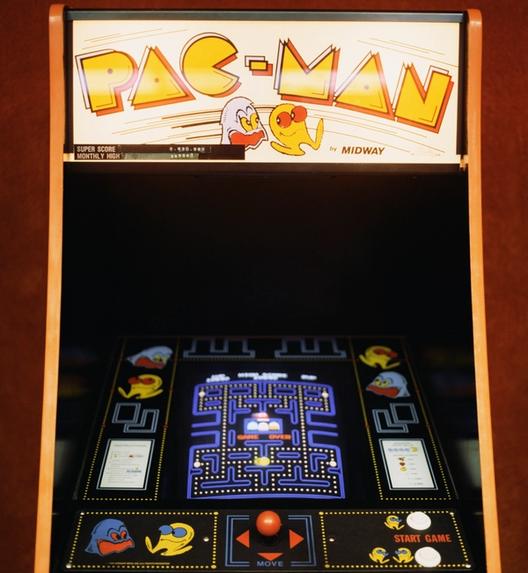
Video games have come a long way since 1958, when American physicist William Higinbotham debuted Tennis for Two, a bare-bones tennis game played via aluminum controllers on an oscilloscope—a machine that displays electrical signals—at a public exhibition. Even as games moved into arcades and personal gaming systems, they remained relatively simple. From Pong (1972), to PAC-MAN (1980), to Super Mario Bros (1983), early games didn’t have much of a user interface. They had a single screen, also known as the title screen, and the player could either insert a coin in the arcade machine or press a button on the game controller at home to start playing.

As a UX designer who’s currently working on Fortnite at Epic Games, I’m fascinated by the ways modern games have built on these simple foundations. In the world of AAA games—an industry term for games put out by larger publishers—it’s common to see features such as multiple game modes, character customization, an in-game cosmetics store, a world map, an inventory, quests, settings, and more. To accommodate these features, game interfaces have expanded from the simple title screen to a hub of screens connected by menus, tabs, and other navigation UI, leading to much richer, more immersive experiences.
More compelling game experiences and next-gen gaming hardware have powered a global industry that’s now worth $184 billion worldwide, generating more global revenue than the music and movie industries combined. Games have become a major pillar of culture, and players gain popularity through livestreaming platforms like Twitch and YouTube, lucrative e-sport tournaments like Dota’s The International and Valorant Champions, and even the Olympic Games in 2023.
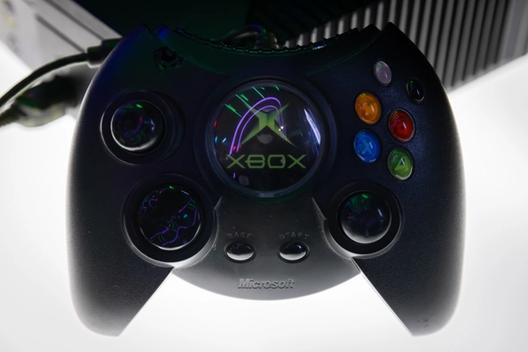
The one thing that has not changed, however, is how players interact with their games—through the game controller. From the Atari 2600 (1977) to the PlayStation 5 (2020), the game controller in all its iterations has had a combination of directional inputs and buttons that have allowed generations of gamers to play without breaking their muscle memory. Over the past 50 years, game controllers have established navigation principles that lay the foundation for game interface design, creating a consistent experience for players and reducing the cost of designing and developing them.




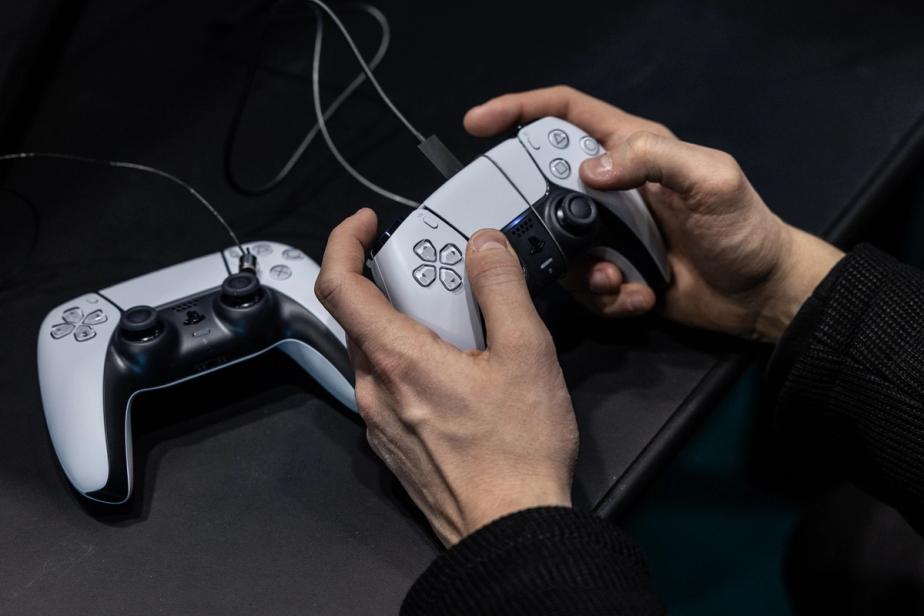
Simply put, inputs shape interfaces. With new technologies like AR and VR, game controllers are evolving, opening up new possibilities for game design. Players navigating the 2D world of the interface and the 3D world of the game—whether that’s weaving a supercar through a high-speed circuit Forza Horizon 5 or ducking for cover in Superhot—are beginning to engage their physical environments, too. By examining the connection between input and experience, we understand interfaces more broadly—and ready ourselves for new ways of moving within them.
The input defines the interface
We commonly design digital interfaces for desktop, mobile, and television. Each of these has a signature input method that most people use: For desktop, we have the mouse; for mobile, our fingers; and for TV, the remote. The capabilities and limitations of each of these inputs have a huge impact on the interfaces we design for these surfaces.
For example, the mouse is incredibly agile and precise—capable of moving across a computer screen in a single motion, and interacting with controls as tiny as a few pixels. Its multiple buttons often serve specific functions: In most web browsers, the middle button opens a link in a new tab, and right-clicking opens up a context menu for additional actions. Leveraging that speed and accuracy, we design small, compact UI controls for desktop software, exposing more controls and content at a time so users can get more done without having to navigate to a different screen.

While our fingers are relatively nimble, they’re much larger compared to a mouse cursor, lacking pinpoint precision. It’s easy to misclick the interface, so mobile apps tend to have bigger, rounded controls with plenty of space between them. Still, we refer to fingers and mice alike as pointers, as they can move and hover to interact with any part of the interface—hence the term "point and click." Touch screens have also taken advantage of gestures like tapping, swiping, and pinching: actions that now feel like second nature.
With TV remotes, you navigate by pressing the up, down, left and right buttons, also known as the directional buttons—say, to find your next binge on Netflix—and then press the OK button to select the show and start playing the episode. This is an example of focus-based navigation, and it isn’t just used in TVs. You’ll find instances of it everywhere: in websites, text editors, screen readers, and yes–video games.
Homing in with focus-based navigation
In a nutshell, focus-based navigation allows you to move a “focus” highlight from one interactive element to the next, which you can then select, activate, or interact with in some fashion.

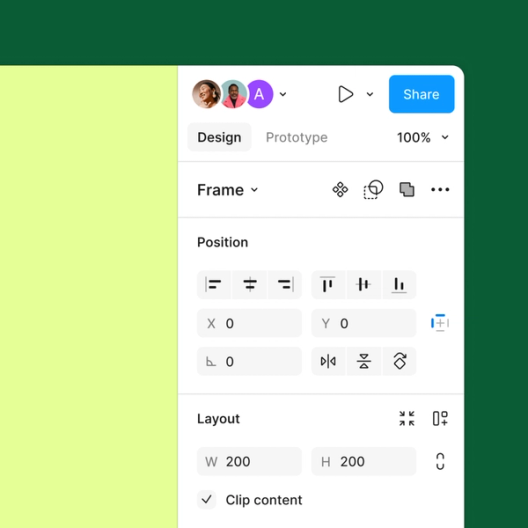
You can try it on any website, including this one. Go ahead, press Tab on your keyboard a few times. See the dotted highlight jump around? You can press Enter to navigate to the highlighted link. Just promise to come back and finish reading this, okay?
Apart from TV remotes, keyboard navigation—an important part of web accessibility Figma's new accessibility features bring better keyboard support to all creators.
Who says design needs a mouse?
On a game controller, you press the D-pad buttons or tilt the left stick to move the focus highlight. Then, you interact with the focused element by pressing a face button on the right such as the X button on a PlayStation controller.
Since players move through game interfaces with focus-based navigation, a few questions naturally arise for designers: What should the default focus be when players navigate to a new screen? And how should the game help players understand how to get from one part of the interface to another?
The strategy behind a starting position
Answering the first question means choosing a starting position. This is a powerful lever for designers to make sure that all parts of the game interface are equally accessible, or about the same number of button presses away. While it may seem intuitive for the starting position to be the first item in a list, or the top left element in a grid, this would drop players on the edges of an interface, force them to press more buttons to navigate around, and ultimately increase friction in gameplay.
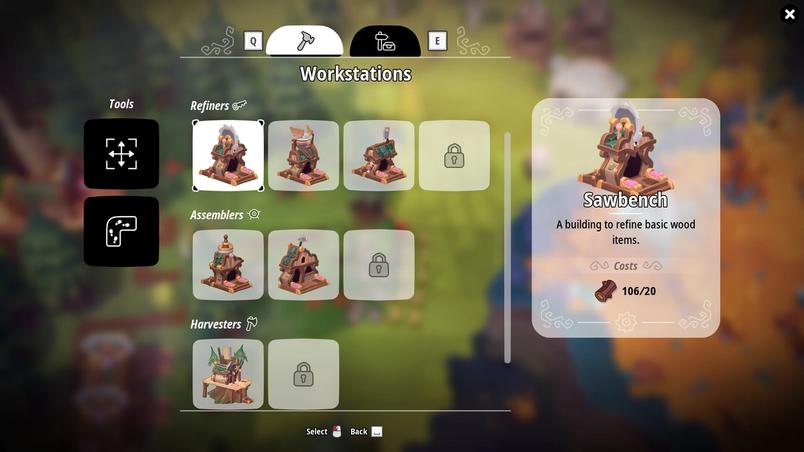
For this reason, designers often orient the interface around the starting position to allow players to reach all parts of the interface easily. For example, when the player opens the Build menu in Oddsparks, the Tools section is located close to the starting position in the Refiners section.

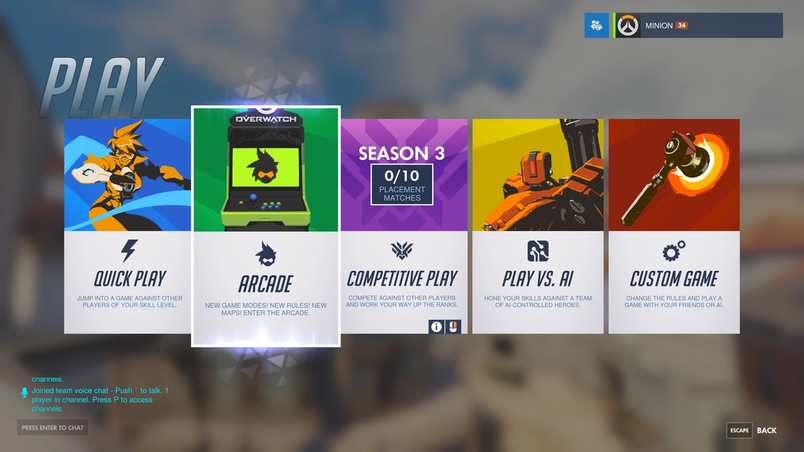
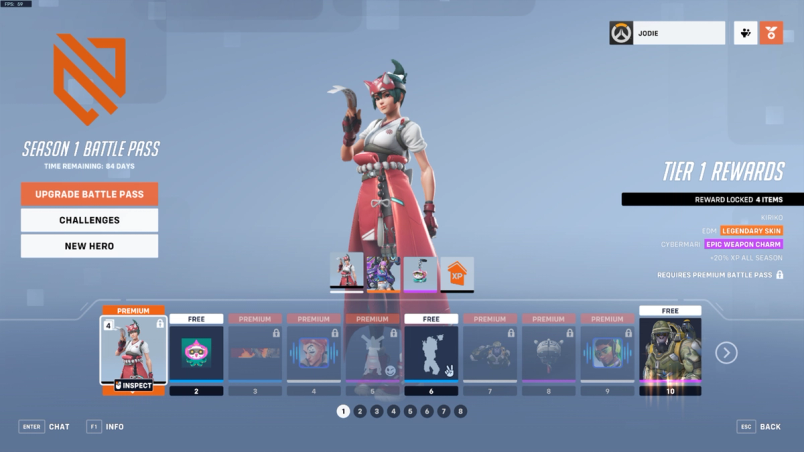
Another common example is the Store page in games, which allows players to acquire cosmetic items, power-ups, and in-game currency. Games often move the most compelling items close to the starting position, so players can see and take action on them immediately. In Overwatch 2, for instance, players can preview their Battle Pass rewards, or pay to upgrade their tier for premium rewards; the buttons to make purchases are located around the bottom-left starting position.

There’s no direct analogue to the starting position in pointer-based interfaces, but the principle of placing the most important actions closest to the user’s reach on mobile apps is a close cousin. Much like a starting position, the bottom navigation bar in iOS and Android apps and the floating action button (FAB) popularized by Material Design reduce friction, whether you’re trying to search your email inbox or post a thought on X.
Pointing players in the right direction
Because the game controller has directional navigation through the up, down, left, and right buttons, games structure their interfaces to align with these directions using lists and grids. This gives players an intuitive understanding of where they are, and how to get to their desired action.
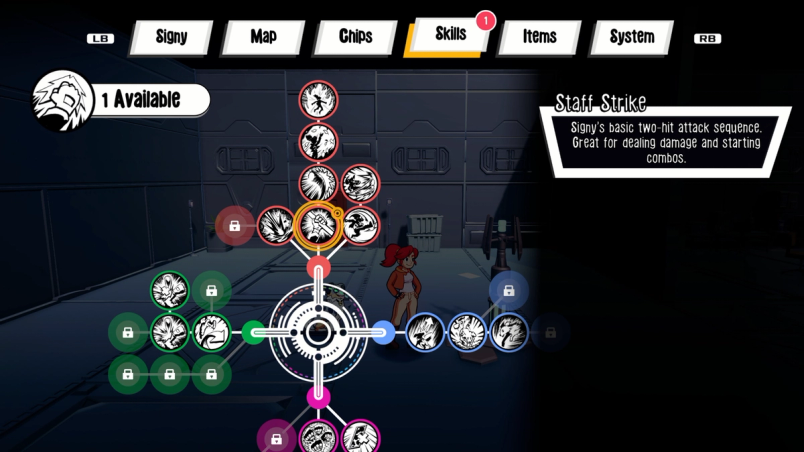
However, strict directionality can feel rigid. Not every interface needs to be a perfect grid or a list. Depending on the artistic direction of the game, some games may intentionally break from convention, presenting more expressive interfaces to the player. In such cases, these interfaces provide visual cues to create pathing the player can follow to easily navigate the interface. In Signy and Mino: Against All Gods, subtle connecting lines in the Skills tab help players understand how different skills are related, and how to unlock them in sequence.

Reducing friction with global navigation
We know that focus-based interfaces have an interaction cost associated with them—each navigation step is a button press. To avoid fatiguing users, focus-based interfaces provide shortcuts in the form of global navigation that works regardless of what’s in focus.
All games and apps that use the game controller, for example, consistently have a back button that takes the user to the previous screen, without them having to navigate to the back UI element in the interface. In fact, the back button convention is now so common—the O button on a Playstation controller, the B button on an Xbox—that some games omit the back UI element entirely to present a cleaner interface.
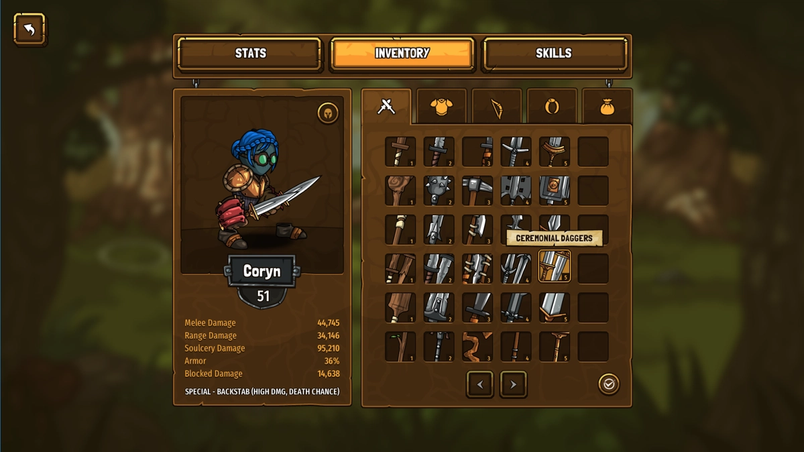
Game interfaces also use top-level tabs to quickly switch between different parts of the UI, like player stats, inventory, skills, map, or quests. The action to switch these tabs is bound directly to the shoulder buttons on the controller—located near the top left and right corners of the device.

Similarly, Android and iOS apps leverage familiar gestures as a form of global navigation: Swipe from the edge to go back; swipe up from the bottom to get to the home screen. These consistent actions help users navigate, even when they’re in a new interface.
What games teach us about the future of interfaces
Check out Game UI Database, a phenomenal free resource documenting over 1,300 games.
We can imagine how navigation principles from video games might be adapted to interfaces more generally. In an AR/VR context, for example, your head, eyes, and fingers are the new pointers—and what we’ve learned from designing game inventories, quest logs, and in-game conversations with other characters may be used for file organization, to-do lists, and messages. The head-up display in games—usually tracking health, armor, and ammo—might show notifications, live sports scores, or music that’s currently playing.
And in an era where AI powers more personalized and contextualized interfaces, the organizing principles of game design can help us understand how to organize traditional user interfaces in 3D contexts—they offer so many examples of how to make experiences feel tactile, and there’s a lot to learn by experiencing them firsthand. In other words, there’s a lot to learn from play: Just take it from Figma Engineering Manager Alice Ching, who explains how Figma draws from the gaming world Engineering Manager Alice Ching discusses the parallels between developing gaming interfaces and building Figma and FigJam, and why our tech stack is more similar to a game engine’s tech stack than a web stack.
How Figma draws inspiration from the gaming world


Explore Software Is Culture, a collection of stories tracing the impact of design on how we think, feel, and connect.


Aashrey Sharma is a designer, speaker, and builder based in Seattle. He designs experiences for Fortnite at Epic Games, has spoken at Figma Config 2024, and builds open-source Figma plugins that help over 250,000 designers do their best work.