Save time on building decks—without sacrificing design


From extensive image libraries to design cleanup, plugins for Slides are here to help you prepare and polish your presentation.
Share Save time on building decks—without sacrificing design
Whether you’re pitching a potential client, running an all-hands meeting, or demoing a new product, a great presentation means telling a great story. That’s why we launched Slides in beta last year Say goodbye to lackluster presentations. Today, we’re announcing the open beta of Figma Slides, here to set a new standard for telling visual stories.

Stack the deck with Figma Slides
Some of your favorite plugins—and some exciting new ones—are already compatible with Slides. From eye-catching images, to color gradient controls, to animation, these plugins make it easier to tailor your designs and build a compelling narrative. To get you started, we’ve rounded up some stand-out plugins to try at every stage of slide creation.
Populating your slides
Pull ready-to-use graphics with IconScout
When you’re deep in the flow of building your deck, the last thing you want to do is hunt for graphics to bring your ideas to life. Luckily, IconScout puts millions of high-quality icons, illustrations, Lottie animations, and Unicons at your fingertips. Tweak your designs with a custom color palette, or find similar assets with reverse image search.


Try IconScout to access a library of illustrations, icons, and Lottie animations.
Ditch boring backgrounds with Mesh Gradient
Create custom backdrops and color fills that feel tailored to your brand with Mesh Gradient, which allows you to edit the vertices and edges of an underlying grid. Get live previews of each gradient, and save and upload them for further editing.

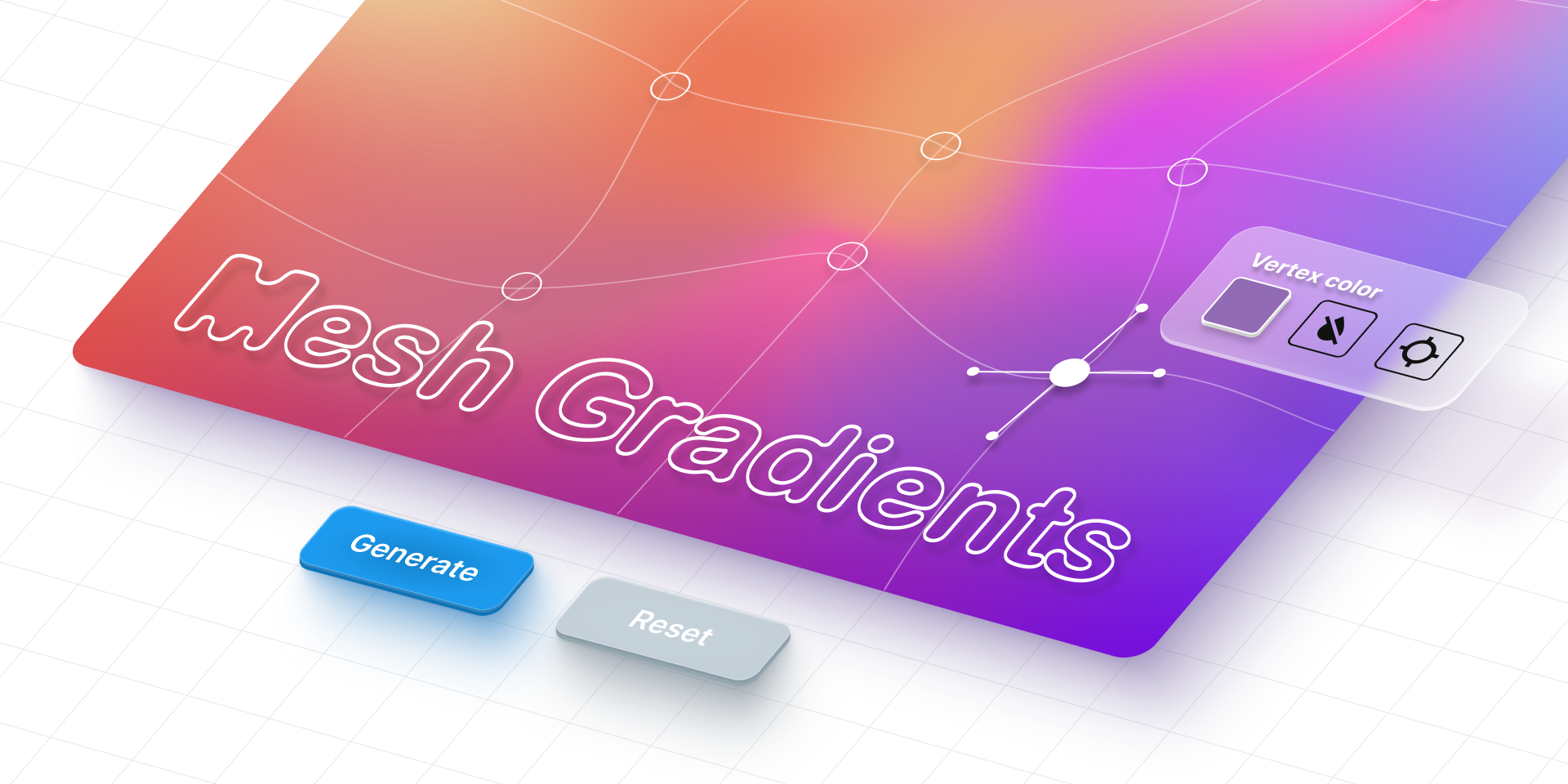
Try Mesh Gradient to create more vibrant backgrounds.
Turn PDFs into assets with PDF.to.design
If you find yourself wrestling with a PDF, look no further than this plugin, which imports the file as designs with editable layers so you can extract the text and images you need. Plus, files are kept private on your local machine, so you don’t have to worry about revealingsensitive information.

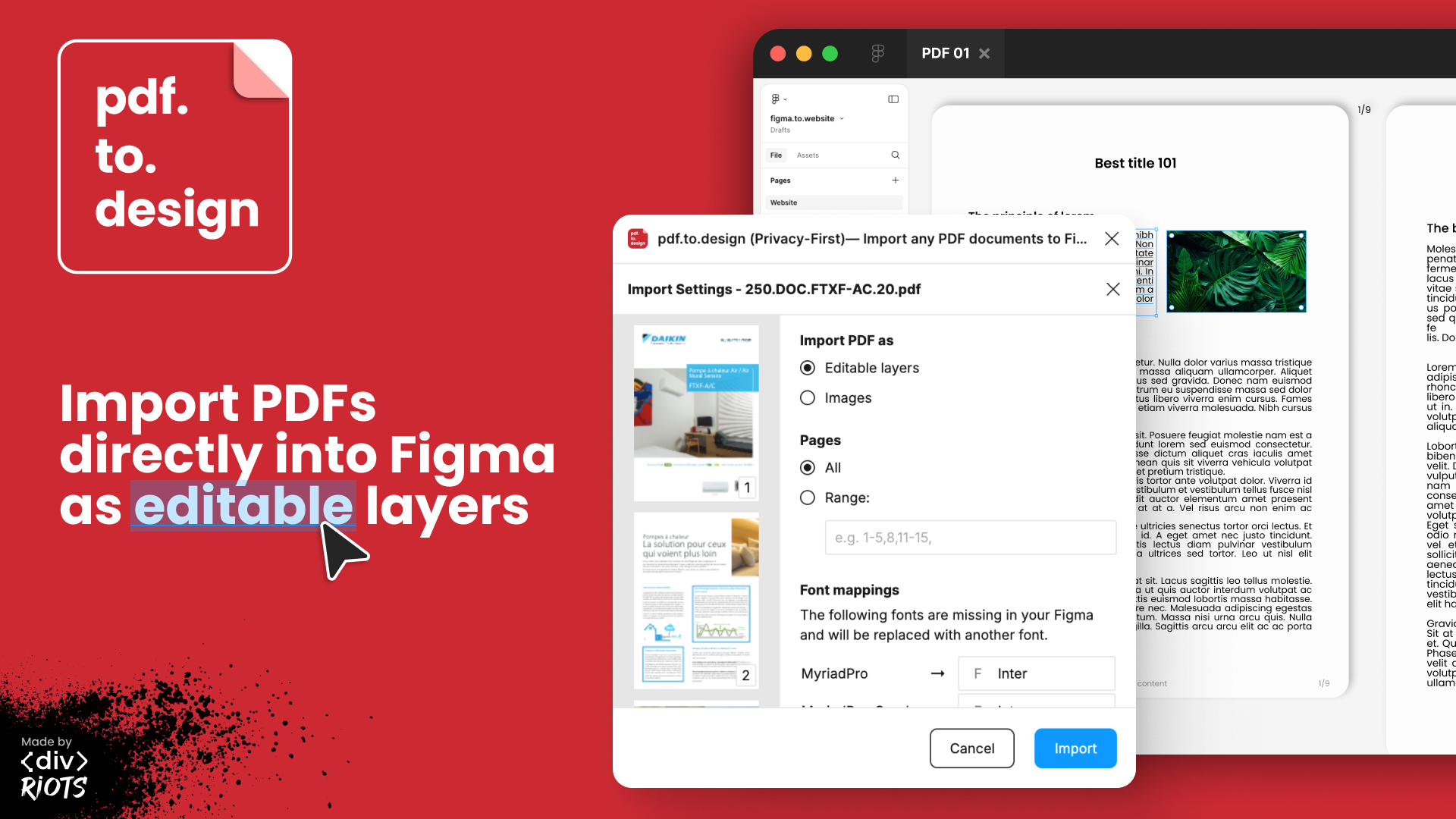
Try PDF.to.design to edit your PDFs.
Adding power and polish
Animate your designs with Jitter
It’s a well known fact that motion draws the eye. Import individual slides or your entire deck into Jitter to easily animate text and images, and choose from a variety of effect parameters for fine-grained control over how individual elements behave.

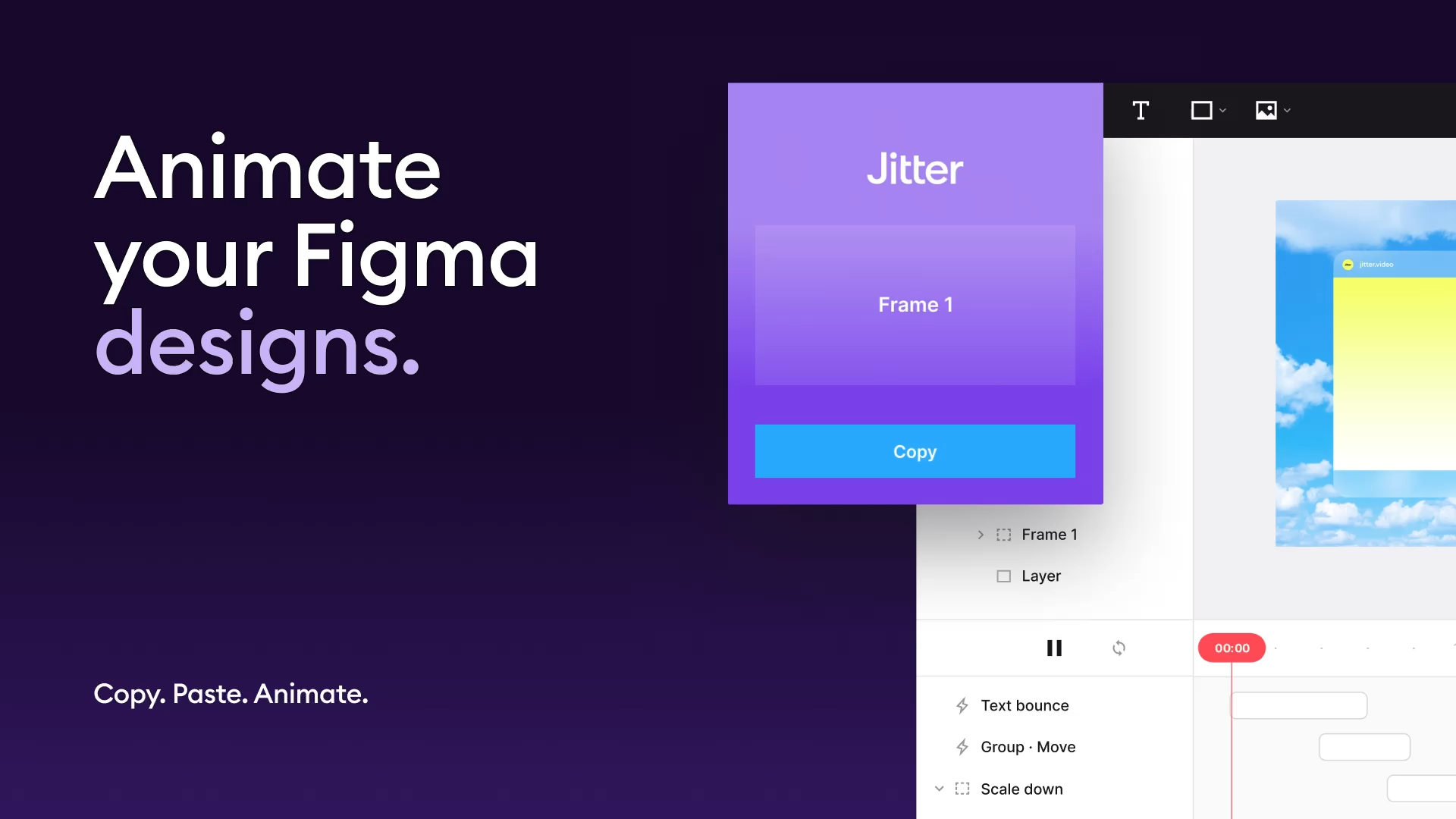
Try Jitter to add dynamic animation.
Connect to your audience with UI Faces
Whether you’re presenting user research or sharing a design mockup, avatars humanize your work and help you and your teams relate to your audience. Choose from a library of AI-generated faces ranging from photorealistic, to cartoonish, to abstract, to hand-drawn—to the downright outlandish with UI Faces’ alien set.


Try UI Faces to access a library of avatars.
Match your slides to music with BeatSync Video Maker
There’s nothing quite like a video set to a catchy beat to keep your audience engaged. With BeatSync Video Maker, you can upload a track—or choose a provided tune—and select slides to match up to the automatically parsed beats. Export the video for a hype reel that’s ready to share, or upload it to another presentation as a compelling closer.

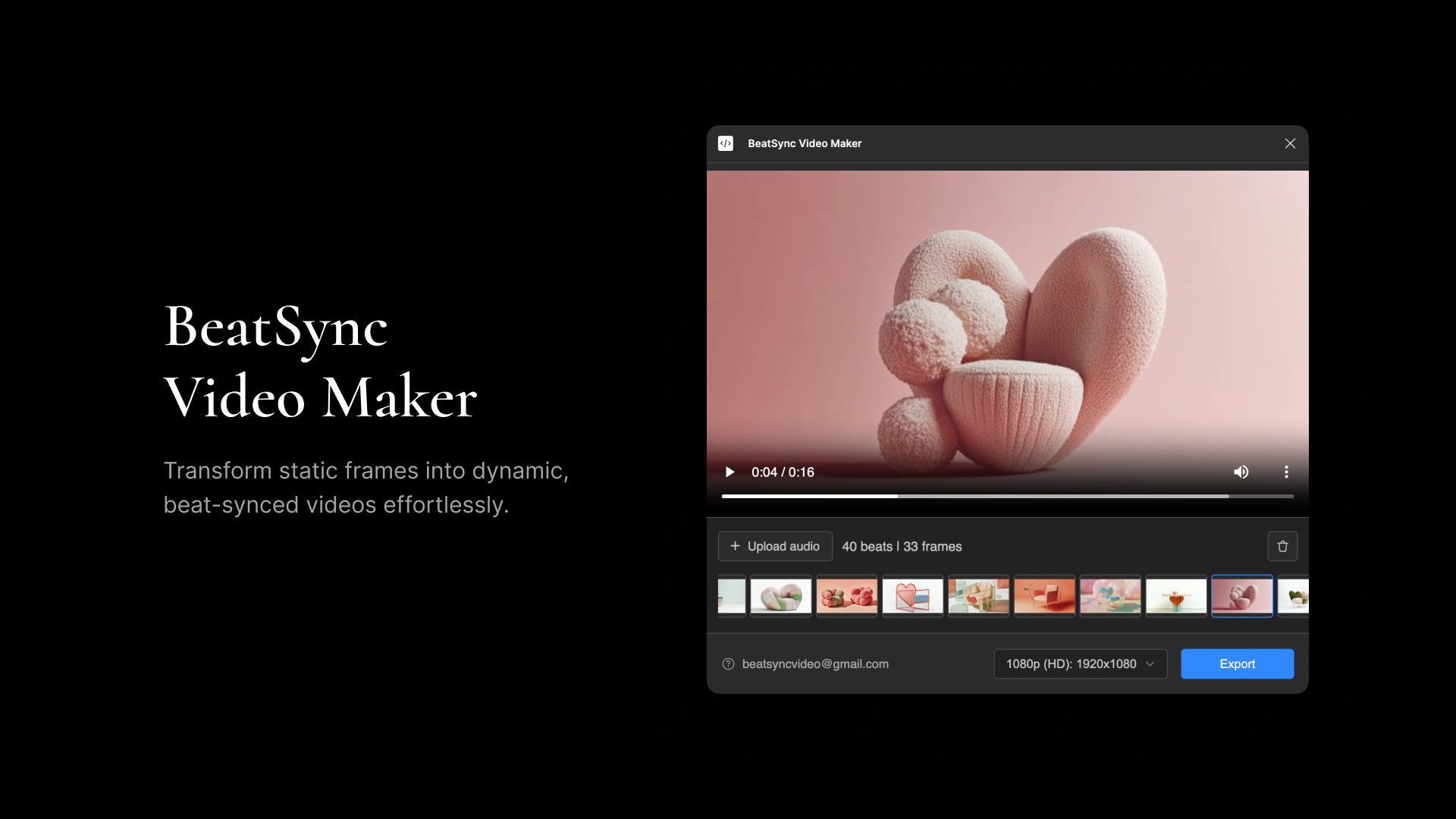
Try BeatSync Video Maker to stitch together slides into a memorable video.
Preparing to present
Tidy up your design with Clean Deck
Things can get messy when you’re building a deck, and that’s a good thing—moving sections around in grid view, cutting unnecessary slides, and throwing assets onto the canvas for easy reference are all part of telling a compelling story. When you’re ready to present or publish a new template, however, it’s time to clear the clutter. Clean Deck scrubs skipped slides and off-slide layers so you don’t have to do the dirty work yourself.

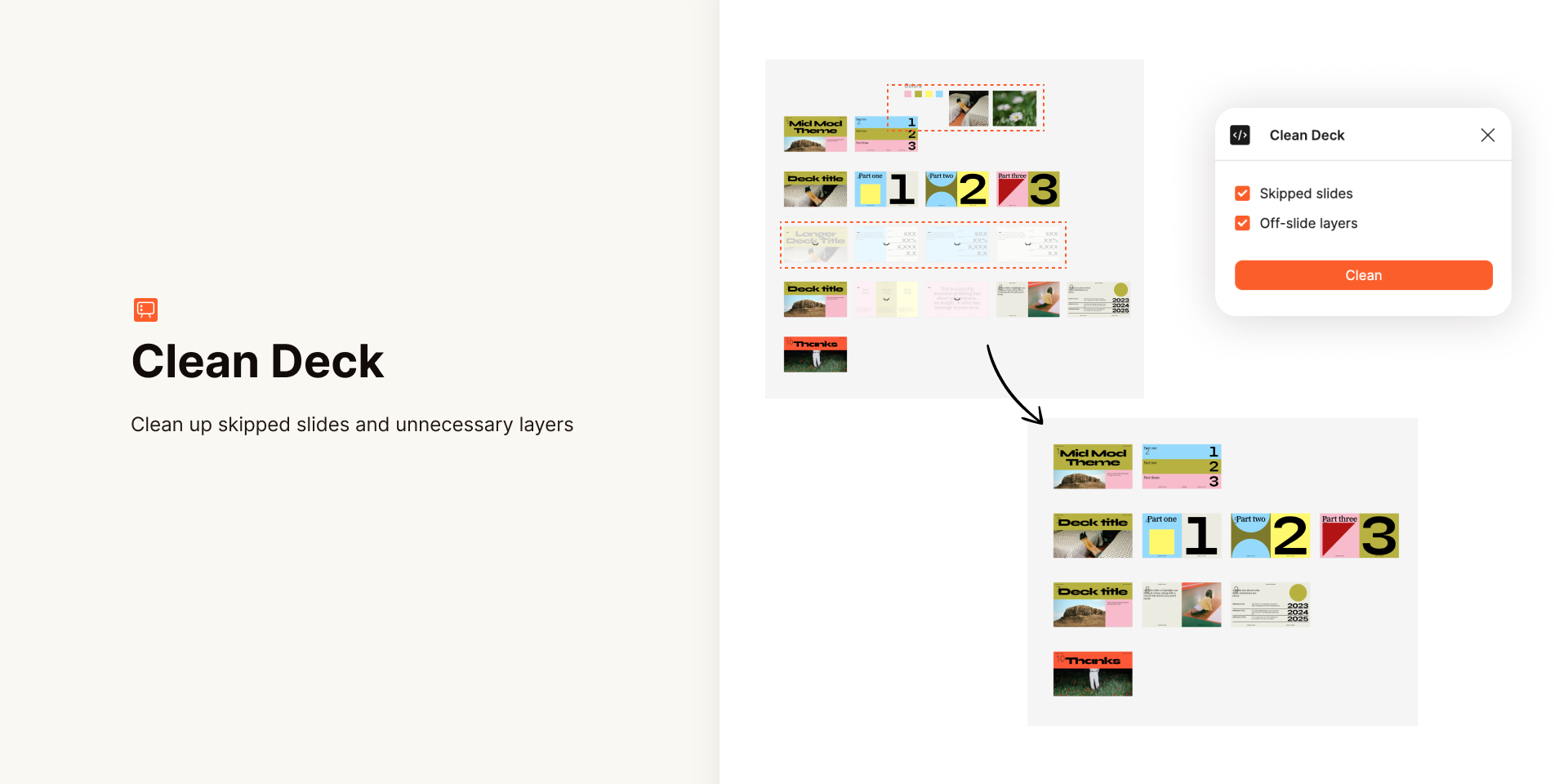
Try Clean Deck to delete what you don’t need.
Get your timing down with Rehearse
It’s always a good idea to do a couple dry runs before giving a big presentation. Whether you’re running the show or sharing the spotlight with other presenters, Rehearse keeps track of how long you spend on each slide as well as total elapsed time. With practice, you’ll hit your beats and stay on pace.

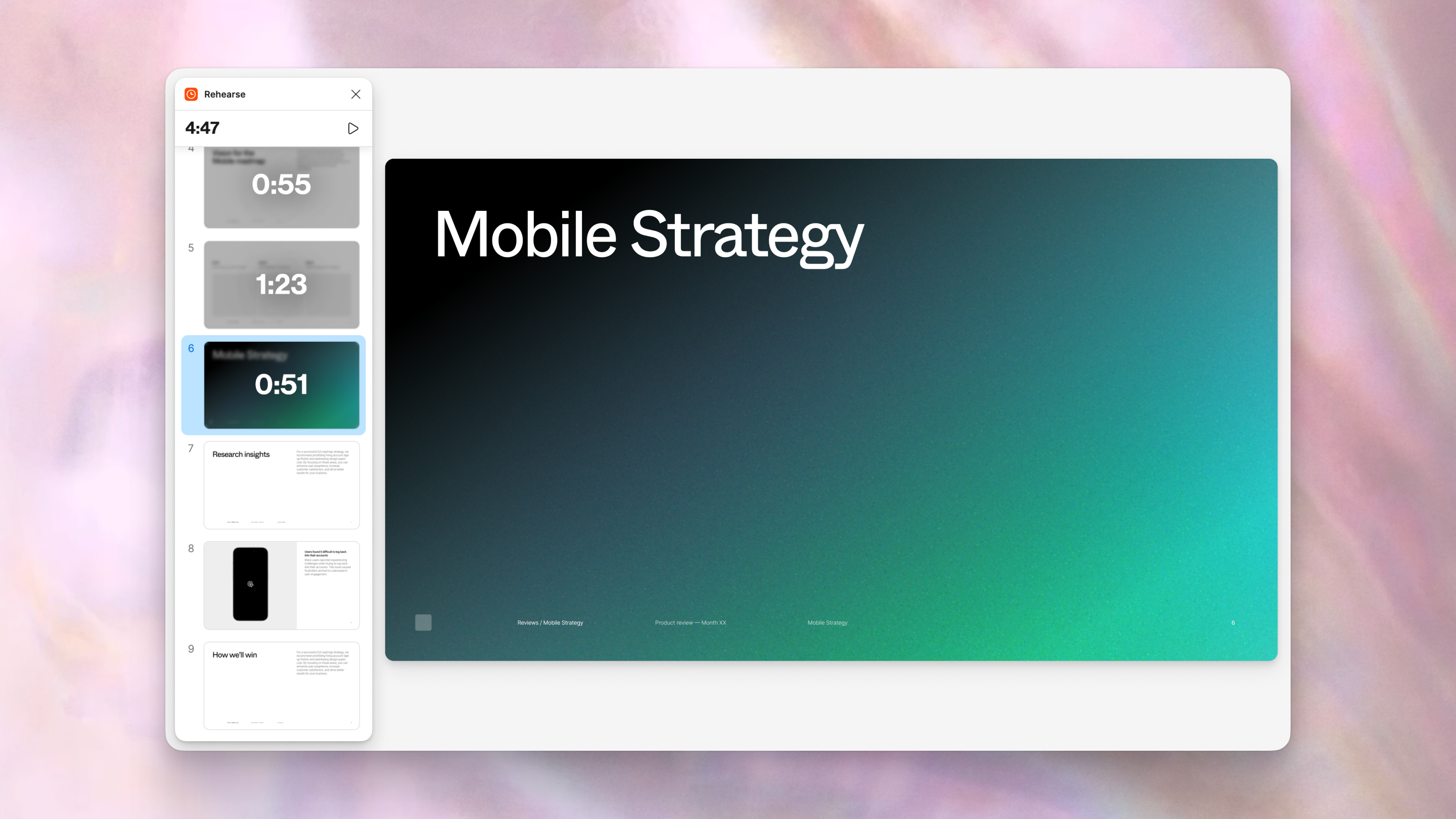
Try Rehearse to stay on track.
As always, everything we build is in partnership with the community. We’re thankful to everyone who’s published a plugin and welcome you to build your own. To see what’s available for Slides, check out the Figma Community—new plugins are being added every day.