For the love of craft: Vectorize images in Figma


With our new AI image editing tool, Vectorize, you can turn raster images into editable vectors, allowing you to tweak, refine, and scale designs directly in Figma.
Share For the love of craft: Vectorize images in Figma
Sometimes, the best design ideas don’t start in a file—they begin with a sketch or a visual reference that you riff on and refine until it’s ready for the world. But for a quick scamp in a notebook, a texture snapped on your phone, or a raster-based drawing to become an adaptable part of your design, it has to make the leap into vector form. That’s where things can get tricky. Translating raw, expressive beginnings into clean, scalable designs often means tool hopping or recreating work from scratch, which can sand down the very character that made your idea special in the first place.
Vectorize is the newest addition to our growing AI image editing toolkit, including Remove background, Erase object, and Expand image.
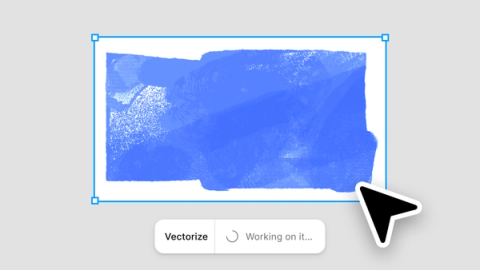
Vectorize, our new AI image editing tool in Figma Design and Figma Draw, streamlines that process. In one click, you can bring an image straight into the Figma canvas and convert it into an editable vector—ready to adapt and evolve—without breaking your workflow or compromising on creative control. Here, we’re sharing three of our favorite ways to use Vectorize.
Turning raster drawings into vectors
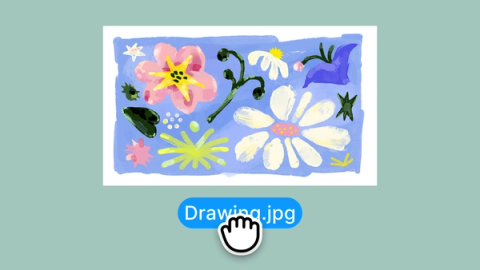
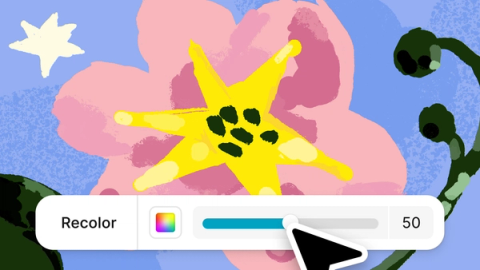
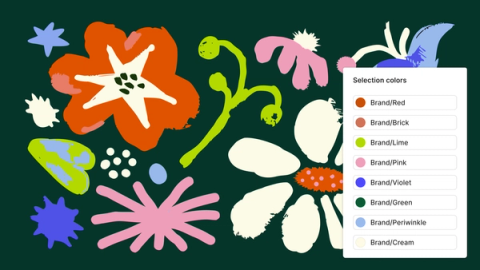
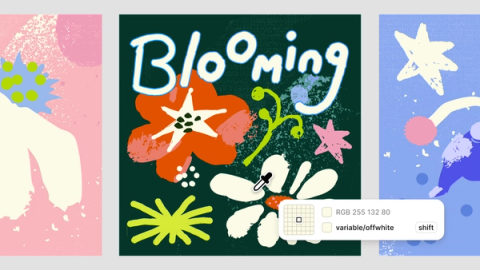
Turn an emotive pencil sketch or rasterized drawing into a flexible, dynamic vector illustration that you can then tweak and reuse in Figma. Simply drag and drop a file into Figma Design or Draw, select Vectorize, and fine-tune everything from size and shape to overall composition. Use color variables to update your color palette for brand or collateral consistency. From there, your sketch becomes a living asset you can continue to iterate on and evolve across your designs.





Making hand-drawn lettering editable
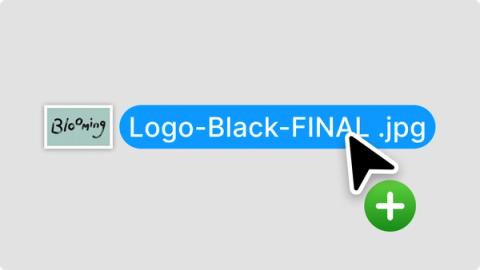
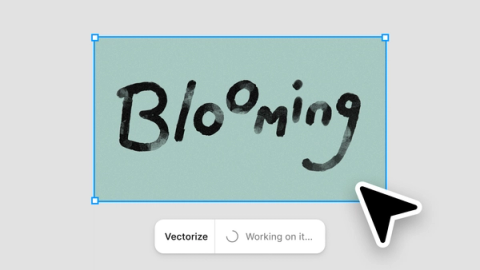
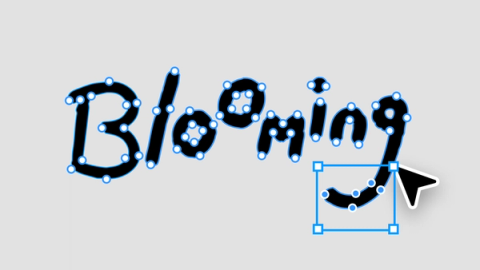
Bring the real world onto the Figma canvas by turning hand-drawn typography into a modifiable logo. Start with something physical—a photo of calligraphy, a word sketched on paper, or lettering assembled from a collage. Insert the image into Figma, then convert it into a vector with Vectorize to make every curve and stroke customizable.
Once it’s on the canvas, keep shaping your creation with the Figma tools you already use. Remove the background, use bounding boxes to refine and reposition individual letters, then experiment with color until the form feels right. What began as ink on paper becomes a flexible digital artifact—ready to scale, change, and live in a larger context, whether that’s cover art, an interface, or a brand moment that needs a little more differentiation.




Creating reusable texture overlays
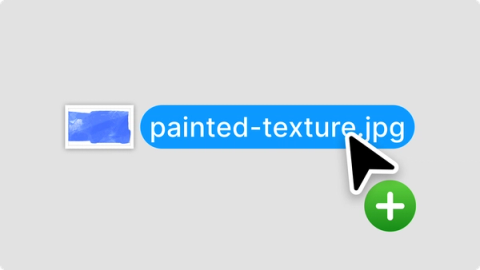
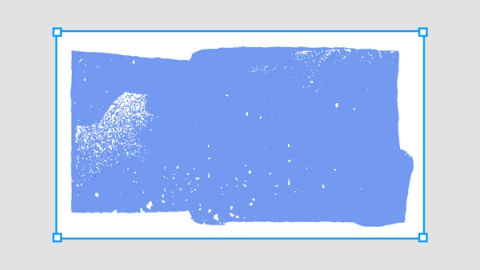
Vectorize brings back the subtle imperfections that make work feel more human and distinct. Bring a captured grain or noise texture into Figma, convert it into a vector, and refine it into a reusable overlay that adds depth wherever it’s needed—from layered UI moments to bold landing pages.
Across all design work, Vectorize makes it easier to bring real-world inspiration into your workflow without unnecessary detours. It lets you build more expressively—adding grit where it’s needed, giving layouts more depth and personality, and transforming all of those elements into reusable components.





Vectorize is also available in Slides and Buzz (beta), so you can refine and scale assets across formats. Available on Dev, Collab, and View seats (Buzz only).
We want to make it easier to bring craft, capability, and style to everything you create in Figma—so you can spend less time wrestling with tools and more time designing. Vectorize is now available in Figma Design and Figma Draw for Full-seat users on Professional, Organization, and Enterprise plans with AI enabled.
If you’re interested in learning more, check out this step-by-step guide for using Vectorize, including smart do’s and don’ts for working with AI image tools.
As a quick heads-up, AI actions use credits. You can learn more about how AI credits work here.
Rogie is an artist, designer, and programmer who has been working at Figma for six years. He started as a Designer Advocate, motivated by elevating designers’ voices at Figma. Today, he works as a Product Designer, focused on making Figma better through art and illustration tools that enable more expressive visual design.