15+ ways we’re improving accessibility in Figma



To make Figma easier to navigate for all, we’re launching over a dozen keyboard-only controls and improving the screen reader experience.
Share 15+ ways we’re improving accessibility in Figma
Today we’re rolling out improvements that make it easier and more reliable to navigate files with a keyboard or screen reader. From new keyboard shortcuts—like selecting widgets in FigJam or adjusting ruler guides in Figma Design—to clearer announcements and richer text support for screen readers, these updates create a smoother experience that supports focus and flow for everyone.
Better keyboard controls for the canvas and commenting
Visit the help center for the complete list of new keyboard controls.
Whether you’re adjusting a line in Figma Design or adding connectors to a FigJam diagram, we’ve expanded ways to move around the canvas with the keyboard. Canvas objects are now also accessible to screen readers, improving navigation for all users. We’re also making collaboration and handoff smoother for keyboard-only users with the ability to add, move, and navigate comments and Dev Mode annotations using shortcuts. Here’s what else is new.
Canvas keyboard controls
Expanded controls across products help you move, adjust, and align objects with greater accuracy. These new controls include:
Figma Slides
- Resize presenters notes and adjust writing tone with AI.
FigJam
- Add, remove, and reorder rows and columns.
- Add and adjust stamps, votes, and washi tape.
- Navigate through canvas objects like AI summaries and embedded links and videos.
- Select and adjust marker lines and highlighter strokes.
- Add, remove, and reorder rows and columns in tables
Figma Design
- Add, select, and adjust lines.
- Add, remove, and edit ruler guides.
- Create and edit arcs from ellipses.
Cross-product
- Open and move between links in edit or view-only mode.
Feedback keyboard controls
New shortcuts help you respond to feedback and move between discussions without breaking focus. Use these shortcuts to:
- Add, move, and navigate comments across all products (not available in beta products).
- Add, move, and navigate Dev Mode annotations.
Toggles
Now, there are new ways to personalize your experience across Figma products like:
- Turning off overriding Figma exclusive shortcuts when typing
- Choosing whether to auto-follow others with spotlight
Improved screen reader support
We’re improving how Figma works with assistive technology, so screen reader users can navigate files smoothly, hear objects in order, and stay up to date as things change. From more consistent and reliable announcements, to richer object descriptions, to formatted text support that lets screen readers recognize bolded or italicized words, these improvements make content easier to follow and understand.
Updates include:
- Actions navigation: Now, moving through interactive elements like buttons, menus, and panels with the Tab key follows a more logical order. Users can jump straight to specific actions—like opening a menu, triggering a button, or selecting a toolbar option.
- Object descriptions: Screen readers now provide more detailed announcements for objects—like its type, name, and state—so users can better understand what’s on the canvas.
- Announcements updates: Announcements are now more consistent, so users don’t miss important changes like new comments or file updates.
- Formatted text support: Screen readers now preserve rich text formatting like bold, italics, lists, and links, so users don’t lose important structure and meaning.
- Receive info about canvas objects in Buzz and Slides: Screen readers can now recognize and announce canvas objects in Buzz and Slides.
Enhanced screen contrast
With a simple toggle, users can now increase distinction between text, elements, and their backgrounds in both light and dark modes. Enhanced color contrast makes Figma easier to navigate for everyone by:
Three ways to turn on enhanced contrast: From Accessibility settings in the Main menu, from the Actions menu, or from General settings
- Improving legibility of text and icons
- Making it easier to see how the interface is organized and quickly spot the elements you need
- Helping buttons and outlines stand out more clearly when you hover or interact with them
- Improving visibility in glare and sunlight
- Making it quicker to scan and reorient when multi-tasking
The subtle differences between regular contrast and enhanced color contrast can make a big difference, especially during prolonged screen exposure.


Figma Sites accessibility improvements
Tips for making your site more accessible:
Add alt text to images that need description, or mark it as decorative.
Set the correct HTML tag.
Add labels when visible text is missing or unclear.
Mark purely decorative elements as hidden.
Use the color contrast tool in the color picker to improve readability.
Through actions like applying the correct HTML tags and accessibility properties to each element in your design, you can create a website through Figma Sites that’s easier to use for those who rely on screen readers or keyboard navigation.
Our Figma Sites accessibility improvements include:
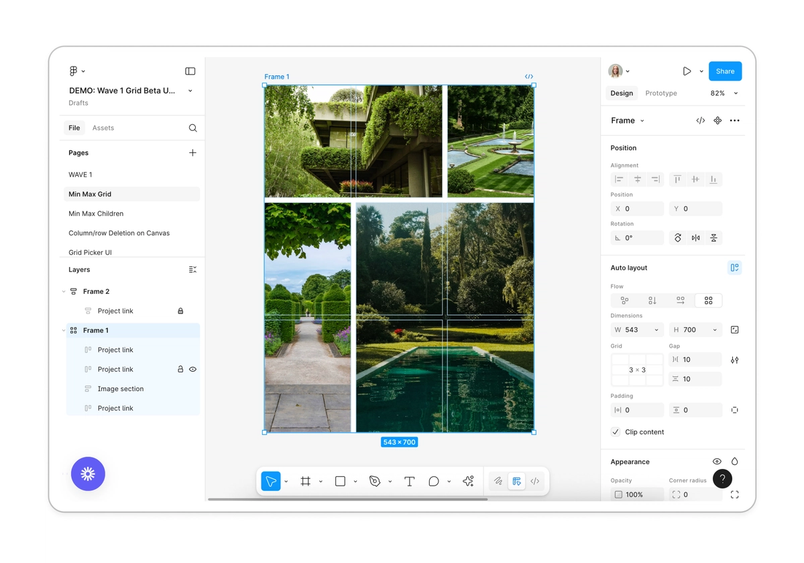
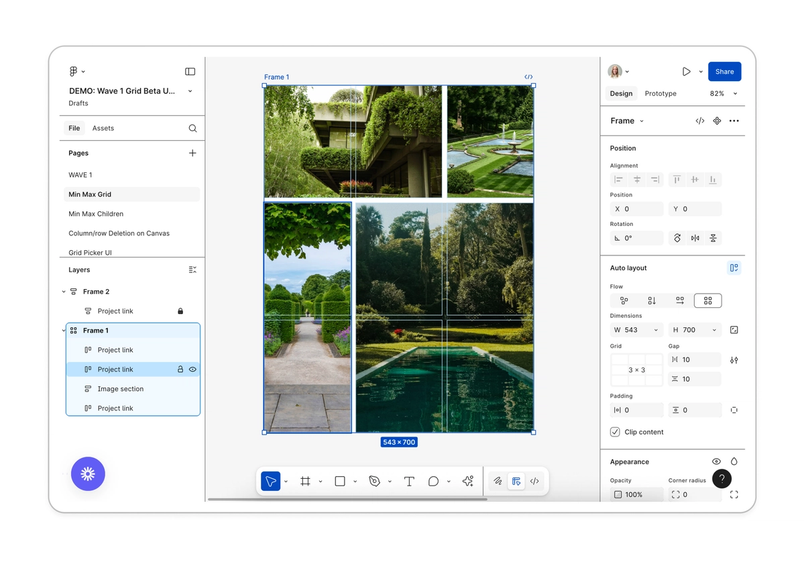
- Apply new ARIA (Accessible Rich Internet Applications) properties that add context beyond HTML and view corresponding HTML tags in the Layer panel.
- Edit accessibility options such as alt text, labels, and roles directly from the properties panel, making it easier to ensure your site is accessible.
Together, these updates make it easier to design and publish sites that are more accessible and inclusive by default.
To learn about our latest accessibility updates, visit our new accessibility help center.
Emma Webster is a writer and editor on Figma’s Story Studio team. Previously, she’s worked as a writer at Faire and Audley Travel.