Build with more context and more control in Figma Make





Starting today, Make kits and Make attachments bring context into Figma Make, so prototypes start from real components, data, and constraints.
Share Build with more context and more control in Figma Make
AI can generate a UI in seconds. The first draft looks convincing, with a clear layout and interactions that feel right. But it’s not your design system: The components aren’t yours, the copy is placeholder, and the edge cases that actually matter are nowhere to be found. What starts as a fast first pass becomes a slow review process spent rewriting instead of refining.
The issue isn’t the quality of the draft. It’s that it doesn’t have the same context your team uses in production. Today, we're changing that with Make kits and Make attachments. They bring structured context that works at two levels: design system context from your code (kits) and project context from the files you’re working with (attachments). With these updates, exploration starts closer to your design context—allowing you to move faster and generate designs grounded in how your product works.
Make kits: Teach Make about your design system
npm packages are shared JavaScript modules you install from the npm registry to power your app. They act as reusable building blocks your app can depend on.
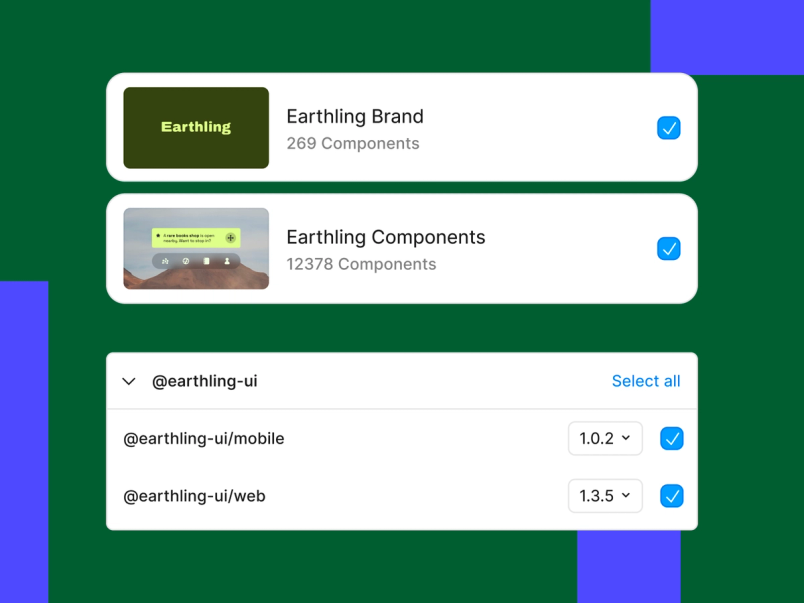
Make kits let design system authors create customized, reusable packages that combine their library’s components or styles with detailed guidelines that teach Make how to use them. You can bring in code components through npm packages—whether from a public registry or Figma's secure private registry—or use styles and tokens from your Figma library. In both cases, guidelines teach Make not just what components or styles exist, but how they should be used.
Before Make kits, you might have generated a generic v1 and then prompted further refinements—adjusting spacing, patterns, and matching components to your design system. With Make kits, that starting point shifts. Makes begin with production-aligned components, so structure matches your codebase from the start. Components follow the same structure as your codebase. The result is less cleanup before review and a shorter distance between what’s prototyped and what ships.
What this looks like in practice
Make kits work like a set of building blocks. The more specifically you define how those pieces should be used, the more reliably Make can assemble something that holds up. The impact shows up most clearly in shared surfaces used across teams and workflows:
- More consistency across forms, dashboards, settings, and onboarding flows
- The ability for teams to generate in parallel without drifting from the design system
- Less time spent fixing context before review
For teams working closely with engineering, there are additional benefits:
- Engineers recognize the components and patterns immediately
- Fewer questions like “Is this custom?” arise
- More focus on the actual proposal, not the translation of the design
When engineers recognize what they’re looking at and don’t have to question it, teams can move from validating the work to refining it.
This is just the beginning. As Make kits continue to evolve, we’re working toward bringing even more of your design system into Make—including replicating component structures from Figma libraries—so the output more accurately reflects your design intention, whether it’s based in code or inside Figma.

Make attachments: Ground your prototype in the project, not just the design system
Make kits ensure that your design system is the foundation of every Make you generate. But every project has nuances not found in a component library: real data, migration constraints, edge cases, compliance requirements, and content.
That’s where attachments come in.
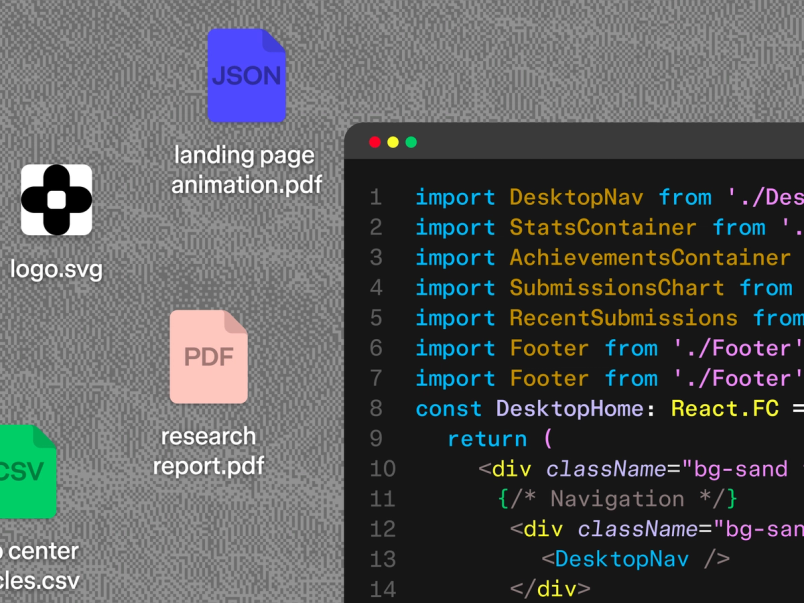
Make attachments support PDFs, markdown files, CSV and JSON datasets, screenshots, brand guidelines, legal copy, images, media, and SVGs.
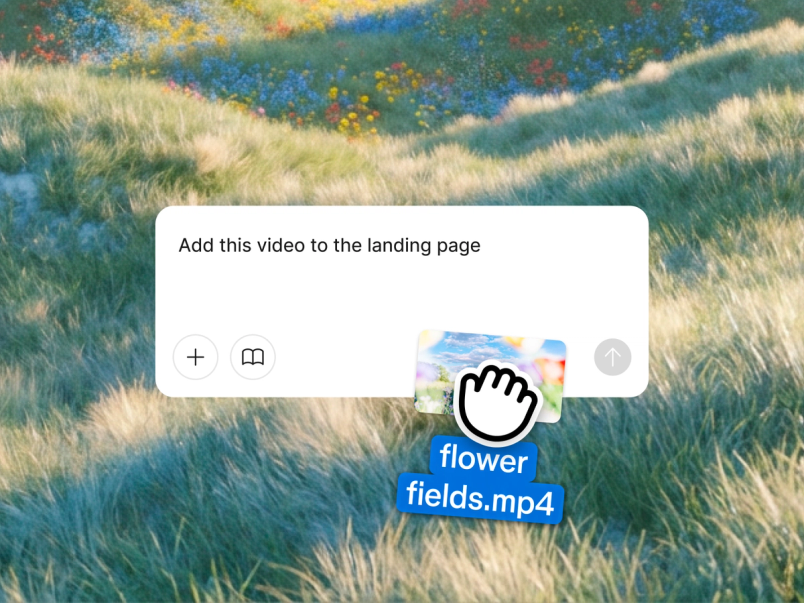
Make attachments let you bring real project context directly into Make—from PDFs, datasets, screenshots, and more. Instead of summarizing everything in a long prompt, you attach the source material and let Make reference it directly. The difference becomes clear when you’re prototyping something complex.

What this looks like in practice
Take a full onboarding flow for a digital product. You’re working with real user data, legal requirements, and multiple validation states. Before Make attachments, you might have described the flow in a prompt. Then, Make would produce a clean, idealized version—shortening legal copy, simplifying validation states, and reducing edge cases. With Make attachments, Make references the actual data or spec: Real values reveal layout constraints and edge cases surface earlier in the UI. The prototype becomes a grounded working draft instead of a visual approximation.
Beyond a single flow, you can use Make attachments to bring real context into everyday work. Instead of placeholders, you work with real content like brand guidelines, tone-of-voice documents, screenshots of existing surfaces, and real data. Stakeholders react to something closer to what will ship, so decisions happen faster and with more confidence.
Because these attachments are flexible and project-specific, they work across workflows, whether you’re testing a content-forward flow, validating data constraints, or evolving an existing surface. You don’t need a formal component library to benefit. With Make attachments, prototypes stop approximating the product and start reflecting how it actually works.

Reflecting how teams actually build
When Makes use real packages, realistic content, and recognizable implementation patterns, they become easier for everyone to work with. Reviewers spend less time filling in missing context, and engineers can interpret the work quickly. With the Figma MCP server Today we’re announcing the beta release of the Figma MCP server, which brings Figma directly into the developer workflow to help LLMs achieve design-informed code generation.Introducing our MCP server: Bringing Figma into your workflow
With Make kits and Make attachments, Figma Make becomes a starting point grounded in how your product actually looks, feels, and behaves.
Structured context is just the beginning. Read more about how to get started with Make kits and Make attachments in the help center.
Ben Smit is a Product Manager at Figma focused on bringing design systems into Make. Prior to Figma, he built productivity and AI features at Slack.
Darragh is a Software Engineer at Figma, where he’s building AI tools to integrate design and code. Before Figma, he worked on Design Systems at Tinder and 3D Graphics at Microsoft.