



Make your site interactive with code layers


Today we’re launching code layers—a new way to build custom interactions in Figma Sites.
Share Make your site interactive with code layers
There’s no limit to what you can build on the web, but bringing those ideas to life often hinges on technical know-how. Taking a custom website from design to production (or prototype) means translating static designs into dynamic, responsive experiences—a process that requires working within the constraints of built-in interactions, being able to edit code directly, or passing work off to a developer.
We built code layers—interactive elements backed by custom React code—in Figma Sites to help you experiment with interaction and motion without additional technical knowledge or outside help. Whether you're creating an element from scratch or riffing on an existing design, code layers allow you to add dynamic functionality to your site—from flyouts and dropdowns to shaders and maps—by converting components to code layers, chatting with AI to build and tweak them, or editing directly in Figma's code composer. And, you can generate multiple code layer variations to compare your ideas side-by-side and experiment freely—all in the Figma canvas.

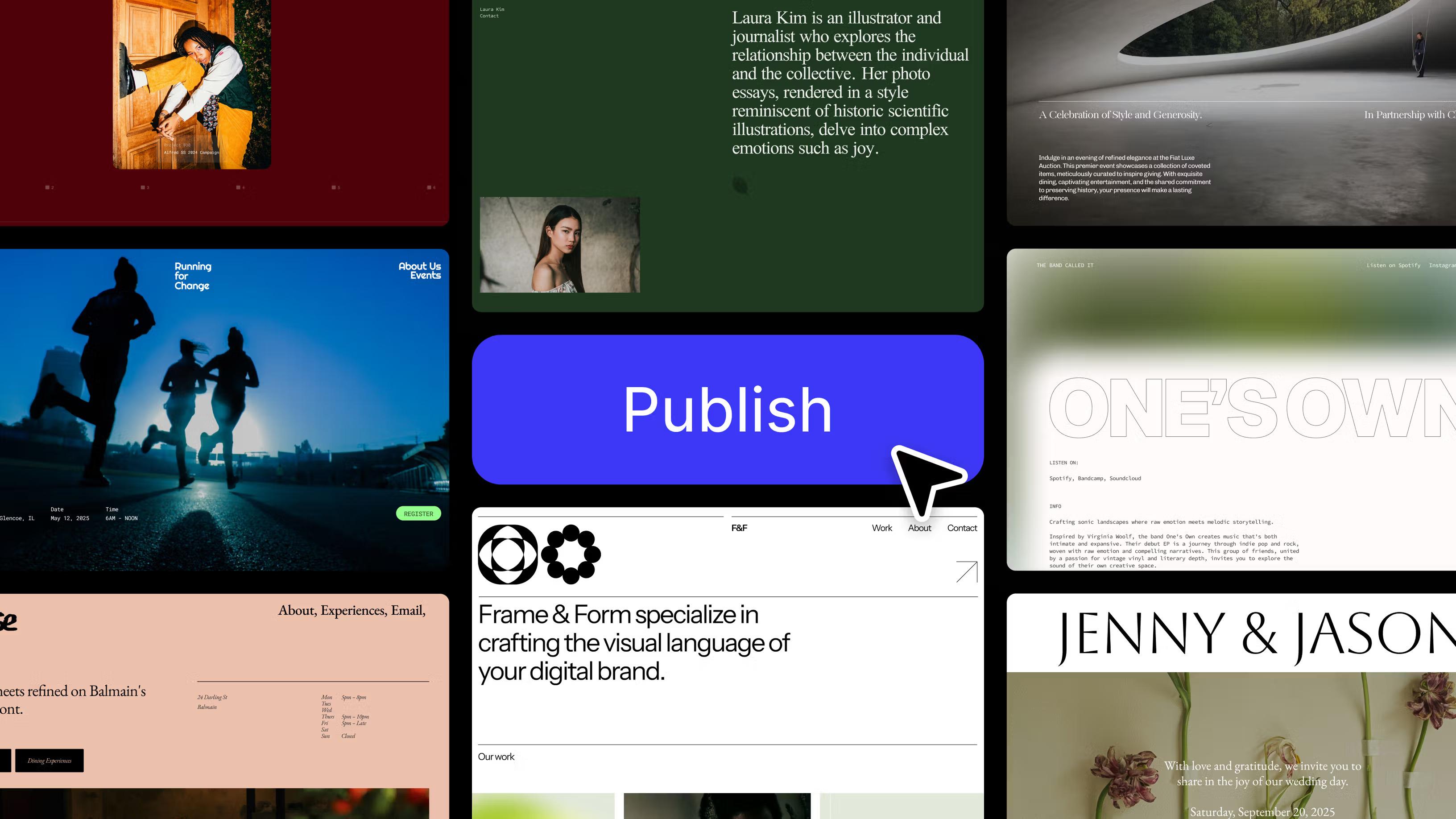
We recently launched Figma Sites, a tool that lets you design, build, and publish websites without leaving your Figma workflow. Code layers build on the ready-made elements and interactions that Figma Sites offers.
Customize and experiment with code layers
Code layers bring the power of Figma Make into Figma Sites. Not sure which tool to use?
Use Figma Make if:
- You want to build a functional app starting purely from a prompt.
- You don’t need a canvas or don’t want to do a lot of precise designing.
Use code layers in Figma Sites if:
- You’re adding interactivity to an existing website design.
- You’d rather start designing on the canvas and want to add custom interactivity or motion.
We launched Figma Sites with a number of pre-built responsive web elements and ready-made interactions—like the ability to drag objects and shuffle text—so you can easily spin up expressive designs. These features offer a jumping off point, and code layers let you customize them even further. By creating a code layer for a component, you can add dynamic behavior simply by prompting the built-in AI chat—powered by Figma Make.
For example, imagine you run a flower shop and want to give your customers the ability to design custom arrangements right from your website. With preset interactions like Draggable, you could design a way to move individual flowers across the page freely. But this feature alone wouldn’t support the full scope of what you’re trying to build—you’d need custom development work to create copies of flowers to drag infinitely, and to be precise on exactly how each flower is arranged.
With code layers, you could simply prompt the AI to enable copying and dragging floral components into the vase, then experiment further by playing with rotation or layering effects. A starting prompt for this interaction could read: I want to create a DIY floral bouquet arrangement. I want to be able to drag and drop a copy of each flower, as many times as I want, anywhere on the canvas. The copy of the flowers should be the exact same size as the original flower image.
How to use code layers in existing designs
There are a number of ways to make a WIP design more dynamic with code layers. Here are just a few:
- Add a custom animation like spinning or bouncing to your feature cards.
- Create the perfect text effect, like a counter that highlights an important statistic in your portfolio.
- Build useful components like a working loan calculator or a price estimator for a product page.
- Add interactivity to a static image by adding hover animations like a ripple or color change.
When you’re ready to experiment with code layers in an existing design:
- Open your design in Figma Sites.
- Select the element you’d like to edit and click the Figma Make icon in the Design tab of the properties panel. This will turn the element into a code layer.
- Describe the animations or effects you want in the AI chat.
- Test multiple ideas at once by duplicating a code layer using
Command Don the canvas and describe the variations you’re looking for in the AI chat.
How to start a code layer from scratch
If you’re not working with an existing design, you can quickly test a new idea for an interactive element by creating a standalone code layer from a blank canvas.
See a full code layers demo at our Config London keynote.
To get started: use the Make tool (or the shortcut E) to draw a code layer shortcut on your canvas, just like you’d draw out a frame. This will automatically open a modal that allows you to populate the frame using the AI chat or by writing code. You can even plug in this sample prompt: Create floral confetti that spans the width of the layer using flower emojis.
If you’re looking for more jumping off points, suggested AI prompts can help you define the interaction you’re trying to build. You can also lean on starter components from the Make tab, like buttons, image galleries, and navigation menus—each with pre-written code—that you can drop into your site as-is or customize to fit your design.
Setting the stage for future work
In addition to helping you experiment and iterate with interactive elements, code layers can make future work easier by allowing you to reuse logic and patterns.
Edit code layer properties
Code layers include customizable properties—strings, numbers, and references to other components—that allow you to modify the layer's behavior and appearance without editing the underlying code. These properties make it easy to adapt the code layer to different contexts. AI chat will automatically generate properties based on your prompt, and you can also request specific properties as needed.
Turn a code layer into a reusable component
Just like you can turn a frame into a component in Figma, you can turn a code layer into a reusable component. You can use these components across multiple pages, share patterns with your team, and implement them in future designs.
Import packages of code to unlock richer interactions
Node package manager (npm) is a registry commonly used by developers to find and share reusable chunks of code. These code packages allow users to import functionality like animations or 3D rendering without having to write everything from scratch.
With code layers, you can import Node package manager (npm) packages like motion and @react-three/fiber that provide pre-built functionality for animation, 3D elements, and more.
Code layers are available today for all users in Figma Sites. We hope that by making it easier to experiment and implement interactive components on your own, you’ll be able to push your designs further and take your ideas from imagination to reality.
Alex is the product manager for code & AI at Figma. Before Figma, he worked on developer tools at GitHub, DoorDash, and Microsoft.